VoIP Monitoring: Metrics, Tools and How to Fix Poor Call Quality
With VoIP monitoring, you hear about a bad call before anyone opens a ticket. Voice handles trouble worse than most traffic on your network. When a file download drops packets, it just asks for them again. A live call has no time for that. A 2% burst of packet loss, which a download wouldn't notice, is enough for everyone on the call to hear a gap.
Most of those problems start on the network path, which you can measure and fix.
In this blog, you will:
Learn the five numbers that decide whether a call sounds right (and the target Cisco or the ITU sets for each).
Match a complaint like choppy or one-way audio (or echo, or delay) to its usual cause.
Set up IP SLA probes that test the path your calls really take.
You'll know which number to check first when someone says a call sounded off.
What Is VoIP Monitoring?
In plain terms, VoIP monitoring is how you keep tabs on calls that run over your IP network (their quality, and whether they connect at all), so problems surface before users start complaining. It covers three layers.
First comes the network path the call rides on. Then there's SIP, the signaling that sets each call up. Last are the RTP packets carrying the audio you actually hear.
Each layer breaks differently. A busy WAN link makes every call on it choppy. A badly set firewall can let a call connect and then block the audio going one way. A dead SIP trunk is different again, since no new call connects even though the network looks fine.
Plenty of companies now place calls through a SIP trunk, a hosted PBX, or a cloud service like Teams or Zoom. Part of that path belongs to the provider.
Everything up to their edge is still yours, though: the office LAN, the Wi-Fi and the internet link. In our experience, that stretch is where most bad calls begin.
Which Five VoIP Metrics Decide Call Quality?
You'll want to watch five metrics. Latency, jitter and packet loss are measured straight off the network. MOS and R-factor aren't measured at all (they're calculated from the other three), and they boil everything down to one quality score.
Metric | What It Measures | Target for Voice | Source |
Latency (one-way) | Time audio takes to reach the far end | 150 ms or less | ITU-T G.114, Cisco |
Jitter | Variation in packet arrival times | 30 ms or less | Cisco |
Packet loss | Share of voice packets that never arrive | 1% or less | Cisco |
MOS | Estimated listener rating, 1 to 5 | 4.0 or higher | ITU-T P.800 scale |
R-factor | Transmission quality score, 0 to 100 | 80 or higher | ITU-T G.107, G.109 |
The targets in that table come from Cisco's voice design guidance, and the latency one isn't really Cisco's own: it's the 150 ms one-way limit from ITU-T G.114. Two details catch people out when they compare their own readings.
The first detail is direction. That 150 ms is one-way, and ping doesn't measure one-way. It shows the round trip, so on a symmetric link a 200 ms ping works out to roughly 100 ms each way. Voice is fine with that.
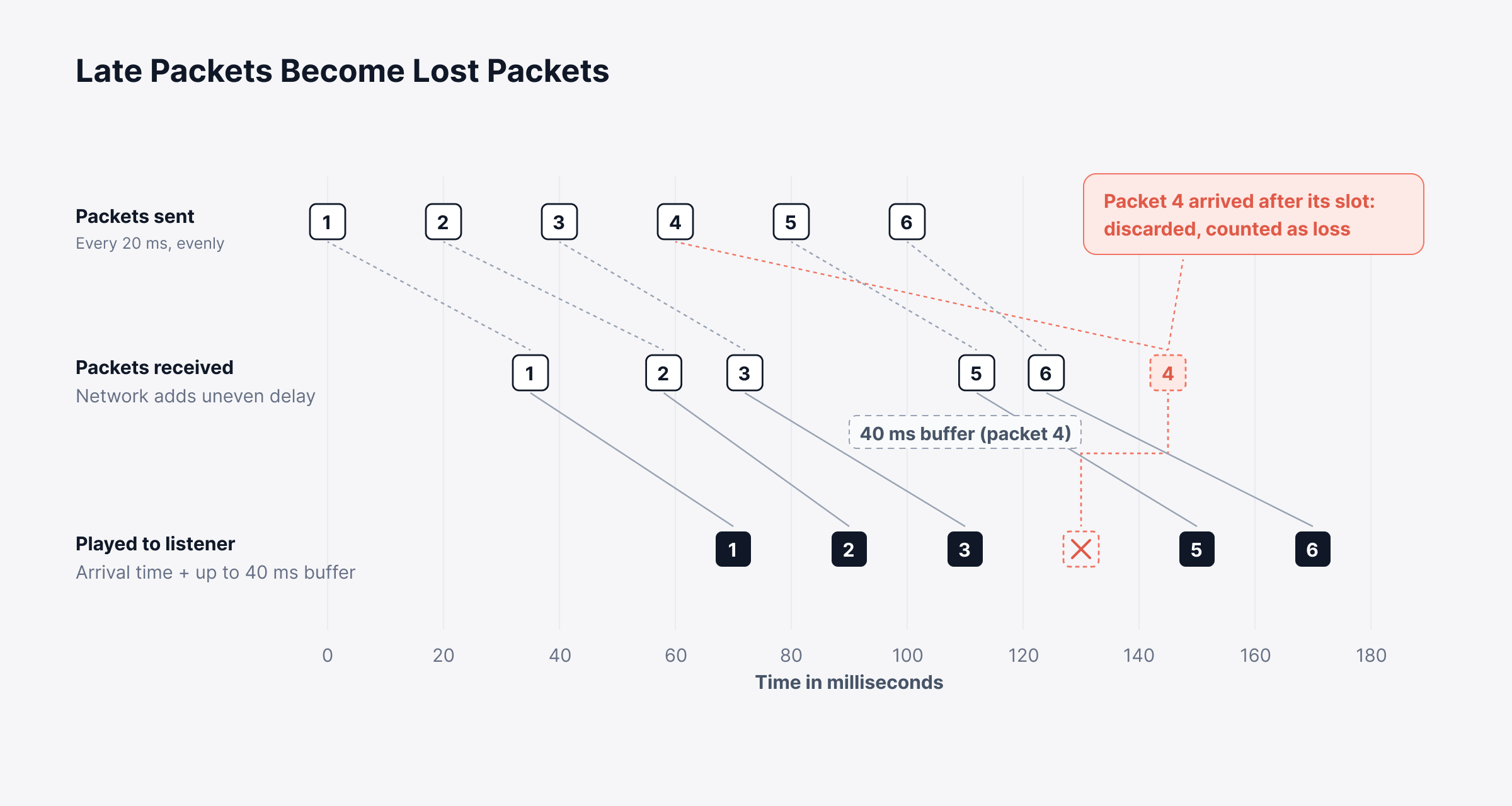
The second detail trips up even experienced teams, because a lot of what reports call packet loss is really jitter. Every phone keeps a small jitter buffer (a few tens of milliseconds, typically) to smooth out uneven arrivals.
A packet that turns up after its slot has played is no use to anyone. The phone simply drops it. So a call can show 3% loss at the phone while the network itself dropped nothing.
What Is a Good MOS Score for VoIP?
For VoIP, a MOS score of 4.0 or higher counts as good. The name stands for mean opinion score. Its scale comes from ITU-T P.800 and runs from 1, meaning bad, up to 5, meaning excellent.
Each MOS band also maps to an R-factor range and to how happy callers usually are, as shown below.
MOS | R-Factor | How Callers Usually Feel |
4.3 to 5.0 | 90 to 100 | Very satisfied |
4.0 to 4.3 | 80 to 90 | Satisfied |
3.6 to 4.0 | 70 to 80 | Some users dissatisfied |
3.1 to 3.6 | 60 to 70 | Many users dissatisfied |
2.6 to 3.1 | 50 to 60 | Nearly all users dissatisfied |
Always check MOS against the codec the call used. Even on a perfect network, every codec has a best possible score. In Cisco's codec comparison, G.711 tops out at 4.1 and G.729 at 3.92. A G.729 call at 3.8 is doing about as well as it can. A G.711 call at 3.8 has lost quality somewhere on the way.
Most monitoring tools don't ask real people, either. Instead, they plug latency, jitter and loss into the E-model from ITU-T G.107 and get an estimate.
For spotting trends and firing alerts, an estimate does the job. But it can't hear the echo from a cheap headset or the noise in a busy room, so a call can score 4.2 and still get complaints.
How to Fix Poor VoIP Call Quality
Before opening a dashboard, it's worth asking the caller what the call actually sounded like. Choppy audio and one-way audio send you to very different parts of the network (and echo often isn't the network's fault at all).
The table takes the six most common complaints from symptom to likely cause, first check and usual fix.
Symptom | Likely Cause | First Check | Usual Fix |
Choppy or robotic audio | Loss or jitter on a busy link | Loss and jitter on WAN and Wi-Fi | QoS for voice, relieve the link |
One-way or no audio | NAT or firewall blocking RTP | Firewall logs, UDP NAT mappings | Disable SIP ALG, open RTP ports |
Echo | Delay plus acoustic or line echo | One-way latency, handset, gateway | Echo cancellation, headsets, lower delay |
Delay and talk-over | High one-way latency | Latency per hop on the path | Shorter path, skip the VPN |
Calls drop mid-call | Session or NAT timeouts, flapping links | SIP trace and link state at drop | Align timers, fix the flapping link |
Calls fail to connect | SIP registration or trunk failure | Trunk status, SIP response codes | Fix credentials, capacity or routing |
Most of the tickets we see fall under the first four symptoms. Here's a closer look at each one.
1. Choppy or Robotic Audio: Find the Hop Dropping Packets
Choppy or robotic audio nearly always comes down to packets arriving late, or not arriving. We'd start with the busiest hop between the caller and the provider, which is usually the branch internet link (or the office Wi-Fi, if the caller's on a softphone).
The quickest way to find and fix packet loss is to pin it to one hop first and then look at what else is sharing that hop at the time.
If the link is busy at the moments calls break up, voice needs priority. That's what QoS in networking is for. Voice packets get a mark, and routers move marked packets to the front of the queue.
Every device on the call's path has to honor the mark, though. One switch that ignores the marking puts voice back in line behind a file transfer.
2. One-Way or No Audio: Check SIP ALG, RTP Ports and NAT
One-way audio is an odd one, since the call connects normally and only one side can hear. SIP handles the setup, while the voice itself rides RTP on a separate set of UDP ports.
It's entirely possible for a firewall to pass the SIP and quietly drop the RTP (and it happens more often than you'd think).
Check three things in order. SIP ALG comes first. It's a firewall feature that rewrites addresses inside SIP messages, and we see it behind one-way audio a lot. After that, look at the RTP port range and confirm traffic can pass both ways.
Finally, NAT has to keep the same mapping from the start of the call to the end. Microsoft's Teams network guidance says much the same, asking firewalls to leave mapped NAT addresses and ports for UDP alone.
3. Echo: Start With Headsets and Gateways
Echo means hearing your own voice come back a beat late, and it's the delay that makes it noticeable. On a short local call, a faint echo hides inside normal sidetone. Once one-way latency climbs past roughly 150 ms, the same echo arrives late enough to hear.
The phones and headsets are the first place to look. Speakerphones and budget headsets are the worst offenders, because sound from the speaker leaks back into the mic.
An analog gateway can reflect some signal back down the line as well (older ones especially). Echo cancellation on the phone or the gateway clears up most cases, and whatever's left gets much harder to hear once latency comes down.
4. Delay and Talk-Over: Remove the Detour From the Path
When callers keep talking over each other, one-way latency is usually above 150 ms. Distance is usually to blame, or a detour along the way.
Sometimes calls are being sent to a data center on the other side of the country. More often, in our experience anyway, it's a VPN dragging every call through head office first.
A hop-by-hop trace usually shows it plainly, as the one hop where latency suddenly jumps. For Teams in particular, Microsoft's advice is a split-tunnel VPN. Teams traffic then goes straight to Microsoft without passing through the VPN at all. That one change often removes the largest detour on the path.
Synthetic Probes, Call Records or Packet Capture: Which Should You Use?
VoIP monitoring uses three kinds of data: synthetic probes, call records and packet capture. Most teams get by with probes and call records, and save packet capture for the hard cases.
Method | How It Works | What It Catches | What It Misses |
Synthetic probes | Test traffic between two points on a schedule | Path latency, jitter, loss, with no calls running | Phones, headsets, desk Wi-Fi |
Call records and UC dashboards | Phone system reports per-call quality | Real experience per call and per user | Which link caused the problem |
Packet capture | Records SIP and RTP on a mirror port | Exact cause, codec, one-way audio | Costly at scale, sees one point |
In our view, teams don't use synthetic probes nearly enough. A probe keeps testing even when nobody is on a call. It can catch a link getting worse on a quiet afternoon, hours before the busy period loads it with calls.
Call records answer a different question. They show which users had bad calls, and a probe on the same path shows whether the network caused it. Used together, the two cut most investigations down to one link.
Five Cisco IP SLA Settings That Keep VoIP Probes Accurate
Cisco IP SLA is the most common way to probe voice quality on the network path. Five settings decide whether its numbers match what your calls go through. We pulled each one from how our ObserveOps network observability sets up IP SLA WAN links, and added the value we recommend.
1. Set a Write Community String or Switch to SSH
ObserveOps talks to Cisco IP SLA over SNMP or SSH. On SNMP v1 or v2c you'll need a write community string as well as the read one, which surprises people who've only ever given monitoring tools read access.
If the write string's blank, the IP SLA operation simply fails (our docs don't soften this one).
Security teams often hand out read-only SNMP access by default. Ask for write access before rollout day. If you can't get it, use SSH, which ObserveOps supports for WAN links too.
2. Pin the Source Interface to the Path Voice Uses
There's an optional Source Interface field on each WAN link, and it's easy to skip. If you skip it, ObserveOps uses the router's default IP, and on a router with several interfaces the probe can leave through a different path than your calls do.
Pick the interface your voice traffic actually uses toward the provider. At most branches that'll be the MPLS circuit or the internet uplink (sometimes both, with voice pinned to one of them).
If you pick the wrong one, the probe watches a healthy link while calls struggle on the other.
3. Give the Probe the Same DSCP Marking as Your Calls
The WAN link form has a Type of Service field, and it defaults to 30 for ICMP operations. Voice, on most networks, is marked DSCP EF (46 in decimal, or 184 written as a ToS byte).
If the probe's marking doesn't match, routers queue it alongside different traffic. You can end up looking at a perfectly clean probe while the voice queue is backed up, so we set the probe's marking to match voice before we trust what it says.
Flow data covers the other half of the problem. In our setup guides for Cisco gear, the flow exporter records the ToS field, so NetFlow and sFlow monitoring can show you what marking voice actually carries by the time it reaches the WAN edge. It's not unusual to see voice flows arrive there as DSCP 0.
When that happens, something upstream (a switch, a firewall, or a softphone that never marked its traffic) has stripped it, and QoS isn't protecting those calls.
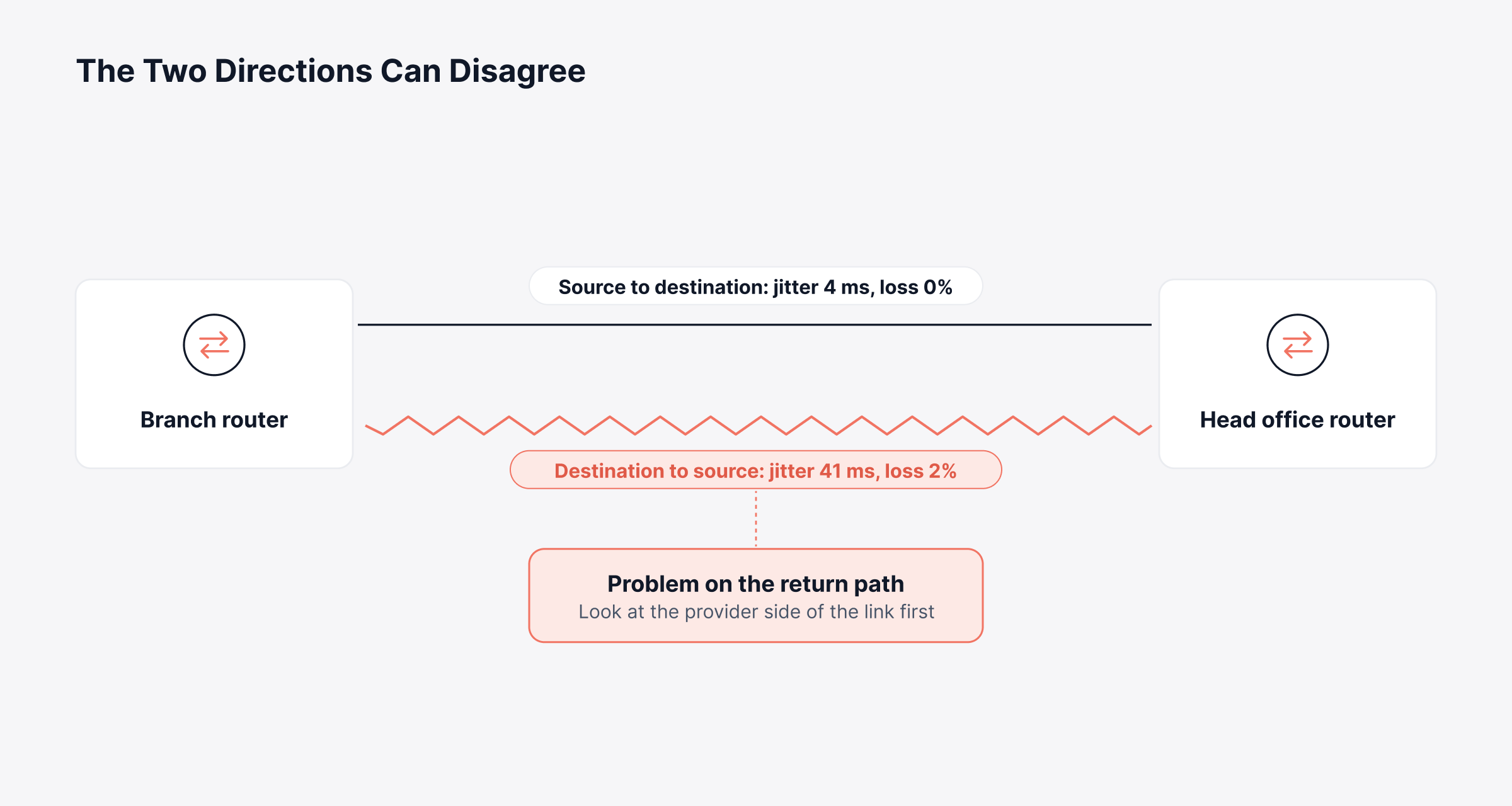
4. Read IP SLA Jitter in Both Directions
The ICMP Jitter probe splits its numbers by direction. You get jitter, latency and packet loss from source to destination, and the same three on the way back. It also breaks jitter into positive and negative for each side.
Direction matters for voice, since a caller can sound broken to the other person and still hear them perfectly.
Suppose only the destination-to-source numbers rise. Then the trouble is on the return path, often the provider's side of the link.
If you've got SSH access to the router, the ICMP Path Jitter probe is worth adding too. It breaks jitter down hop by hop, and you'll see which segment's adding the variation.
5. Turn Voice Thresholds Into a NetRoute SLO
Alerts are good at catching a bad minute. For the slower kind of problem, like a link that gets a bit worse every afternoon, an SLO is the better tool.
A NetRoute Performance SLO lets you pick route metrics (latency, packet loss and jitter all work), put a threshold on each and have it checked daily, weekly, monthly or quarterly.
One example in our docs uses a retail network with three WAN routes. Its conditions are packet loss under 1% and latency under 50 ms, checked weekly against a 99.5% target.
We'd tack on a jitter condition at 30 ms for voice. The weekly result then tells you whether the network gave calls what they need.
The table below collects all five settings in one place.
Setting | Default or Behavior | What We Recommend |
Write community (SNMP v1/v2c) | Blank write string fails the operation | Get write access, or use SSH |
Source interface | Router's default IP if left blank | The uplink voice actually uses |
Type of Service | 30 for ICMP operations | Match your voice marking, check with flows |
Jitter direction | Reported both ways, positive and negative | Alert on each direction separately |
NetRoute Performance SLO | Daily to quarterly evaluation | Loss, latency and jitter conditions, weekly |
Which VoIP Monitoring Tools Cover Which Layer?
There are four kinds of VoIP monitoring tools. Network monitors run synthetic probes, and flow analytics shows who is using a link.
Call and packet analyzers dig into SIP and RTP, while phone platforms come with their own quality dashboards. Most teams end up using two or three.
Tool Type | What It Shows | Common Examples |
Network monitoring with probes | Path latency, jitter, loss, device health | NMS platforms using Cisco IP SLA |
Flow analytics | Who uses the link, DSCP markings | NetFlow, sFlow and IPFIX collectors |
Call and packet analyzers | SIP call flows, RTP stream quality | Wireshark, Homer |
UC platform dashboards | Per-call and per-user quality | Teams Call Quality Dashboard, PBX reports |
Most teams see the least of the network layer. Your phone platform can flag a bad call. Only a network tool can tell you which link ruined it.
How ObserveOps Monitors the Network Side of VoIP
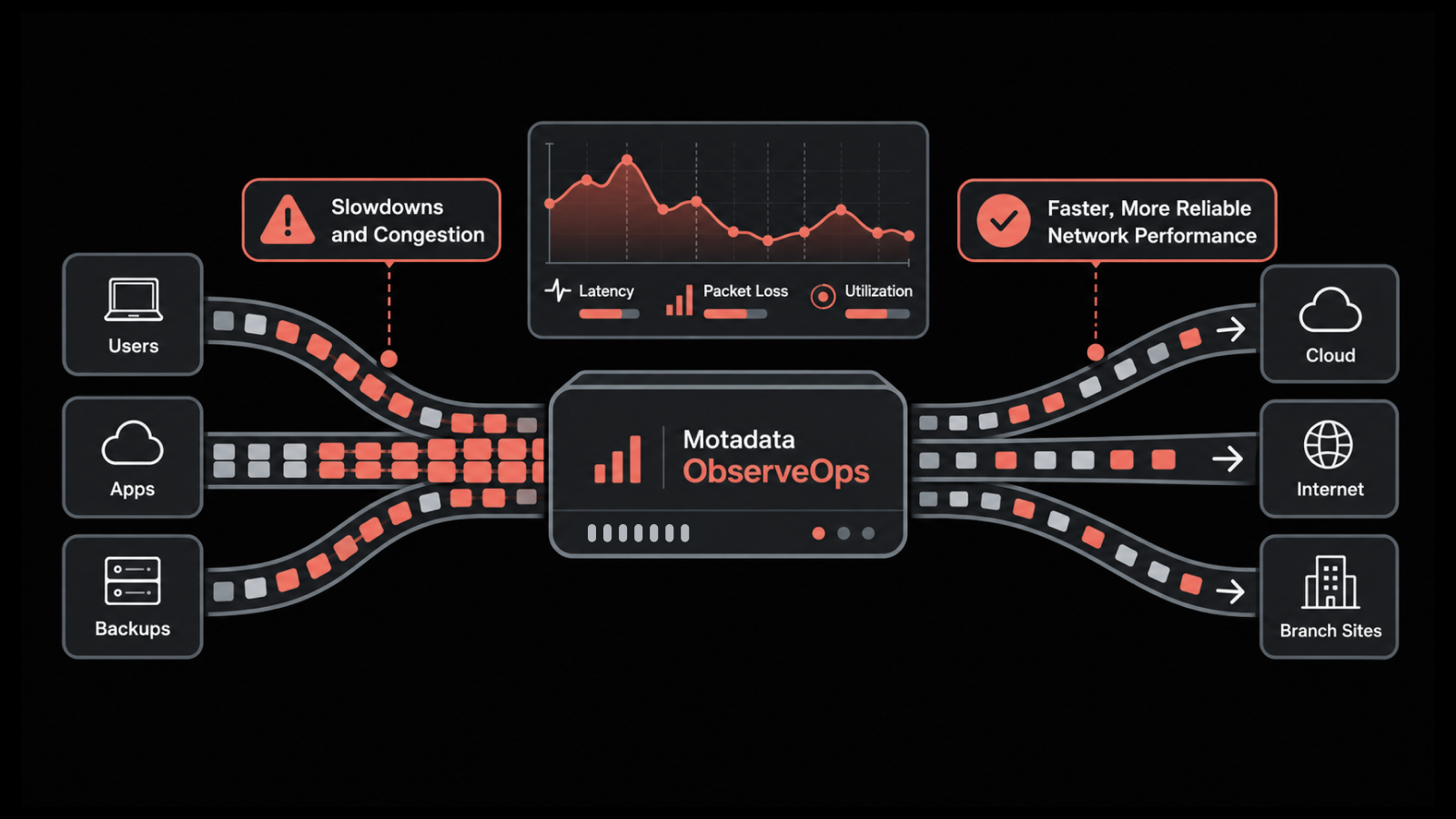
We built ObserveOps to watch the paths voice depends on, as part of a unified observability and ITSM platform. On WAN links, Cisco IP SLA monitoring gives you ICMP Echo, ICMP Jitter and ICMP Path Echo probes. Over SSH, you also get ICMP Path Jitter.
NetRoute follows the path hop by hop. It records route changes, latency and loss at each hop, and how the path has looked over time. Flow analytics reads NetFlow and sFlow.
When a voice link degrades, the ServiceOps and ObserveOps integration can open a ServiceOps incident, so someone owns the problem.
ObserveOps Infinity is the current edition. Each WAN link and each NetRoute counts as one licensed entity, and flow monitoring is an add-on licensed per exporter.
Two limits are worth knowing. ObserveOps doesn't calculate MOS, and it doesn't capture SIP or RTP traffic.
For per-call scores, you'll still want your phone platform's call reports. ObserveOps is also self-hosted only, so you run it on your own servers or in your private cloud.
Five VoIP Monitoring Best Practices for Accurate Probes and Useful Alerts
These five VoIP monitoring best practices keep probes honest and alerts useful. Each one targets a gap we often find when a team says monitoring missed a voice problem.
1. Probe Every Site That Places Calls
Run at least one probe from each branch toward the provider or data center that handles its calls. A single probe at head office says nothing about the branch whose internet link is saturated.
2. Alert on Sustained Breaches Instead of Single Spikes
Alert when jitter or loss stays above target for several polls in a row, such as three consecutive readings over 30 ms. One spike rarely ruins a call, and paging on every spike teaches the team to ignore voice alerts.
3. Compare Call Quality Against Busy-Hour Traffic
Call quality usually breaks when call volume peaks or when backups and updates share the link with voice. Compare probe results against call volume, and move bulk transfers out of business hours when the two collide.
4. Test Wi-Fi Calls Separately From Wired Phones
Desk phones on a wired network and softphones on Wi-Fi behave very differently. Microsoft recommends Wi-Fi Multimedia (WMM) priority and the 5 GHz band for real-time media. A probe from a wired router will not show contention on a crowded access point.
5. Route Voice Alerts Into Service Desk Tickets
A voice alert that nobody owns ends up as a user complaint a day later. Route sustained voice breaches into your service desk with the probe data attached, so the engineer starts with the failing link instead of a vague report of bad calls.
How to Roll Out VoIP Monitoring Site by Site
Start VoIP monitoring by listing every site that places calls and the provider or data center each one connects to. Put one IP SLA jitter probe on each of those paths, with the source interface and marking set to match voice.
Let the probes run for two weeks to learn what normal looks like at each site. Then set alerts at the 30 ms jitter, 1% loss and 150 ms latency targets, and turn them into a weekly SLO once the alerts stop surprising you.
Measure the Path Your Calls Actually Take
Good VoIP monitoring comes down to measuring the same path, in the same queue, that your calls use. Probes that leave through the wrong interface or ride a different QoS class report healthy numbers while callers hear broken audio.
Network monitoring will not catch everything. Echo from a headset, a bad codec choice and a crowded meeting room all need the phone platform's own call data, so plan on using both sources from the start.
Get the path right, and network performance monitoring turns call quality from a stream of complaints into a weekly number your team can improve. Most teams find their worst site within the first two weeks of probing.
FAQs
Can VoIP calls be monitored?
VoIP calls can be monitored for quality without recording what anyone says. Quality monitoring reads latency, jitter, loss and MOS from network probes and call records. Recording call content is a separate function with its own consent and legal rules.
What is the main disadvantage of VoIP?
VoIP depends entirely on the network. Call quality drops when the internet link, Wi-Fi or office network gets congested, and calls stop during a power or internet outage unless you have backup power and a failover link.
Is 35 ms jitter bad for VoIP?
35 ms of jitter sits just above Cisco's 30 ms target, and calls often still sound fine because phones smooth it out with a jitter buffer. If jitter stays above 30 ms during busy hours, expect occasional choppy audio and investigate the link.
How do you monitor call quality for Microsoft Teams?
Use the Teams Call Quality Dashboard for per-call and per-user scores, and monitor your side of the path with network probes. The dashboard shows which calls were bad, while the probes show which link caused it.
How much bandwidth does a VoIP call need?
A VoIP call needs far less bandwidth than video. Microsoft recommends 58 kbps up and down per endpoint for a Teams audio call, while an uncompressed G.711 call on a traditional phone system uses roughly 87 kbps including packet overhead.
Author
Ramya Shah
Technical Writer
Ramya Shah is a technical content writer with a computer engineering background and roots in automotive journalism. He covers IT Service Management, observability, IT operations, and AI-driven automation. An early adopter of AI-assisted writing workflows, he turns complex IT processes into clear, engaging content optimized for search and answer engines (AEO), lifting content output and organic visibility.