What Does a Network Administrator Do? Skills and Faster Fixes with Network Observability
When a branch office can’t reach the ERP system and customer calls start dropping, who gets the call? It’s almost always the network administrator. What that person does the rest of the week is less clear, and a CIO, a CFO and the admin themselves would probably each describe it differently.
Part of the reason is how much the network has grown. Ten years ago it was mostly switches, cables and one building. Now add office Wi-Fi, VPNs for remote staff, links out to every branch and a few VPCs in AWS, and it's often still one person.
With revenue now riding on every one of those connections, the role has moved toward stopping faults before anyone feels them. This guide builds on our explainer on network administration and focuses on the person who does the work. In this blog, you will see:
What a network administrator does on a typical day, and the core duties behind that work
How the role compares with network engineers and systems administrators
The technical and business skills the role needs
The tools network admins rely on, and how observability changes their daily work
What is a Network Administrator?
A network administrator keeps a company's network up, secure and fast; when someone says "the network is down", this is who they mean. Most of the week goes on routers and switches: setting them up, then making sure they behave. When something breaks, or someone needs access, the request goes to them as well.
It's firmly an IT role. Most network admins report to an IT manager inside the infrastructure or IT operations group. At a 60-person company, that admin may also be the server administrator and part of the help desk.
Which Networks Does a Network Administrator Manage?
Scope depends on the size of the organization. A typical network administrator looks after several of these types of networks:
Local area networks (LANs): Every desk phone, wired PC and server rack in the building plugs into one
Wireless networks (WLANs): Access points for staff, guests and scanners
Wide area networks (WANs): Branch links over MPLS, broadband or SD-WAN
Virtual private networks (VPNs): Remote staff, partners and site-to-site tunnels
Cloud networks: VPCs and VNets in AWS or Azure
Users don't see layers. They see Outlook hanging or the CRM refusing to load, and figuring out which layer caused it takes up a good part of an admin's week.
What does a Network Administrator Do Day to Day?
A network administrator's day is part incident response, part planned change. Quiet weeks go to upgrades and documentation. Outage weeks go to little else.
Over a typical month, the recurring work follows a pattern like this one:
Task | How often | Why the business cares |
Review alerts and dashboards | Every shift | Catches failing links before users report them |
Work escalated tickets | Daily | Restores access for staff and customers |
Back up device configurations | Daily and after each change | Makes recovery from a bad change fast |
Apply firmware and security patches | Monthly or per vendor advisory | Fixes known vulnerabilities on routers, switches and firewalls |
Review bandwidth and capacity trends | Monthly | Prevents slowdowns as headcount and traffic grow |
Audit access rules and accounts | Quarterly | Supports audits and limits insider risk |
Update network documentation | After every change | Shortens the next outage investigation |
Here's a typical morning for an admin at a 40-store retail chain with one data center. Overnight alerts show store 17 dropping packets on its broadband link, and its card terminals have been retrying payments since opening. After confirming the carrier's circuit is at fault, the admin opens a case with the provider, moves the store to its backup LTE link and logs the incident.
The rest of that day is more routine:
A new hire needs VPN access before a client visit
A warehouse switch is due for a firmware update in the evening maintenance window
The monthly bandwidth report has to reach the IT manager
None of that table works without knowing which devices and links are healthy right now. If you're starting from zero, our guide to network monitoring basics is the place to begin.
What are the Core Duties and Responsibilities of a Network Administrator?
Network administrator duties fall into seven areas. Some protect the checkout lanes in a store this afternoon. Others pay off months later, the day an auditor asks for evidence.
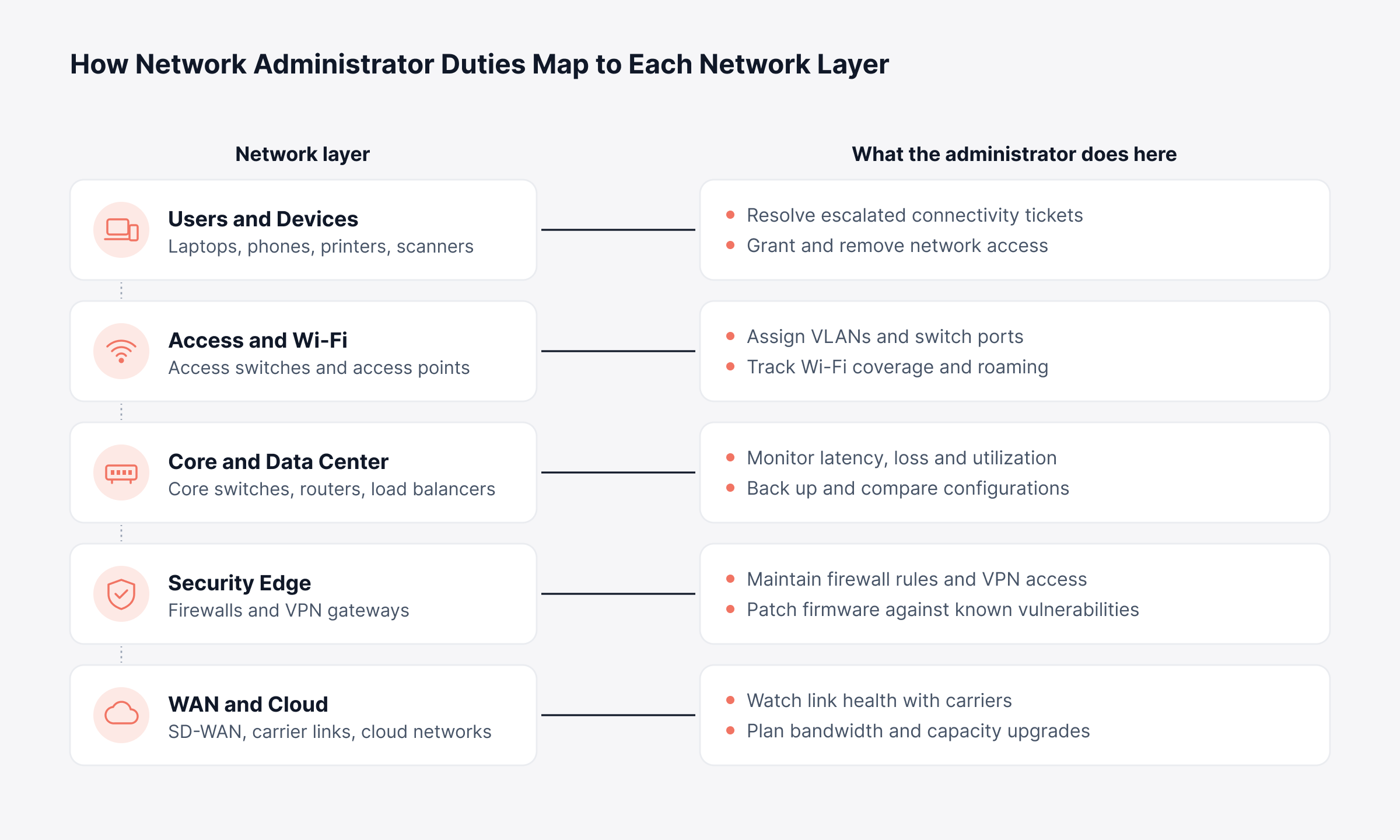
Map each duty to the layer it protects and ownership becomes clear. The diagram below does that for five layers, from users and devices down to WAN and cloud.
1. Installing and Configuring Network Devices
Routers, switches, firewalls, wireless controllers: someone sets each one up, and it's usually the network administrator. A new core switch, for example, gets IP addresses, VLANs and routing first. SNMP, syslog and hardening come after, with unused ports and services shut off.
Standard configuration templates make this repeatable. Every branch switch then starts from the same build. A fault at one site can be compared against identical sites, and new locations come online quickly.
2. Monitoring Network Performance and Availability
Monitoring has a simple purpose: the admin should hear about a problem before the help desk phone rings. On every device and link, the admin tracks a small set of signals:
Availability: Up or down, checked per device and per interface
Utilization: If a 1 Gbps uplink keeps carrying 850 Mbps, it's time to plan more capacity
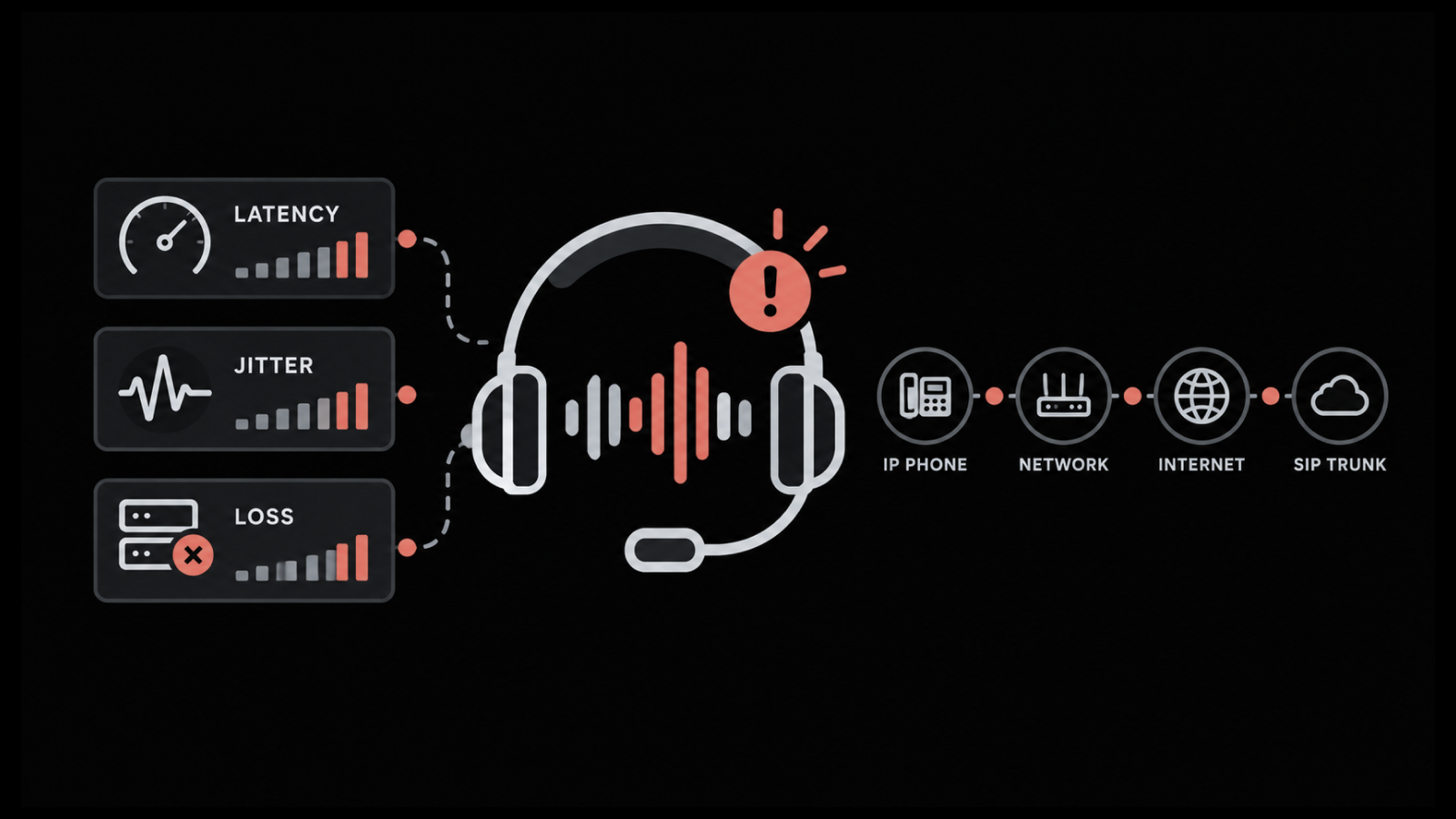
Latency and jitter: Voice calls start breaking up once jitter goes past roughly 30 ms
Packet loss and errors: A rising error count on one port often points to a bad cable or optic
Set a threshold on any of them and you'll get an alert when it's crossed. We cover the wider set in our post on network performance metrics.
3. Troubleshooting Outages and Slowdowns
Users notice this duty more than any other. Experienced admins work up the OSI model in order: cable and link lights, then switching and VLANs, then IP routing, with DNS and the application last. A handful of standard commands answers the first questions in almost every investigation:
Command | Where it runs | What it tells you |
ping 10.0.0.10 | Windows, Linux and most network devices | Whether the host answers and how long replies take |
tracert example.com | Windows | Which hop along the path adds delay or drops traffic |
traceroute example.com | Linux and macOS | Which hop along the path adds delay or drops traffic |
nslookup example.com | Windows, Linux and macOS | Whether the name resolves to the expected IP address |
show interfaces | Cisco IOS and similar network CLIs | Errors, drops and duplex settings on each port |
Results that point to a device outside the admin's control, such as a carrier circuit, become evidence for the provider's support case. The full sequence, layer by layer, is in our network troubleshooting guide.
4. Managing Configurations, Backups and Changes
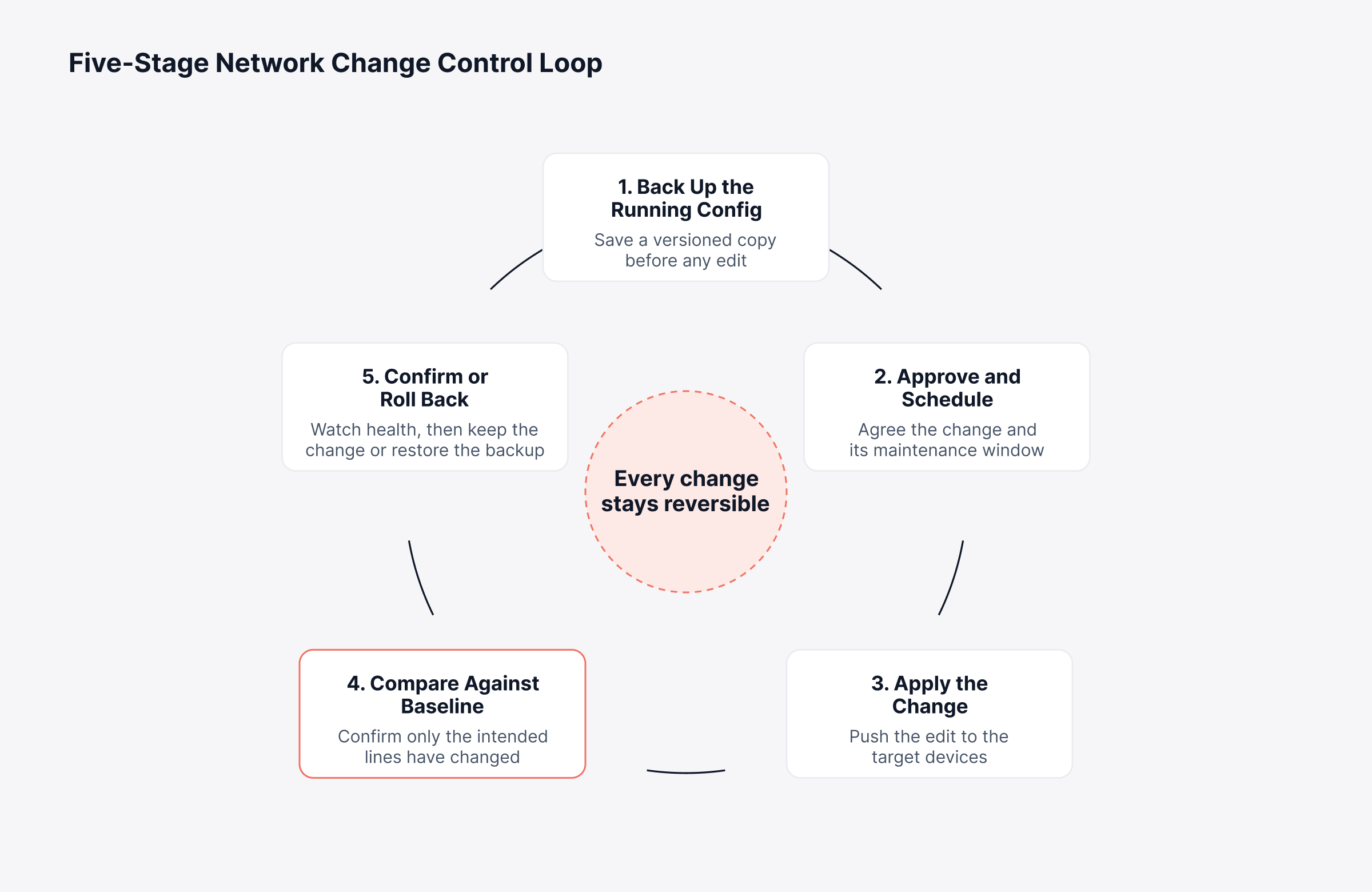
A surprising number of outages start with someone's config change. That's why careful admins keep a known-good baseline per device and take another backup just before they touch it.
Running every change through the same short cycle means any edit can be undone, even late in a long maintenance window. Follow the loop below from the first backup through to the final call: keep the change or roll it back.
Drift is the slower problem. An ACL tweak here, an undocumented port change there; a year on, two switches built from the same template no longer match. That's configuration drift, and failover day is the worst time to find it.
5. Securing the Network and Controlling Access
Access is the admin's responsibility too: who and what gets onto the network. Firewall policies, ACLs, VPN logins and Wi-Fi authentication all come under it. So do firmware patches, once a vendor announces a flaw in a router or firewall.
Network segmentation helps here. Guest Wi-Fi in one zone, payments in another, production servers in a third; a visitor's infected laptop then has no path to the customer database.
6. Planning Capacity and Upgrades
The aim is simple: add bandwidth before anyone complains. Every month the admin checks utilization trends, flags links close to full and lines up replacements for hardware nearing end of support.
For leadership, this duty turns network spending into a planned budget line. Done properly, capacity planning also hands finance a written case for each upgrade, with the trend charts attached.
7. Documenting the Network and Supporting Users
Good records save the next person from starting over: current topology diagrams, IP address plans, device inventories and runbooks for the common faults.
Connectivity tickets the help desk can't close get escalated to the network admin. They get resolved much faster if somebody already documented how that site is wired.
How is a Network Administrator Different from a Network Engineer or Systems Administrator?
A network administrator takes care of the network the business is running right now. The network engineer designs what it will need in two or three years. Systems administrators do the day-to-day work too, only for servers, operating systems and applications.
Network administrator | Network engineer | Systems administrator | |
Main focus | Day-to-day operation of the network | Design and architecture of new networks | Servers, operating systems and business applications |
Typical work | Monitors, troubleshoots, patches and backs up configs | Plans topologies, selects hardware, leads migrations | Manages servers, user accounts, backups and updates |
Time horizon | Hours to weeks | Months to years | Hours to weeks |
Measured by | Uptime and time to restore service | Design quality and project delivery | Server uptime and patch compliance |
Escalates to | Network engineer or vendor | Network architect or vendor | Senior administrator or vendor |
Bigger companies often add a NOC engineer as well, watching alerts around the clock and passing faults up to the admins. Our guide to NOC monitoring explains how that tier works.
What Skills Does a Network Administrator Need?
Network administrator skills split into two groups: knowing how networks work, and knowing which problem to fix first. Training and lab work build the first. The second shows up during a busy outage week.
Technical Skills
Networking fundamentals: TCP/IP and subnetting first; after that, OSPF, BGP and VLAN design
Core network services: DNS, DHCP and NTP, behind more "internet is down" tickets than most people expect
Security controls: Firewall rules, ACLs, VPNs, 802.1X
Wireless and WAN: Roaming problems, site surveys, SD-WAN or MPLS between offices
Cloud networking: Enough AWS, Azure or Google Cloud to read a route table and fix a security group
Automation: Python or Ansible scripts that push one tested change to many devices
Observability: Reading metrics, flow records and logs together to find the cause of a slowdown
Business and Communication Skills
Impact-based prioritization: Payment link first, printer queue later, regardless of the order tickets arrived in
Plain-language communication: An outage update a store manager and a CFO can both follow
Change discipline: Following approvals and maintenance windows when pressure is high
Vendor management: Following up with carriers and hardware vendors until the fault is closed
Documentation habits: Write it down before closing the ticket
The second list is often what leadership notices. An admin who can say "this switch is out of support and carries all of finance" gets budget approved far more easily.
What Tools Does a Network Administrator Use?
Network admin tools are easiest to compare by the question each one answers when something breaks. Most organizations add them one at a time over several years, and the result is often a separate console for every question.
Tool category | Question it answers | Example use |
Network monitoring with SNMP polling | Is every device and link up and healthy? | Alert when a core switch port starts dropping packets |
Flow analytics (NetFlow, sFlow, IPFIX) | Which app or host is using up the bandwidth? | Find the backup job saturating a branch link |
Log and syslog management | What did the device report, and when? | Trace firewall denies during a spike in failed logins |
Network configuration management | What changed, and can we roll it back? | Restore the last good config after a bad edit |
Topology and dependency mapping | Which devices connect, and what depends on what? | See which sites go offline if a distribution switch fails |
IP address management (IPAM) | Which addresses are free, used or in conflict? | Resolve a duplicate IP on a new printer |
Packet capture and analysis | What exactly is inside the traffic? | Prove a slow app is waiting on a DNS timeout |
ITSM and ticketing | Who is working on it, and is it closed yet? | Open a ticket automatically from a critical alert |
SNMP monitoring tends to be the first tool in, because every router, switch and firewall in the rack supports it. The trouble begins once each tool has its own console.
Then an outage hits, and the admin is lining up timestamps across several browser tabs. That is tool sprawl in practice: a ten-minute fix stretched into an afternoon. Our roundup of network monitoring software compares platforms that pull these tools together, if you're considering one.
How does Network Observability Change the Network Administrator's Work?
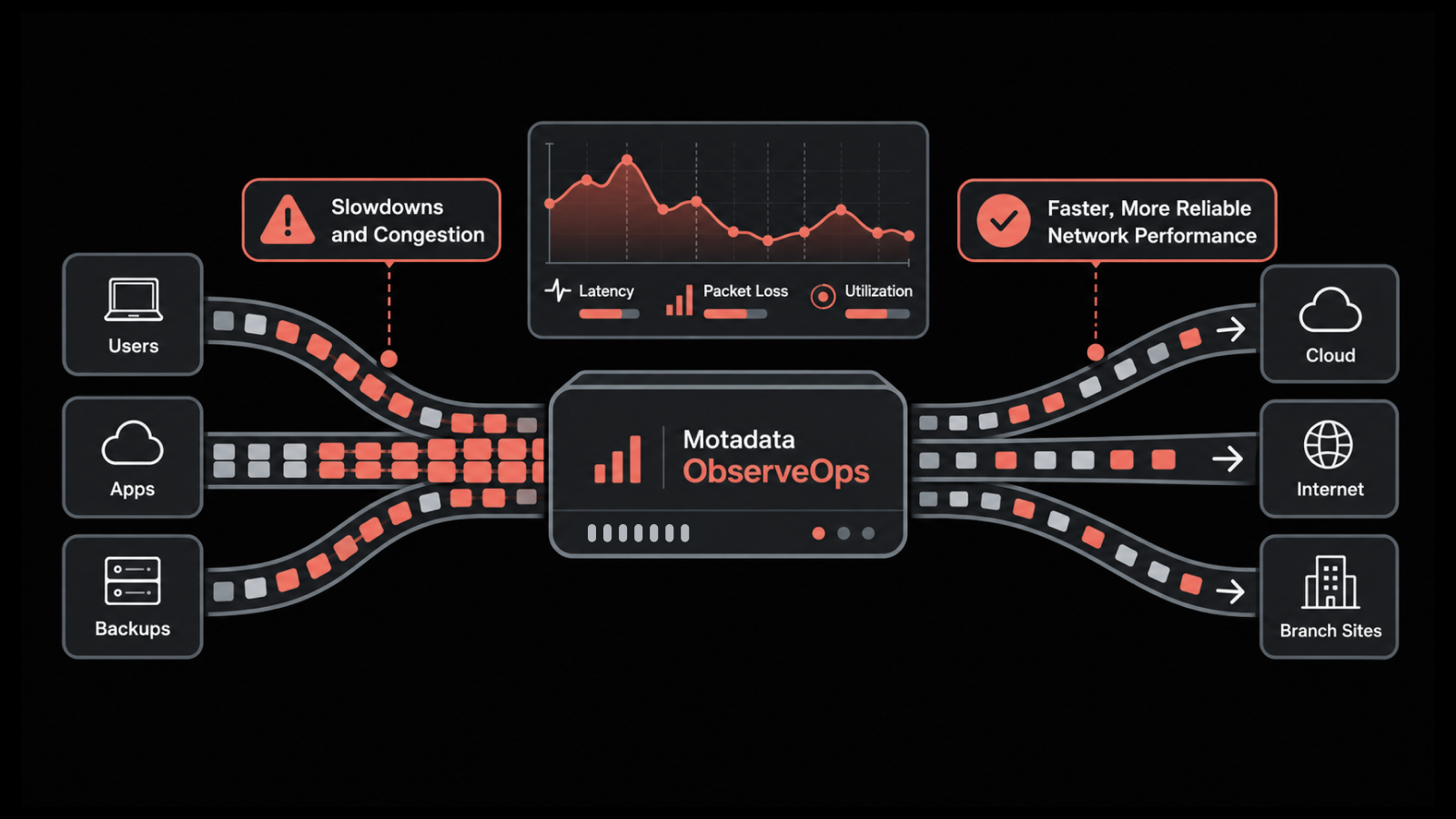
Network observability is how a network administrator gets from "something is wrong" to "here's why". Once metrics, flow records, logs, SNMP traps and configuration history share one timeline, the cause usually appears right next to the symptom.
Consider month-end close at a manufacturing firm, when the WAN link to head office reaches 90% utilization. A traditional monitoring tool sends an alert, and the investigation is left to the admin. Observability adds the context needed to act on that alert:
The application or user behind the spike
Any configuration change made on the device just before it
The services and sites that depend on that link
For the business, that context means shorter outages and fewer escalations. We explain where the two approaches differ in our comparison of observability and monitoring.
A Practical Workflow from Alert to Root Cause
Here's an example from a logistics company: the handheld scanners in one warehouse keep dropping off Wi-Fi every morning shift. With correlated data, the investigation runs in five steps:
Confirm scope: Three access points in Building B are dropping; everything else on site looks fine
Check the path: Interface counters on the uplink switch show errors climbing since the problem began
Look for change: Configuration history shows a VLAN edit pushed to that switch the previous evening
Correlate evidence: Port flaps in that switch's syslog begin a couple of minutes before the first scanner drops
Fix and prevent: Rollback takes about a minute; the scanners come straight back, and a new policy will catch that VLAN edit if anyone repeats it
All five steps happened in one console. Shipping restarted before the shift ended, and the next person who sees those symptoms will find the fix already on record.
How does Motadata ObserveOps Support Network Administrators?
Motadata ObserveOps supports network administrators by bringing device monitoring, flow analytics, alerting and network configuration management into one network observability platform. We built it around the daily duties described above, and each of the seven maps to a specific part of the product:
Duty | Where it usually slows down | How ObserveOps helps |
Installing and configuring devices | New devices never reach monitoring | Discovery profiles add network, wireless, WAN link and SDN devices |
Monitoring performance and availability | Alerts arrive without context | Availability, metric, flow and trap policies, plus anomaly and forecast policies |
Troubleshooting outages | Evidence spread across tools | Alert Correlation shows related metrics, logs and alerts for the same window |
Managing configurations and changes | No quick way back from a bad change | Versioned NCCM backups, baseline comparison and full or partial restore |
Securing the network | Unauthorized edits go unnoticed | Syslog-based change detection and Network Config Policy alerts |
Planning capacity | Bandwidth growth catches the business off guard | Flow analytics trends and forecast policies |
Documenting the network | Diagrams fall out of date | Parent Child Dependency Mapper records device relationships |
1. Discovery and Dependency Mapping
Discovery profiles add network devices, wireless devices, WAN links and SDN devices, alongside servers, cloud and virtualization platforms. Our Parent Child Dependency Mapper then records which device depends on which at interface level.
Some relationships are picked up automatically. Others you add yourself, one by one or as a CSV upload when there are hundreds. Each is tagged L2 or L3, and our topology mapping page explains how root cause analysis and impact prediction use that map.
2. Alerts That Carry Context
Our alert policies cover each signal a network admin watches, from device availability and SNMP traps to flow, log and NetRoute path data. For trends, there are anomaly and forecast policies. Forecast policies need a day of history before they start warning you that a metric looks set to cross the value you chose.
From a metric alert's detail screen, Alert Correlation pulls in what else happened on that monitor during the same window. Correlated Metrics, Correlated Logs, Correlated Alerts and Log Pattern each get their own tab. Trap policies can also clear an alert automatically once trap data meets a condition you define, and a Suppress Window holds back repeat notifications during a known issue.
3. Flow Analytics for Bandwidth Questions
With our flow analytics, you can see which users and applications are using the most bandwidth, down to protocols and IP address groups. Conversations between internal and external endpoints show up too.
Admins can filter traffic patterns over months, days or minutes. A vague complaint that "the network is slow" becomes a named source and a clear next step.
4. Network Configuration and Compliance Management
We built our NCCM module to take versioned config backups automatically or whenever you ask, and to check every device against its baseline. Here's what that means for daily work:
Roll back safely: After a bad change, put back the whole config or just the affected segments
Catch unauthorized edits: Syslog-based detection picks up changes in near real time, and a Network Config Policy alerts on conflicts between baseline, startup and running configurations
Upgrade firmware with control: Compare current firmware against supported releases before upgrading devices in a planned sequence
Check compliance: Evaluate configurations against configuration compliance rules and benchmarks, then fix violations with runbooks
Run bulk changes: Execute SSH runbooks from NCCM Explorer or on a schedule, for example to enable SNMP traps on every network device at once
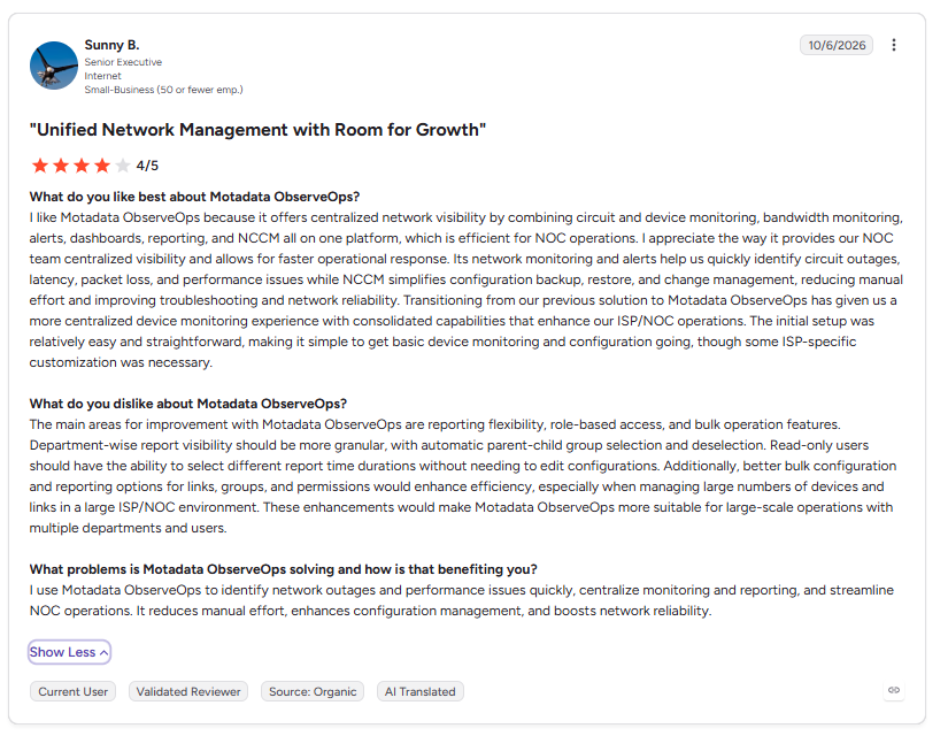
When a backup, upload or script run fails, the same policy can notify the right people, run a script or declare an incident through an integration profile. One of the ObserveOps users running a NOC describes the configuration side this way on G2:
5. NOC View for Shared Visibility
On the NOC wall screen, NOC View cycles through the dashboards you choose, 30 seconds each by default. If something breaks mid-rotation, an operator can pin that dashboard and keep it on screen until the incident closes. Line charts carry Metric Insight too: average, peak and P95, a plain-language summary, and a Healthy, Degrading or Critical label.
The shared screen also saves time during an incident. When response times at the Dallas branch start to climb, the network admin, the service desk lead and the IT manager all see that chart turn to Degrading together, and nobody has to forward a screenshot.
What are the Best Practices for Effective Network Administration?
Effective network administration rests on a handful of habits, most of which cost nothing but discipline. Organizations that keep them up through busy quarters tend to see fewer outages, and shorter ones when something does break. These six practices apply whatever tools you use:
Back up before every change: Take a fresh backup before each edit, and test a restore at least once a quarter
Standardize device templates: Identical builds make faults easier to compare across sites
Tune alerts to business impact: Alert first on what affects users, since alert fatigue buries the warnings that matter
Update documentation with every change: Diagrams and IP plans get updated before the change ticket is closed
Review access every quarter: Expect to find VPN accounts for people who have left and firewall rules with no recorded owner
Report in business terms: A one-page monthly summary of availability, incidents and capacity, written for non-technical readers
None of these cost much. The hard part is doing them every month. One place for backups, alerts and config diffs makes that a lot more realistic.
Bring Monitoring, Flows and Configurations Together with Motadata ObserveOps
A network administrator's work comes down to one outcome: people reach the systems they need, whether they work from head office or connect from a hotel. If polling, flows, logs and configurations each live in a separate tool, the first ten minutes of every incident go into opening consoles. Motadata ObserveOps brings that evidence together in one platform, and our page on network administrator solutions shows how the pieces fit together for this role.
A fair warning about any platform in this category, ours included: software finds causes faster, but it doesn't know your network the way your admin does. The call on what to change, and when, still belongs to that person. Give them complete, correlated data, and keeping the network up, along with the revenue that depends on it, gets much easier.
FAQs
What is the difference between network monitoring and network observability?
Network monitoring tells an admin that something crossed a threshold, such as a link at 90% utilization or a device that stopped responding. Network observability adds the context behind that alert, including the traffic, logs and configuration changes involved, so the admin can see why it happened and fix it faster.
How do you measure a network administrator's performance?
Most IT leaders track network availability, mean time to restore service and the share of changes that go through without an incident. Reviewing these figures every month shows whether the network is getting more stable and where tooling or staffing gaps slow recovery.
Which tools should a network administrator have first?
Start with SNMP-based device monitoring and automated configuration backups, since they cover the most common outages and the riskiest changes. Flow analytics and log management come next, ideally in the same platform so admins are not switching consoles during an incident.
Can a network administrator work remotely?
Many can, especially in organizations with multi-site or cloud-heavy networks. Remote admins depend on secure access and on platforms such as Motadata ObserveOps that show device health, traffic and configuration history from anywhere, while on-site staff handle hardware swaps.
What does a network administrator check every day?
Most review device availability, link utilization, latency, packet loss, interface errors and security events at the start of each shift. With an observability platform such as Motadata ObserveOps, admins also see flow data and recent configuration changes next to those metrics, which shortens root cause analysis.
Author
Poonam Lalani
Content Strategist
Poonam Lalani is a B2B content strategist and writer with a background in computer engineering and experience across enterprise technology domains, including AI, cloud, DevOps, data engineering, and IT operations. She specializes in creating research-driven content that simplifies complex ideas and supports product education, thought leadership, and business growth.