What Is Windows Autopatch? Pros, Cons, and Alternatives
Patch Tuesday still costs your team a day, sometimes two. And the estate is never fully current when it ends.
Attackers moved into that gap. The 2026 Verizon Data Breach Investigations Report put vulnerability exploitation at the top of the initial access list. It now sits ahead of stolen credentials, at 31 percent of breaches. When your patch management is slow, it’s a security problem, not an ops chore.
Windows Autopatch is Microsoft's attempt to take the monthly run off your hands. It has also changed a great deal in eighteen months. That matters if you looked at it once and walked away. In this blog, you will see:
What Windows Autopatch covers, and the four kinds of update it manages.
How deployment rings, Autopatch groups, and hotpatch updates actually work.
Which licenses include it now, because that list is wider than it used to be.
The limits that no future release is going to fix.
Five alternatives, and which gap each one closes.
By the end you will know whether Autopatch is enough on its own, or whether you need a second tool sitting next to it.
What Is Windows Autopatch?
Windows Autopatch is a cloud service from Microsoft that automates updates for Windows, Microsoft 365 Apps for enterprise, Microsoft Edge, and Microsoft Teams.
It runs inside the Microsoft Intune admin center. It is included in Windows volume licensing, so there is nothing separate to buy.
The service reached general availability in July 2022. Since then Microsoft has folded most of Intune's Windows update policy work under the Autopatch name. The brand covers a good deal more than it did at launch.
Autopatch manages four kinds of content:
Windows quality updates: The monthly security releases that arrive on Patch Tuesday.
Windows feature updates: The annual version upgrades, rolled out in phases.
Drivers and firmware: Delivered automatically, or held for your approval.
Microsoft applications: Microsoft 365 Apps for enterprise, Microsoft Edge, and Microsoft Teams.
Windows Update still does the installing. Autopatch decides which content is approved to reach which device, and when. Assign a machine to a feature update policy targeting Windows 11, version 25H2. Windows Update then offers that version and nothing newer.
That is also the difference between Autopatch and plain Windows Update for Business. Windows Update for Business is the delivery mechanism underneath. Autopatch is the orchestration, the reporting, and the service level target on top.
Microsoft publishes two targets for it. At least 95 percent of up-to-date devices should sit on the latest quality update. At least 90 percent of eligible devices should run a supported Monthly Enterprise Channel build of Microsoft 365 Apps.
How Does Windows Autopatch Work?
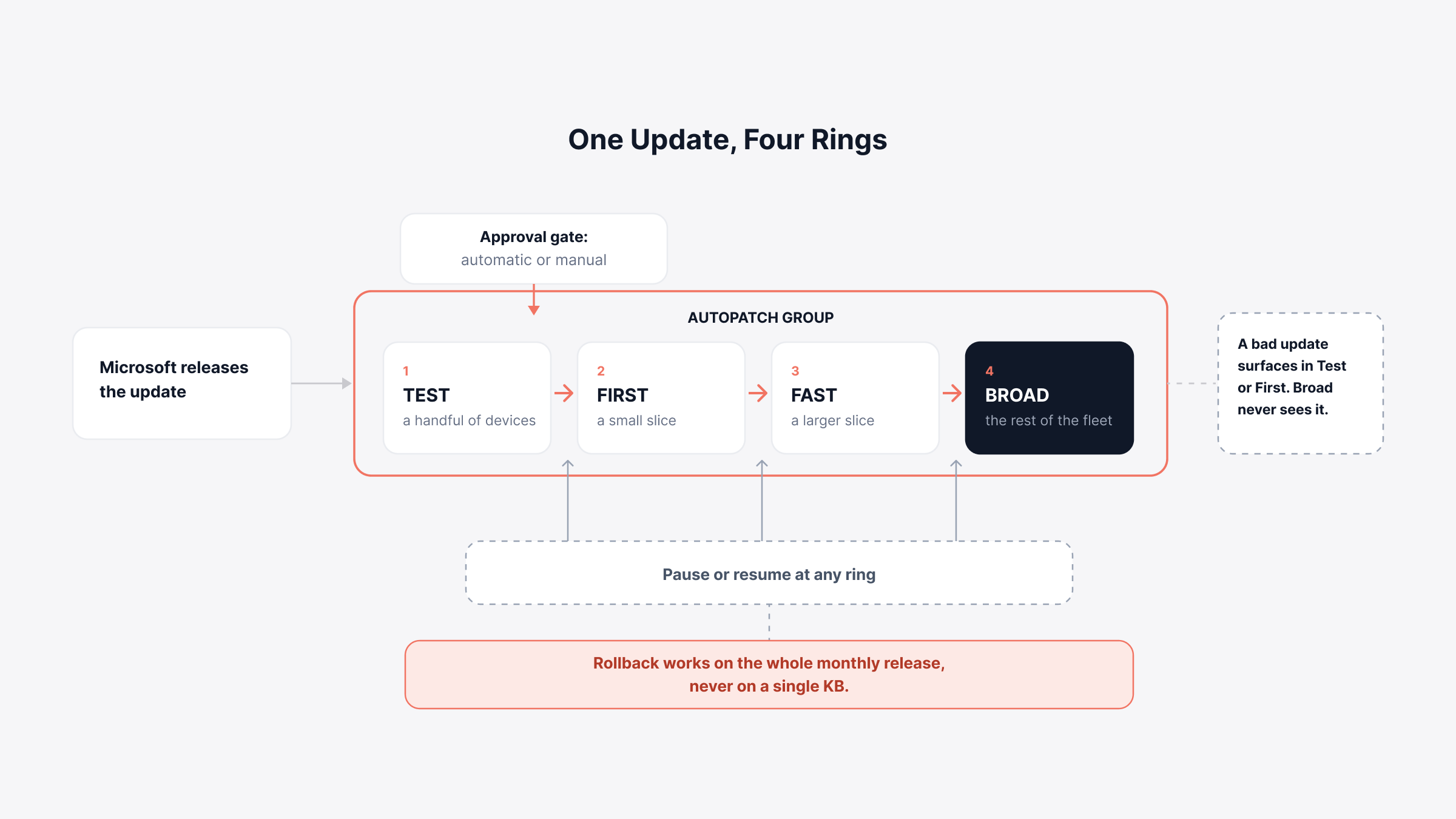
Windows Autopatch works by sorting your devices into rings and releasing each update to one ring at a time.
A bad update shows up on a small group before it reaches everyone. The diagram below traces the path a single update takes, from release to the last device.
1. Deployment Rings
Autopatch uses four rings: Test, First, Fast, and Broad. Test takes a handful of machines. First takes a small slice of the fleet, Fast takes a larger one, and Broad takes the rest.
The service suggests the split and you can override all of it. Plenty of teams ignore the automatic assignment. They map their own Microsoft Entra groups to each ring instead, because the pilot group has to be the same people every month.
We usually suggest that route. An auto-assigned pilot changes membership each cycle, and then nobody really owns the result.
Ring design follows the same rules as any staged rollout, and the best practices for Windows patch management did not change because the console did.
2. Autopatch Groups
An Autopatch group is a container that ties several Microsoft Entra groups to a set of update policies. One group can hold the quality update policy, the feature update policy, and the driver policy for a single audience.
Most of the setup work lands here. Get the groups right and the policies mostly look after themselves.
3. Approvals, Deferrals, and Pauses
You pick automatic or manual approval for security updates, non-security updates, and out-of-band releases. Deferral settings hold an approved update back for a set number of days, which is how you build a staged rollout without touching ring membership.
You can pause a release and resume it later. Rollback runs through update rings, at the level of a monthly release.
4. Hotpatch Updates
Hotpatch updates install monthly security fixes into running processes, with no restart at all. They cover eight months of the year. January, April, July, and October are baseline months, and each of those still needs one reboot.
The prerequisites are specific. A device needs Windows 11 version 24H2 or later, Virtualization-based Security switched on, and a hotpatch-enabled quality update policy in Intune.
From the May 2026 security update, Microsoft turns hotpatch on by default. That default only reaches eligible devices not already covered by a quality update policy.
What Do You Need to Run Windows Autopatch?
Windows Autopatch needs three things: a qualifying license, Microsoft Intune, and devices joined to Microsoft Entra ID.
The licensing changed in April 2025, and the entitlement list is wider than it was at launch. Autopatch features are included with:
Windows 10 and 11 Enterprise E3 and E5, including the versions inside Microsoft 365 E3 and E5.
Windows 11 Enterprise F3, inside Microsoft 365 F3.
Windows 10 and 11 Education A3 and A5.
Microsoft 365 Business Premium.
Government Community Cloud plans G3 and G5.
Microsoft also removed the feature activation step and retired the $0 Windows Enterprise activation SKU.
One entitlement is still gated. Only E3, E5, and F3 customers can raise a ticket directly with the Autopatch service engineering team. Everyone else goes through standard Intune support.
Two environments are excluded. GCC High and Department of Defense tenants cannot use Autopatch.
The technical requirements are shorter:
Microsoft Intune, or co-management with Configuration Manager version 2010 or later.
Microsoft Entra ID, with devices either Entra joined or Entra hybrid joined.
Regular internet access, so devices can reach Microsoft update services.
Local domain-joined devices are not supported. If a machine only knows your on-premises Active Directory, Autopatch cannot see it.
What Are the Benefits of Windows Autopatch?
The benefits of Windows Autopatch come down to four things: less monthly work, fewer reboots, better failure visibility, and no new line on the budget.
1. The Monthly Patch Run Stops Being a Project
Autopatch handles the sequencing, the ring progression, and the pause decisions a person used to make on a Tuesday afternoon. Your team sets the policy once, then reviews exceptions.
That is the whole pitch, and for a Windows-only fleet it holds up. We see the same shape in most rollouts. The work does not vanish. It moves from doing to checking.
2. Hotpatching Cuts Reboots to Four a Year
Eight of the twelve monthly security updates install without a restart on eligible devices. The other four are baseline months, and they fall on a fixed quarterly rhythm.
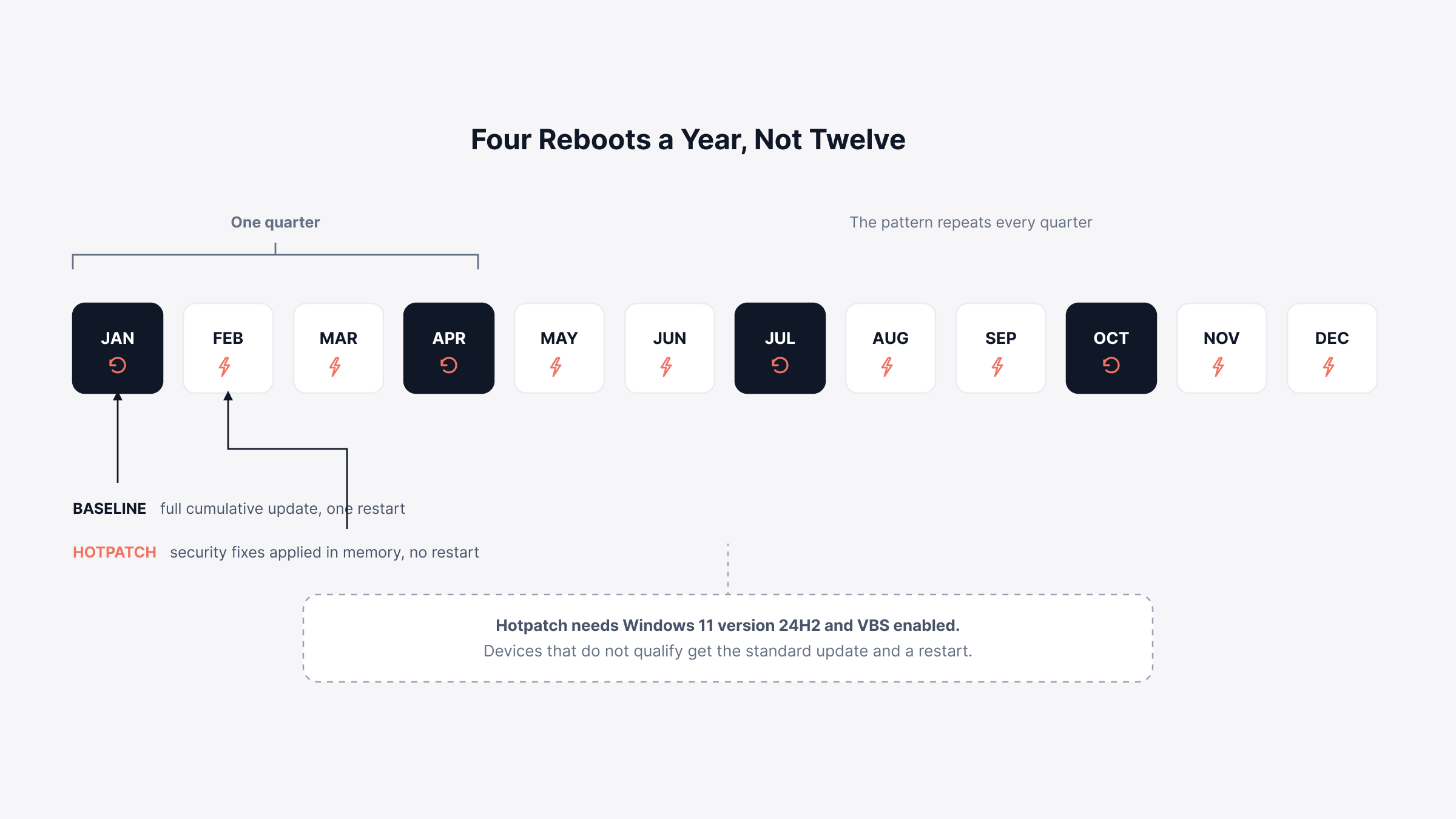
Reboots are where patch compliance goes to die. A user defers the restart, and the device sits exposed with the fix downloaded but not active. Take the restart away and that failure mode goes with it.
3. Update Readiness Tells You Why a Device Is Stuck
Update readiness reached general availability in March 2026. It answers the oldest complaint about cloud patching.
The quality update journey shows a per-device timeline: when an update was offered, downloaded, installed, and restarted, with the alert that explains a stall.
There is also a management status report covering every Intune-enrolled Windows device. That includes the ones sitting under no update policy at all.
Those are the machines that quietly fall out of compliance, and we could rarely find them before this report shipped.
4. It Is Already Paid For
If you hold one of the licenses above, Autopatch costs nothing extra. No add-on SKU, no per-device fee, no separate contract.
For a mid-sized team that is a real argument. A patching tool you already own beats a better one you have to justify to finance.
What Are the Limitations of Windows Autopatch?
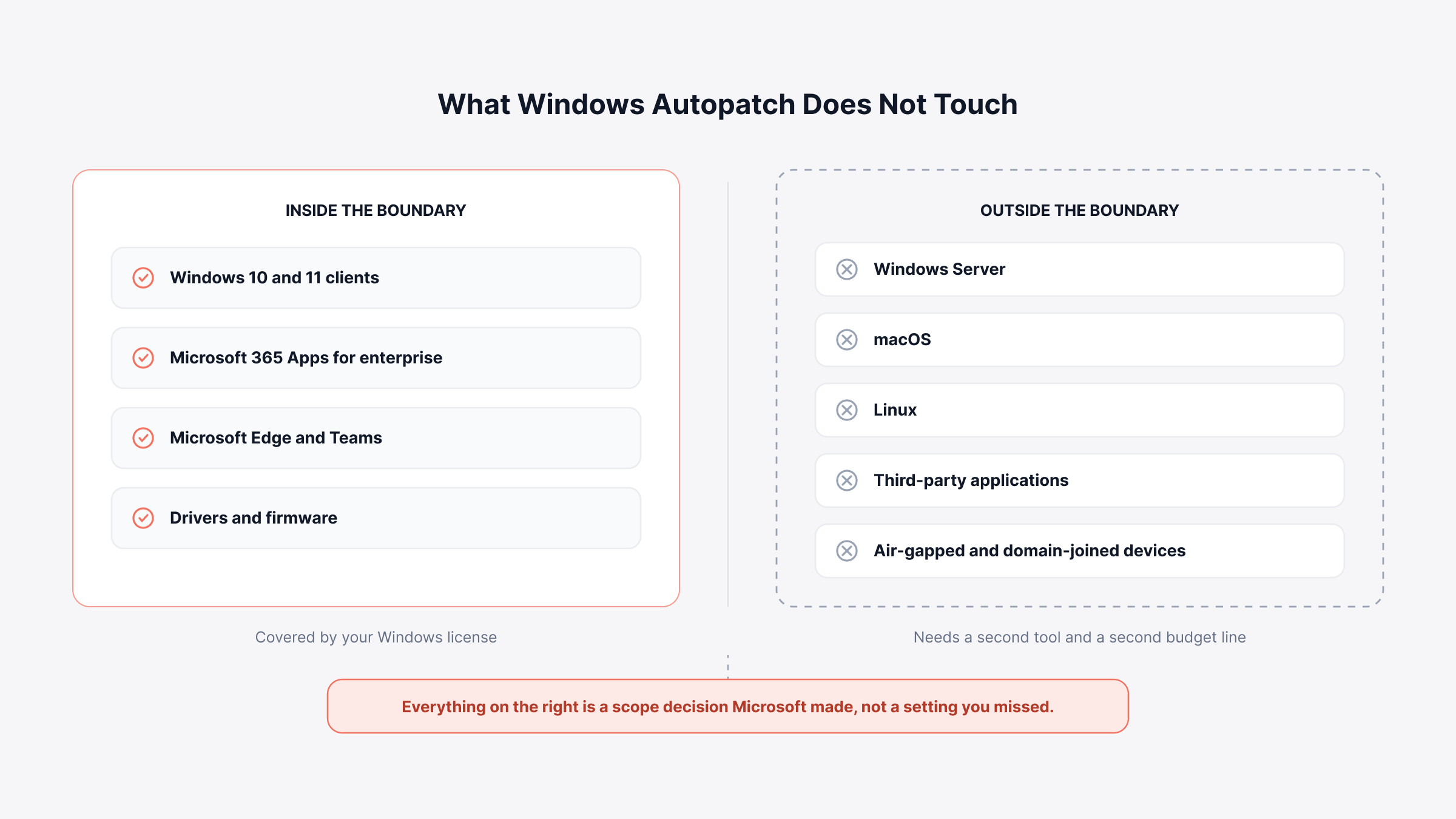
Windows Autopatch manages Windows client devices and Microsoft's own applications, and nothing else. Everything else in your estate needs a second tool.
Four of those gaps are architectural rather than temporary, and the boundary between them is worth seeing drawn out.
1. It Covers Windows Clients Only
Autopatch does not manage Windows Server, macOS, or Linux. Server patching is a different Microsoft product entirely.
Windows Server 2025 Datacenter Azure Edition goes through Azure Update Manager, and Arc-connected servers go through Azure Arc. That is a separate console and a separate bill.
So a team on Autopatch for laptops and Azure Update Manager for servers runs two patch tools. That means two reports, and two sets of evidence when an auditor asks.
2. It Does Not Patch Third-Party Applications
Chrome, Firefox, Zoom, Adobe Reader, Java, and every line-of-business application you install sit outside the service. Autopatch handles Edge and Teams because Microsoft makes them.
That gap widens every year. NIST enriched nearly 42,000 CVEs in 2025, which is 45 percent more than any prior year. Most of them have nothing to do with Windows. A vulnerability assessment that stops at the operating system misses most of the surface it was meant to cover.
3. It Needs Cloud Identity and Internet Access
Devices have to be Entra joined or Entra hybrid joined, and they need to reach Microsoft update services. Air-gapped networks, isolated OT segments, and machines that only know your on-premises domain are all out of scope.
We have watched teams find this out after the migration plan was signed off. Say 5 percent of your devices cannot reach the cloud. If you keep the Configuration Manager running for those, you have not retired a tool at all.
4. GCC High and DoD Tenants Cannot Use It
Autopatch runs in standard Government Community Cloud tenants on G3 and G5 plans. GCC High and Department of Defense environments are shut out, and Microsoft has not published a date for either.
Three more gaps sit on the roadmap side rather than in the architecture. Microsoft could close these and has not yet:
You still cannot pause or roll back a single KB. Rollback happens at the level of a monthly release, so one bad patch means unwinding the whole month.
Hotpatch has no automatic rollback. Removing one means installing the standard cumulative update and taking the restart you were avoiding.
Intune's reporting history is short next to what a multi-year compliance audit asks for.
Of those three, the per-KB gap is the one we hear about most. It comes up in nearly every regulated estate we work with.
The first four are why most teams run something beside Autopatch rather than instead of it. Agent-based Windows patch management covers the servers, Macs, Linux boxes, and third-party applications Autopatch was never built to see.
What's New in Windows Autopatch
Windows Autopatch picked up most of its control and reporting features in the last eighteen months. If you evaluated it in 2023 and moved on, this is what you missed:
April 2025: Feature activation was removed, and Autopatch was extended to Business Premium and Education A3 and A5.
November 2025: Manual approvals arrived for security, non-security, and out-of-band updates, with deferral settings and pause and resume. Extended Security Update enrollment also became visible in the quality update reports.
Q1 2026: Maintenance windows landed, letting you set restart timing down to the hour.
February 2026: Gradual rollouts for feature updates came back.
March 2026: Update readiness reached general availability, along with alerts, remediations, and a readiness checker.
May 2026: Hotpatch switched on by default for eligible devices.
That Extended Security Update line matters more than it looks. Windows 10 went out of support in October 2025. According to StatCounter, Windows 10 has a 29.83% market share of Windows desktops worldwide in July 2026.
Plenty of teams still need to know which machines are enrolled in ESU and which are simply behind.
Read the list as a whole and the direction looks obvious. Microsoft is closing the control and visibility gaps. It is leaving the coverage ones alone. Nothing there moves Autopatch past Windows clients, and nothing on the public roadmap suggests it will.
Windows Autopatch vs Intune Update Rings vs WSUS
Three Microsoft options handle Windows updates, and they sit at different points on the control-versus-effort line. Here is how they compare.
Capability | Windows Autopatch | Intune Update Rings | WSUS |
Where it runs | Cloud, through Intune | Cloud, through Intune | On-premises server |
Setup effort | Low, rings built for you | Medium, you build each ring | High, you run the server |
Approval control | Automatic or manual | Manual | Manual |
Per-KB pause or rollback | No | No | Yes |
Windows Server | No | No | Yes |
Third-party apps | No | No | No |
Hotpatch support | Yes | Via quality policy | No |
Air-gapped networks | No | No | Yes |
Cost | In your Windows license | In your Intune license | Free, plus server cost |
WSUS is the one to watch. Microsoft deprecated it in 2024, which means no new features, though it still ships with Windows Server and still works today.
We still see update rings and Autopatch compared as rivals. They are not. Update rings are one of the policy types Autopatch orchestrates, so the honest comparison is between letting the service drive them and driving them yourself.
Five Windows Autopatch Alternatives That Cover the Gaps
Nobody replaces Autopatch for Windows client patching when the license is already paid for. What teams add is coverage for the things Autopatch skips. These five are the usual shortlist, and each one closes a different gap.
Tool | Best for | OS coverage | Third-party apps | Main trade-off |
Motadata ServiceOps | Mixed estates that also need service desk and asset data | Windows, macOS, Linux | Yes | Needs an endpoint agent |
Intune update rings | Teams wanting manual control inside Microsoft | Windows only | No | Same coverage limits as Autopatch |
Configuration Manager | On-premises and air-gapped estates | Windows | Limited | Infrastructure to run and maintain |
Azure Update Manager | Windows and Linux servers | Windows Server, Linux | No | Billed through Azure, not included |
ManageEngine Endpoint Central | Broad third-party application coverage | Windows, macOS, Linux | Yes | Adds a second console and agent |
1. Motadata ServiceOps
Best for: mid-market and regulated IT teams that want patching to sit with the service desk and asset records instead of beside them.
Rating: 4.6 on G2, 4.4 on Gartner Peer Insights.
Patch and package management is one of three pillars in Motadata ServiceOps, alongside the service desk and IT asset management.
All three run on one CMDB, so a failed patch, the ticket it raises, and the asset behind it end up in the same record.
The patch module scans for missing updates across Windows, macOS, and Linux. Supported distributions include Ubuntu, CentOS or RHEL, and Debian.
It also covers third-party applications, which is the gap that sends most Autopatch users looking. Adobe Reader, Java, and browsers are the standard use cases.
Deployment policies handle maintenance windows, user deferment, and forced reboots. A test-group workflow pushes an update to a pilot set and holds it there until someone approves the wider rollout. Compliance reporting maps to PCI DSS, HIPAA, and SOX.
We run ServiceOps on-premises, in a private cloud, or in a public cloud. That is what makes it workable for the isolated segments Autopatch cannot reach.
Honest trade-off: patching runs through an endpoint agent, so there is a deployment step Autopatch does not have. We have not published a count of supported third-party applications either. A team with a long or unusual software list should confirm coverage before committing.
2. Microsoft Intune Update Rings
Update rings are the manual version of what Autopatch automates. You build each ring, set the deferral periods, and decide when a release moves on. Everything stays inside Intune and inside the license you already hold.
Be clear about the coverage, though, because it is identical. Update rings do not patch Windows Server, macOS, Linux, or third-party applications either. What you gain here is control, not reach.
3. Microsoft Configuration Manager
Configuration Manager remains the answer for on-premises and air-gapped estates. It patches Windows Server, it works without cloud identity, and it can pull a single problem KB off the fleet in an afternoon.
Infrastructure is the price. You need site servers, distribution points, a database to look after, and the skills to run all three. Teams keep it for the small share of devices nothing else can reach. We have watched that arrangement hold for years at a stretch.
4. Azure Update Manager
Azure Update Manager is Microsoft's server-side answer. It handles Windows Server and Linux, both in Azure and on-premises through Azure Arc. It is also where hotpatching for Windows Server 2025 lives.
It bills through an Azure subscription rather than your Windows license, so it is a new cost. It does not touch client devices either, which makes it a partner to Autopatch rather than a replacement.
5. ManageEngine Endpoint Central
Endpoint Central covers Windows, macOS, and Linux with a large third-party application catalog. That catalog is what puts it on most shortlists. Patching sits alongside software deployment and remote control in one console.
It is a separate platform from Intune. You are adding a second console and a second agent, not extending what you already run.
Estates with a long tail of niche software usually need a wider net than these five. A comparison of the best patch management software covers eight tools on OS support, catalog size, and pricing.
How Should You Choose Between Autopatch and an Alternative?
Start by counting what is actually in your estate, not what the license covers. The answer usually falls straight out of that count.
Your situation | Start with | Why |
Every device is a Windows 11 client, Entra joined, on E3 or Business Premium | Windows Autopatch on its own | Nothing else to patch, and you have already paid for it |
Windows clients plus Macs, Linux, or third-party applications | Autopatch and an agent-based patch platform | Autopatch covers Windows, the agent covers everything else |
Windows Server in the estate | Autopatch for clients, Azure Update Manager or an agent tool for servers | Autopatch never touches Windows Server |
Air-gapped devices or on-premises domain-joined machines | Configuration Manager, or a platform you can host yourself | Autopatch needs Entra join and internet access |
Compliance asks for per-KB control and multi-year evidence | Configuration Manager or a third-party patch platform | Autopatch rolls back by month, not by KB |
Most teams land on Autopatch plus one other tool. That is the normal answer rather than a compromise. Autopatch was scoped to Windows clients deliberately.
The one thing we would check first is how many devices in your estate cannot reach the cloud. That number decides more than any feature comparison will.
The trap is framing it as a replacement decision. Autopatch is paid for and it does the Windows client job well. The useful question is what belongs beside it.
Estates that mix cloud-joined laptops with on-premises servers need one report covering both. That is what automating Windows patch management for a hybrid environment has to solve. Size the gap before renewal, not after an audit finding.
Know What Windows Autopatch Misses Before Your Next Audit
Windows Autopatch is a capable service with a scope that has not moved since 2022. It automates Windows client updates well, and Microsoft keeps sharpening the control and reporting around that one job.
What it will not do is grow into a patch platform. Servers, Macs, Linux, and every third-party application stay outside it. Eighteen months of releases have not shifted that line once, and we would not plan around it shifting soon.
So count the devices Autopatch genuinely covers, then size what is left over. Teams that do the arithmetic before renewal end up with two tools and one clean compliance report. Teams that skip it end up with four spreadsheets and an audit finding, usually in the same quarter.
FAQs
Is Windows Autopatch free?
Autopatch costs nothing extra if you hold a qualifying license. It is included with Windows Enterprise E3 and E5, F3, Education A3 and A5, Microsoft 365 Business Premium, and GCC G3 and G5. There is no separate purchase and no add-on SKU.
How do I get to Windows Autopatch?
Open the Microsoft Intune admin center, go to Tenant administration, and select Windows Autopatch. Autopatch groups, reports, and update policies all live there. Devices register through policy assignment, so there is no separate enrollment step to run.
What is the difference between Microsoft Intune and Windows Autopatch?
Intune is the endpoint management platform. Windows Autopatch is the update service inside it that orchestrates quality, feature, and driver policies for you. You cannot run Autopatch without Intune, and Intune can run update rings without Autopatch.
What happens if a Windows Autopatch update breaks something?
You can pause a release, resume it, or roll back quality and feature updates through update rings, and pause specific driver updates separately. Rollback works at the monthly level, so removing one problem KB on its own is not supported.
Does Windows Autopatch replace WSUS?
Windows Autopatch does not replace WSUS for most estates. It handles Windows clients only. Servers, air-gapped machines, and third-party applications still need Configuration Manager or a patch platform that covers all three from one console.
Author
Ramya Shah
Technical Writer
Ramya Shah is a technical content writer with a computer engineering background and roots in automotive journalism. He covers IT Service Management, observability, IT operations, and AI-driven automation. An early adopter of AI-assisted writing workflows, he turns complex IT processes into clear, engaging content optimized for search and answer engines (AEO), lifting content output and organic visibility.