How to Kill a Process in Linux Without Breaking the Service Behind It
What do you do when a process on a production server stops responding and the service behind it starts failing? Most administrators reach for the kill command, send a signal, and wait. Sometimes the process ends cleanly, and sometimes it ignores the request entirely.
Knowing how to kill a process in Linux is straightforward once you understand what a signal actually does. The harder part is deciding which signal to send, when to escalate, and what a forced termination leaves behind. Most guides on the Linux kill process stop at the command and skip the judgment entirely.
That judgment matters, because a terminated process is usually a symptom of something upstream: a memory leak, a stuck I/O call, or a configuration change nobody recorded. Treating each termination as a one-off fix keeps the same failure coming back, which is one of the more persistent Linux monitoring issues in production environments. In this blog, you will see every command, signal, and escalation step involved, plus what to check before and after you end a process.
What does It Mean to Kill a Process in Linux?
To kill a process in Linux means sending it a signal that asks or forces it to stop running. The kill command does not destroy anything by itself. It hands a numbered signal to the kernel, and the kernel delivers that signal to the target process.
What happens next depends on the process:
Signals it can handle: The application runs its own shutdown routine, flushes buffers, closes connections, and exits on its own terms
Signals it can ignore: The application discards the request and keeps running, which is why a polite termination sometimes appears to do nothing
Signals it cannot refuse: The kernel removes the process immediately, with no chance to save state or clean up
That difference is what separates a safe termination from a damaging one. A graceful signal lets a database commit its open transaction, while a forced signal takes the same database down mid-write and turns a two-minute fix into a recovery job.
Every running process carries a numeric process ID, or PID, assigned by the kernel when it starts. Every command in this guide works by pointing a signal at one or more of those PIDs, either directly or through a name lookup. What no command shows you is why the process reached that state and answering that is the job of observability.
Which Signals does the Linux Kill Command Send?
The Linux kill command can send any signal defined by the operating system, and the one you choose decides whether the process shuts down cleanly or disappears mid-operation. Run kill -l to list every signal available on your system.
These are the signals that matter in daily operations:
Signal | Number | What it does | Can the process ignore it? | Typical use |
SIGHUP | 1 | Hangs up the controlling terminal | Yes | Tells daemons to reload configuration without restarting |
SIGINT | 2 | Interrupts the process | Yes | The same request Ctrl+C sends from a terminal |
SIGQUIT | 3 | Terminates and writes a core dump | Yes | Ending a process while capturing its state for analysis |
SIGKILL | 9 | Removes the process immediately | No | Last resort for a process that will not respond |
SIGTERM | 15 | Requests a clean shutdown | Yes | The default and correct first choice |
SIGSTOP | 19 | Pauses the process | No | Freezing a runaway job without ending it |
SIGCONT | 18 | Resumes a paused process | Yes | Restarting work after a SIGSTOP |
Two details from this table carry into production work:
Signal numbers are not universal: They hold on x86 and ARM systems, which covers most server fleets, while architectures such as SPARC and MIPS assign different values. Writing kill -TERM instead of kill -15 removes the ambiguity, and the kill(1) manual page documents the full set
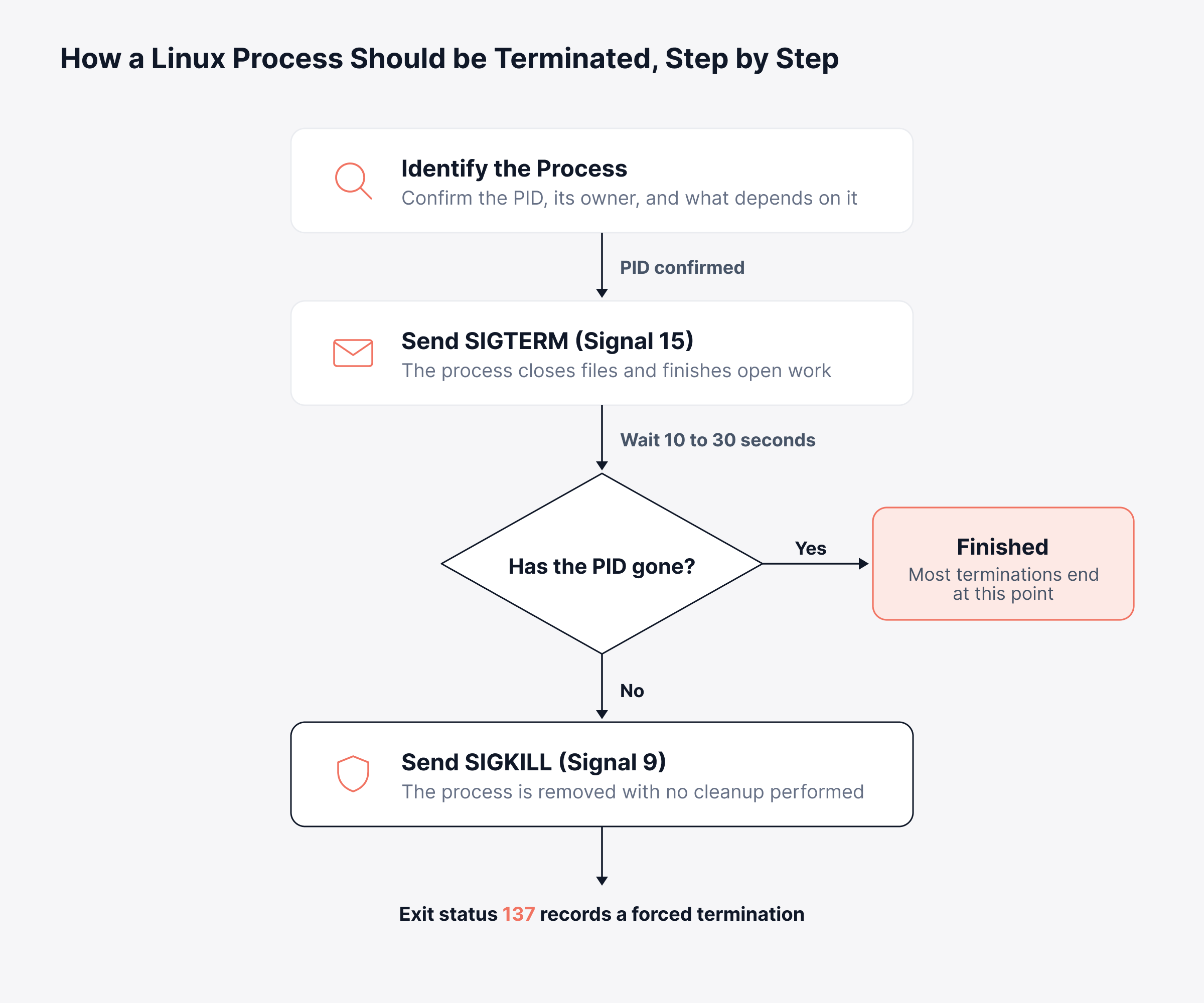
Exit status is 128 plus the signal number: A SIGTERM exit reports 143 and a SIGKILL exit reports 137, two values that appear constantly in container logs and CI output
Recognizing those exit codes tells you a signal ended the process, which often closes a root cause analysis before it starts. Choosing the signal only matters once you are certain you have the right process.
Most processes end at the second step, and the ones that do not are the only candidates for a forced signal. The ladder below sets out that escalation in order and marks the point where the majority of terminations finish.
How do You Find the Process ID Before You Kill It?
Finding the process ID is what stops you from terminating the wrong thing, and Linux gives you several ways to do it. Most guides on how to kill process in Linux skip the step where this goes wrong, which is sending the signal to the wrong PID.
These commands cover almost every lookup you will need:
ps aux | grep nginx: Lists every process with its owner, resource share, and command line, filtered to the name you want
ps -ef --forest: Shows the same inventory as a tree, revealing whether your target has children that would be orphaned
pgrep -a nginx: Returns matching PIDs with the full command, cleaner than parsing grep output
pidof nginx: Returns PIDs for an exact executable name only, which matters in scripts where a loose match is dangerous
top or htop: Gives a live, sortable view of resource consumption, and htop lets you highlight a process and press k to send a signal without leaving the view
Always confirm the owner and the full command line before acting. A generic name such as java or python can match a dozen unrelated workloads on a busy Linux server.
Finding the Process That is Holding a Port
A port conflict is the most common reason to go looking for a PID. It shows up when a service refuses to start because something is already running on the port it needs:
sudo lsof -i :8080: Lists the process bound to that port with its PID, user, and protocol
sudo ss -lptn 'sport = :8080': Returns the same answer faster on systems where lsof is slow or unavailable
Once you have the PID, every command below applies as written. The same conflict on Windows is resolved with netstat -ano to find the PID and taskkill /PID <pid> /F to end it.
How do You Kill a Process in Linux by PID?
Killing by PID is the most precise option you have, because it targets one process and nothing else. The Linux kill process by PID method uses the kill PID syntax: a signal followed by one or more process IDs.
Work through these in order:
kill 4821: Sends SIGTERM by default and asks the process to shut down cleanly
kill -15 4821: Identical to the above, written explicitly so the intent is clear in scripts and runbooks
kill -9 4821: Sends SIGKILL and removes the process immediately without cleanup
kill -HUP 4821: Asks a daemon, meaning a service running in the background, to reload its configuration while continuing to run
You can pass several PIDs to one command, as in kill -15 4821 4822 4823. For jobs started in your current shell, kill %1 targets job number one with no PID lookup at all.
Always verify the result. Running ps -p 4821 afterward tells you whether the kill took effect, and an empty response confirms it did.
What to do When You See Operation not Permitted
An "Operation not permitted" error means the process belongs to another account or to root, and yours cannot signal it. Re-run the command with sudo, as in sudo kill -9 4821, if your account has that privilege.
Root access on production hosts deserves more thought than it usually gets. When several administrators can end a customer-facing service and no record shows who did it, the review afterward has nothing to work from. That is why termination steps belong in runbook automation instead of personal shell history.
How do You Kill a Process by Name Instead of PID?
You can kill a process by name using pkill or killall, both of which handle the PID lookup for you. The Linux kill process by name approach saves you the lookup step, and it carries more risk, because a loose pattern can match processes you never meant to touch.
The two commands behave differently:
pkill nginx: Matches any process whose name contains the pattern and signals all of them
pkill -f "python /opt/app/worker.py": Matches against the full command line, the only reliable way to separate several workers sharing one interpreter
killall nginx: Matches the exact executable name only, with no partial matching
pkill -9 nginx or killall -9 nginx: Adds the forced signal to either command
Run pgrep -a <pattern> first, every time. Consider a host running three Java services: a payment gateway, a nightly reporting job, and an internal search index. Here pkill java ends all three, and the one customers notice is the payment gateway.
How do You Kill All Processes by User?
To kill all processes by user, point the same commands at an account name instead of a PID. This comes up when a contractor leaves or a session hangs and refuses to close. Three options cover it:
pkill -u devops: Sends SIGTERM to every process that account owns
killall -u devops: Achieves the same result through killall
sudo loginctl terminate-user devops: Ends the user's sessions through systemd, which handles scopes and child processes more completely
Commands that kill all processes Linux has running are a different matter. kill -9 -1 signals every process your account can reach, and when run as root, that includes the ones keeping the machine usable. Once a targeted signal has been sent and ignored, the next decision is whether to force the exit at all.
When Should You Force Kill a Process in Linux?
Force kill a process only after a graceful signal has been given time to work and has clearly failed. Knowing how to force kill a process in Linux is less about the syntax and more about understanding what a forced exit costs you. SIGKILL cannot be caught, blocked, or ignored, which is why it works and why it is expensive.
The process gets no chance to run its shutdown routine, which leaves behind:
Unwritten data: Anything buffered in memory is discarded, including partial database writes and unflushed logs
Stale lock files: PID and lock files stay on disk, and the service often refuses to restart until someone clears them
Orphaned children: Child processes are reparented to init, the system's first process, and may keep running while holding ports and file handles
Leaked resources: Shared memory segments and temporary files survive, accumulating across repeated forced terminations
A practical rule: send SIGTERM, wait between 10 and 30 seconds for an application process, and escalate only if the PID is still present. Anything holding persistent state deserves the longer end of that window.
The cost of skipping that wait rarely shows up on the night it happens. An order service forced down mid-write can leave transactions half-recorded, and finance finds them during reconciliation weeks later, long after anyone would connect them to a termination command.
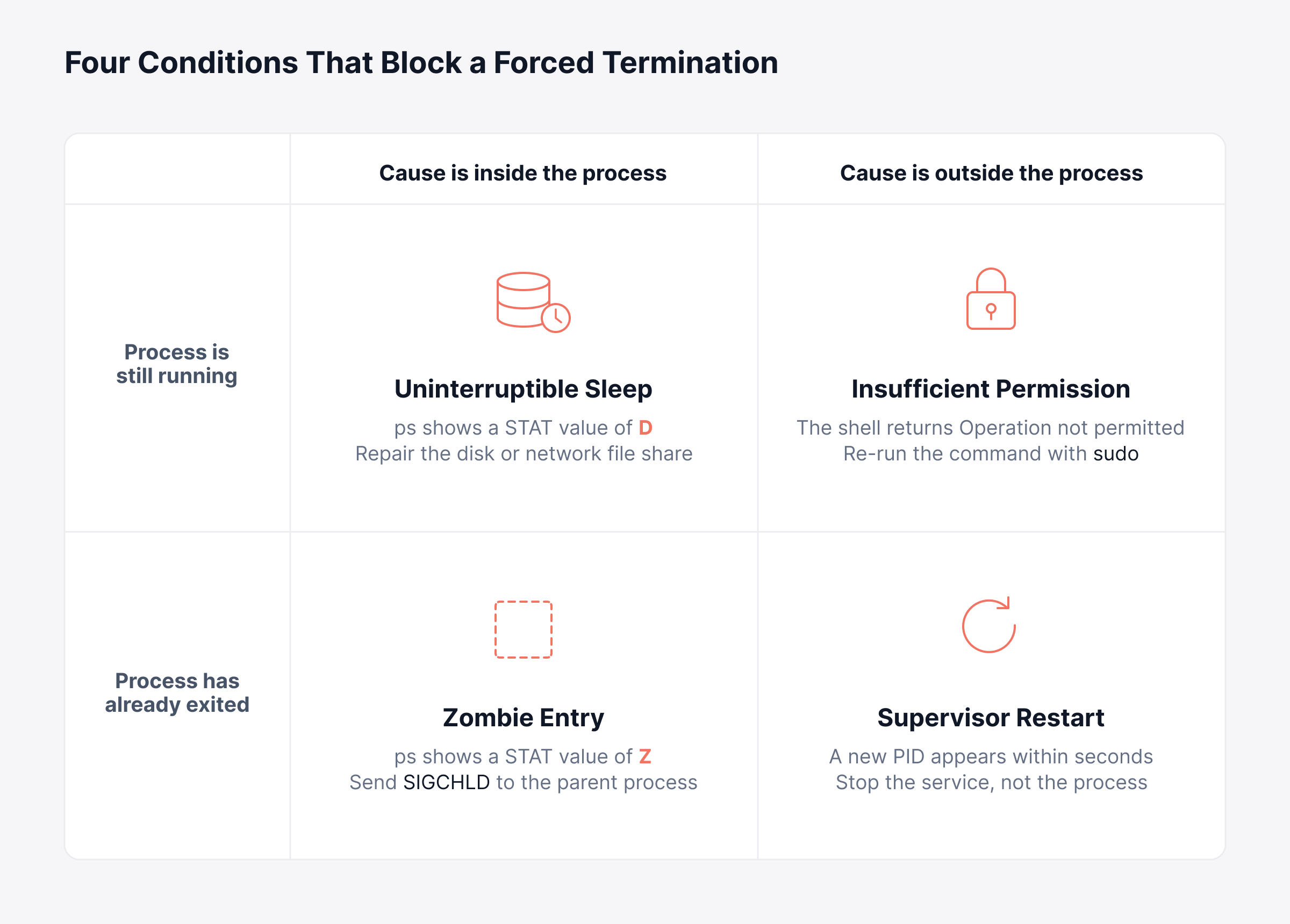
Checking the wrong cause first is what turns a short incident into a long one, and the four causes divide cleanly on two questions. The grid below places each one by whether the process is still running and whether the cause is inside it or outside it.
Why Will a Linux Process Not Die Even After kill -9?
A process survives kill -9 when the kernel cannot deliver the signal, when the process has already exited, or when something outside it starts the program again. Most command references stop before this point, which is where the difficult incidents actually begin. Each of the five conditions below has its own fix, and applying the wrong one extends the outage, so this is the part of infrastructure troubleshooting worth learning properly.
Why a Process in Uninterruptible Sleep Ignores SIGKILL
A process in uninterruptible sleep ignores SIGKILL because it is waiting on a kernel operation that cannot be interrupted, typically a read or write against a failing disk or an unresponsive network file share. Check it with ps -eo pid,stat,comm and look for a STAT value of D.
SIGKILL is queued for that process, and the kernel delivers it the moment the I/O call returns. Repeating the command changes nothing. The fix belongs to the storage path or the network mount, and continuous server monitoring usually catches the rising disk latency long before the process locks up.
Why a Zombie Process Cannot be Killed
A zombie process cannot be killed because it is already dead, and ps marks it with a STAT value of Z. All that remains is an entry in the process table, held open because the parent has not read its exit status.
You cannot kill something that has already exited. Send SIGCHLD to the parent with kill -CHLD <parent PID>. If the parent itself is broken, ending it hands the zombie to init, which clears the entry immediately.
When systemd or a Container Runtime Restarts the Process
A supervisor is restarting the process if it disappears and a new PID for the same program appears within seconds. That is usually systemd acting on a Restart= directive, or a container runtime honoring its restart policy.
Signal the supervisor instead of the process:
sudo systemctl stop myapp: Stops the service and its restart policy together, so nothing relaunches it
docker stop <container>: Sends SIGTERM, waits out the grace period, then forces the exit
kubectl delete pod <name>: Removes the pod and lets the controller decide whether a replacement starts
Why PID 1 in a Container Ignores SIGTERM
PID 1 in a container ignores SIGTERM because the kernel exempts the first process from default signal actions. So a shell or application running as PID 1 with no signal handler of its own simply carries on.
This is why container stop commands wait and then force the exit, and why that forced exit appears as status 137 in your logs. Running the application under a small init process, which forwards signals on its behalf, restores normal handling, and Kubernetes monitoring surfaces repeat 137 exits as a pattern instead of a one-off.
When the Out-of-Memory Killer Ends the Process First
Sometimes the kernel ended the process before you sent any signal at all. Under memory pressure, the out-of-memory killer selects a process and terminates it without warning, and the first sign is a service that disappeared without anyone running a command.
Check dmesg -T | grep -i oom or the systemd journal. Repeated entries point to a sizing or leak problem that capacity planning should have caught, and no termination command will address it.
What Should You Check Before You Kill a Process?
Check ownership, dependencies, and supervision before you send any signal, because the command is irreversible once SIGKILL is involved. The aim is to end one unresponsive process without turning a single failure into several.
Work through this list:
Who owns it: Confirm the account and full command line, so you are not ending another application's workload
What it is holding: Check open transactions, locks, and client connections with lsof -p <PID> before setting a graceful window
What depends on it: Use ps -ef --forest to see the children that would be orphaned and the parent that may restart it
Whether it will return: Check systemctl status for the owning unit, since killing a supervised service only delays the restart
Why it failed: Capture state first, since kill -QUIT writes a snapshot of process memory for a Java service and log monitoring preserves evidence a forced exit destroys
That last point is the one most often skipped under pressure. A process ended with no record leaves the next responder guessing, and the same failure returns a week later with the same unknown cause.
Removing that guesswork is what one of our customers points to on G2:

How do You Stop Services Properly Instead of Killing Them?
Use the service manager for anything that runs as a managed service, since it handles dependencies, ordering, and cleanup that a raw signal does not. The kill command Linux administrators reach for is a diagnostic tool, best used on processes that are genuinely stuck.
For everything under supervision:
sudo systemctl stop nginx: Stops the service and every process it owns, respecting the shutdown timeout configured for it
sudo systemctl restart nginx: Stops and starts in one operation, avoiding the window where a competing process claims the free port
sudo systemctl reload nginx: Applies configuration changes without interrupting active connections, where the service supports it
sudo nginx -s reload or kill -HUP <PID>: Reloads configuration for daemons that use SIGHUP as their reload trigger
Service managers also give you a grace period that a manual signal does not. systemd waits out a configurable stop timeout, container runtimes wait roughly 10 seconds by default, and Kubernetes allows around 30 seconds before forcing the exit.
Those windows should shape how shutdown handlers are written, since an application needing 45 seconds to drain gets cut off unless someone raises the timeout. Getting them right removes a whole class of failure. It still leaves the larger question of why the same service needs stopping every month.
Why do Repeated Manual Kills Become a Business Problem?
Repeated manual terminations become a business problem because something is failing on a schedule and nobody is measuring it. Most reference material explains the command and goes no further. Every kill command run from a terminal leaves no record, produces no trend, and teaches the organization nothing.
The business cost is straightforward, since each intervention consumes engineer attention, extends time to recovery, and adds toil that scales with the number of servers you run. Consider what you can actually answer during an incident:
Question during the incident | What the terminal shows | What unified observability shows |
Is this process consuming more memory than usual? | Current usage at this moment | The trend over days and weeks, with the point it changed |
Has this happened before? | Nothing beyond shell history on one host | Every prior occurrence, with timing and frequency |
Did the termination actually fix it? | The PID is gone | Whether the service recovered and stayed healthy afterward |
What changed just before it failed? | Nothing | Configuration, deployment, and resource changes on one timeline |
Once that history exists, the response changes. A process crossing a memory threshold raises an alert before it stops responding and auto remediation can run the restart under a documented policy instead of an improvised command.
A fix ends today's problem, and a control makes the next occurrence start from something you already know. The cycle below traces how a single termination turns into a recorded, repeatable response.
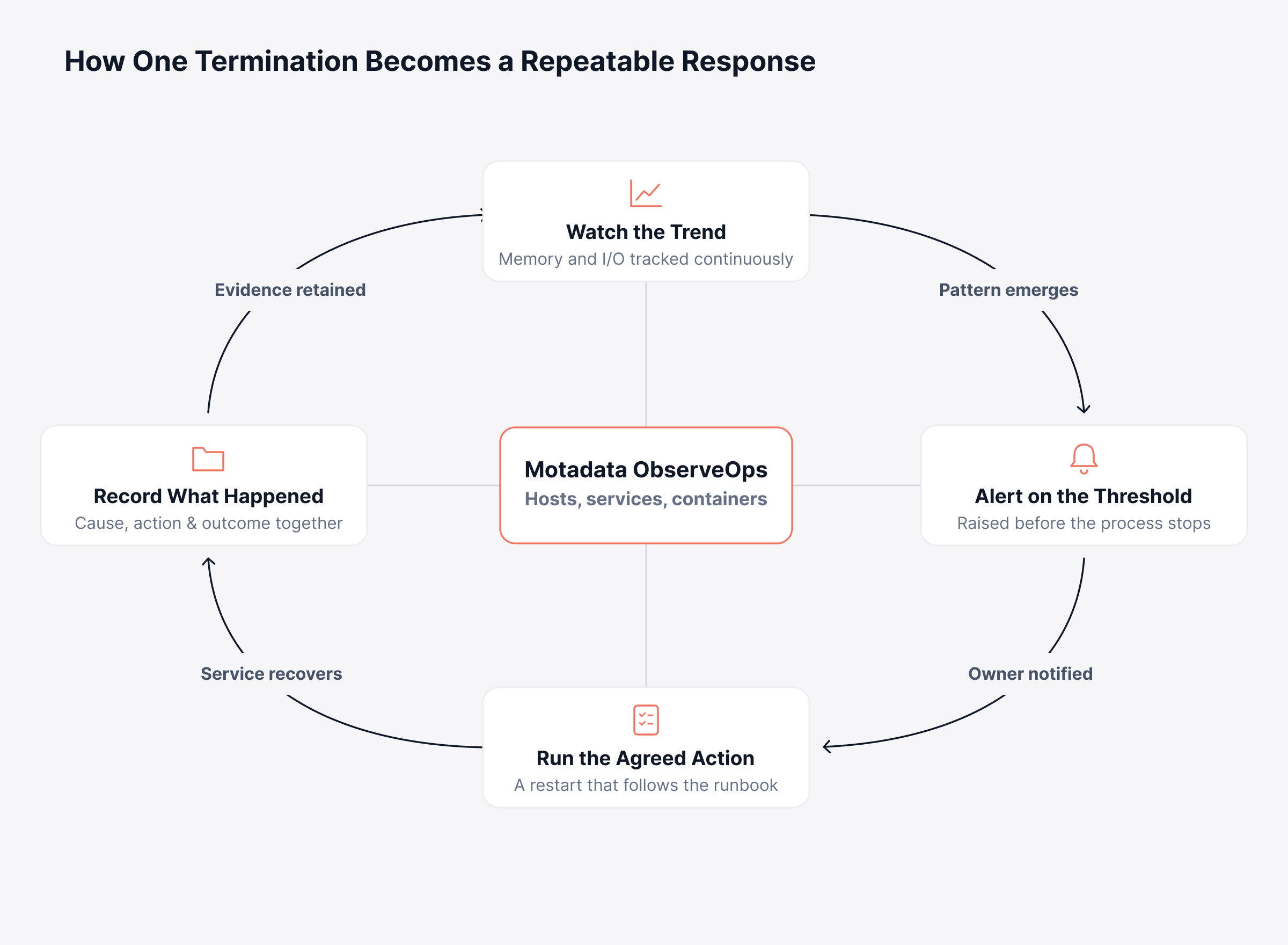
Continuous server performance monitoring also turns a termination from an invisible action into a recorded event. That record makes the next occurrence a known pattern instead of a fresh investigation.
Find the Cause Behind the Kill Command with Motadata ObserveOps
No observability platform removes the need for the kill command. Processes will still hang, storage will still stall, and an administrator with terminal access will still be the fastest path back to a running service.
What changes is how often you need it, and how much you know before you run it. Motadata ObserveOps tracks process and resource behavior across your Linux and Windows infrastructure continuously, so a memory leak appears as a climbing trend days before it becomes an outage, and a repeat failure appears as a pattern instead of a coincidence.
The commands in this guide handle the incident in front of you. A correlated view across hosts, services, and containers handles the reason it keeps happening.
FAQs
What is the difference between kill and kill -9 in Linux?
The kill command sends SIGTERM by default, which asks a process to shut down cleanly and lets it save open work. Adding -9 sends SIGKILL, which the kernel enforces immediately and the process cannot refuse. Use SIGTERM first and reserve SIGKILL for a process that has already ignored a graceful request.
How do I kill a process in the terminal if I only know the program name?
Use pkill or killall, both of which resolve the name to one or more process IDs for you. Run pgrep -a with the same pattern first to confirm exactly which processes would be affected. Match against the full command line with pkill -f when several workloads share an executable name.
How can I kill all processes belonging to one user?
Run pkill -u followed by the username to send SIGTERM to every process that account owns. On systemd-based distributions, loginctl terminate-user handles sessions and their child processes more completely. Confirm the account is not running anything your services depend on before you proceed.
Why does a process stay in the process list after I kill it?
A STAT value of D means the process is blocked on an I/O operation and the signal stays queued until that operation returns. A STAT value of Z means the process already exited and its parent has not collected the exit status. Repeating the command fixes neither, and platforms such as Motadata ObserveOps surface the storage pressure behind a D state well before the process locks up.
How do I stop the same process from failing again next week?
Look for the condition behind the failure instead of the process itself, which usually means a memory leak, a resource limit, or a dependency timing out. Platforms such as Motadata ObserveOps keep the resource and event history that makes the pattern visible across occurrences. Without that history, every recurrence starts as a new investigation.
Author
Poonam Lalani
Content Strategist
Poonam Lalani is a B2B content strategist and writer with a background in computer engineering and experience across enterprise technology domains, including AI, cloud, DevOps, data engineering, and IT operations. She specializes in creating research-driven content that simplifies complex ideas and supports product education, thought leadership, and business growth.