DHCP Lease Time: What It Is and the Right Setting for Your Network
Why does the guest Wi-Fi in a busy store stop handing out addresses by mid-morning when the DHCP server reports no faults at all? We see this pattern often. It usually traces back to one number in the scope settings, left at its default since go-live.
That number is the lease time. Set it too long and phones that left hours ago still hold their addresses, leaving new visitors with nothing. Too short brings its own trouble: constant renewals, less slack in a DHCP outage, and logs where one IP points to a different device every hour.
We cover the four-message exchange behind each lease in our guide to DHCP ports. In this blog, you will see why the setting matters to the business, how renewal works, and which lease fits each segment. We've also included a pool-sizing formula plus the commands to check or change the value.
What is DHCP Lease Time?
DHCP lease time is the time limit on an IP address handed out by a DHCP server. Once it runs out, the device renews the address or lets it go. A laptop joining the network wants two answers, which address and for how long, and DHCP option 51 carries the second.
A DHCP lease covers more than that. When people ask "what is a DHCP lease?", we describe the IP address lease as one part of a small bundle of settings that gets a device online:
IP address: One free address from the scope
Subnet mask and default gateway: The subnet mask for the local network and the router the device uses to reach anything beyond it
DNS servers: Where the device sends name lookups
Timers: Lease length plus the T1 renewal and T2 rebinding points
That's why the quick answer to "what is lease time in DHCP?" is simply a timer the server owns. Clients can ask for longer; the server decides, and tickets often call the whole thing "DHCP time".
Where is DHCP Server Lease Time Configured?
DHCP server lease time is configured on the DHCP server, scope by scope. Windows Server keeps it in each scope's properties, and Cisco IOS uses the lease command inside the DHCP pool. Particular devices can get a different value through a policy, client class or reservation; that's how a printer keeps a week-long lease while guest phones get an hour.
Clients don't set the lease, though they do see it: run ipconfig /all on a Windows laptop and look for Lease Obtained and Lease Expires. A client may ask for a longer lease in its request. The server grants it only up to your ceiling, called max-lease-time in ISC DHCP.
Why does DHCP Lease Time Matter to the Business?
DHCP lease time decides whether people and devices can get on the network at the moment they need it, so it's as much a business setting as a technical one. A bad value almost never sets off an alarm. Staff, customers and auditors notice it anyway:
Employee productivity: No address, no email, no calls, no business apps; just another help desk ticket
Customer experience: Shoppers, hotel guests and patients expect guest Wi-Fi to work the moment they walk in
Branch continuity: How long a remote office keeps running once it can't reach the central DHCP server
Security and audit: The DHCP record is often the only proof of which device held an IP address at a given time
Capacity spend: A subnet that looks full on paper, only because departed devices still hold addresses
Because none of it registers as network downtime, lease settings often go years without review. Picking a better value means understanding renewal first.
How does DHCP Lease Renewal Work?
DHCP lease renewal is a client asking the server for another full lease on the address it already has. The client starts asking at the halfway point, long before anything expires. That head start is why devices on a healthy network almost never notice renewal at all.
What are the T1 and T2 Timers in a DHCP Lease?
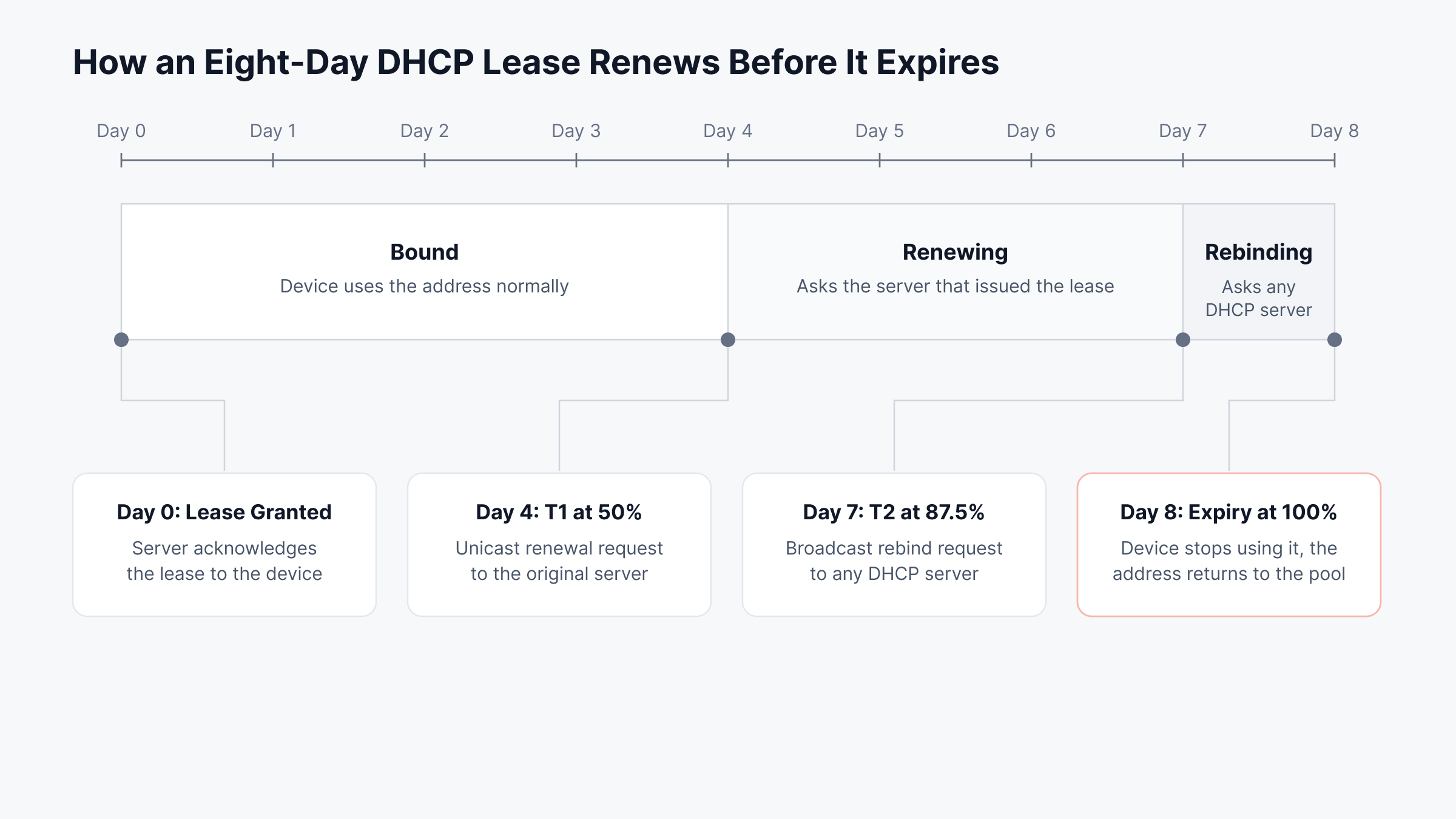
T1 and T2 are the renewal timers. Their defaults come from RFC 2131, and with them a lease moves through four stages:
Bound: Address in normal use from the moment the server acknowledges it
Renewing at T1, 50% of the lease: Unicast request to the issuing server; an acknowledgment restarts the full lease
Rebinding at T2, 87.5% of the lease: Broadcast to any reachable DHCP server, directly or through a relay
Expired at 100%: Address dropped; discovery starts over
Windows Server's default lease is eight days. So renewal begins on day four and rebinding on day seven.
Line these checkpoints up against your own lease length to see your warning time. Below, an eight-day lease is drawn to scale from grant to expiry.
Servers can change the default timers. All three values go out as DHCP options:
DHCP option | What it carries | Value if the server leaves it out |
Option 51 | IP address lease time, in seconds | Required in every lease |
Option 58 | Renewal time (T1) | 50% of the lease time |
Option 59 | Rebinding time (T2) | 87.5% of the lease time |
We rarely see a good reason to override T1 and T2. The defaults already give a client two attempts before its address is at risk, which is plenty.
What Happens When a DHCP Lease Expires?
Once a DHCP lease expires, the address is no longer the client's to use. The server marks it free, and the next device to ask can have it. A laptop shut down properly will usually release its address before that happens.
Plenty of devices never do. Phones are the classic case. The customer leaves, the phone loses the Wi-Fi signal, and nothing tells the server the address is free until the lease runs out.
What Happens to Clients When the DHCP Server Goes Down?
When the DHCP server goes down, clients keep their addresses and work normally until their leases expire. In effect, the lease time is your outage budget. Since every client renews at the halfway mark, the first devices drop off after about half the lease length.
Eight-day lease: A server that's down for an afternoon goes unnoticed
One-hour lease: First addresses lost about 30 minutes into the outage
Branch offices that get addresses from a central server over a DHCP relay face the same math whenever the WAN link fails. It's one reason we give DHCP servers the same uptime assurance as any other core service.
Failover helps, but only partly. With Windows Server DHCP failover, the surviving partner can extend leases only by the Maximum Client Lead Time (one hour by default) until the relationship comes back.
How does DHCP Lease Time Work in IPv6?
In IPv6, DHCPv6 uses two lifetimes per address where IPv4 uses one lease time. Each address gets a preferred lifetime, after which it shouldn't be used for new connections, and a valid lifetime, after which it's gone. RFC 8415 puts the renewal timers at half and 80% of the shortest preferred lifetime.
Many IPv6 networks don't hand out addresses by DHCP at all. Devices build their own through SLAAC (stateless autoconfiguration), using lifetimes the router advertises.
What is the Standard DHCP Lease Time?
The standard DHCP lease time is whatever your platform ships with, since the protocol never fixed one. Common defaults:
Platform | Default lease time | Where you change it |
Windows Server DHCP | 8 days | Scope properties or PowerShell |
Cisco IOS router or switch | 1 day | The lease command in the DHCP pool |
Linux with ISC DHCP or Kea | Defined in the config file | default-lease-time in ISC, valid-lifetime in Kea |
A typical home or small-office router | Often 24 hours, but vendors differ | The router's admin page |
Vendors chose these defaults for a generic office. Your guest Wi-Fi, branch sites and wired floors will each need something different, and the default is simply where the review begins.
What is a Good DHCP Lease Time?
A good DHCP lease time outlasts a typical visit. It's still short enough that addresses come back before the pool runs low. Where that line falls depends on four things:
Visit length: How long devices usually stay connected
Pool headroom: How many addresses the scope holds against peak demand
Server reachability: Whether clients depend on a DHCP server across a WAN link or relay
Traceability needs: How often an investigation must tie an address to one device
Every lease length has a cost.
When do Short DHCP Lease Times Make Sense?
With a short lease of 30 minutes to a few hours, addresses come back quickly. They're the right call wherever devices show up, stay a little while and leave without sending a release:
Guest and public Wi-Fi: Visitors come and go all day
Event spaces and training rooms: Large groups connect at once, then leave together
VPN address pools: Sessions that end when remote staff log off for the day
You pay for that elsewhere. Logs get busier and an outage hurts sooner. Tracing an IP address to one device also gets harder, since the same address may pass through several phones in a day.
When do Long DHCP Lease Times Make Sense?
Long leases, anything from a day to a week or more, keep addresses steady. Wired desks, branch offices, printers and cameras are where we use them.
Here the risk is slow reclamation. If devices churn more than expected, addresses stay locked to equipment that's long gone, and the scope can fill without a single error message. The table below compares both approaches on the factors that matter most for planning:
Factor | Short lease (30 minutes to 4 hours) | Long lease (1 to 8 days) |
Address reuse | Fast, departed devices free up addresses within hours | Slow, addresses stay held for days |
Pool size needed | Smaller pool covers high churn | Larger pool needed if devices churn |
Tolerance to DHCP or WAN outage | Low, first clients drop within minutes to hours | High, outages of a day or more go unnoticed |
Renewal traffic and log volume | Higher | Minimal |
IP-to-device mapping in logs | Changes often, needs DHCP logs to trace | Stable and easy to trace |
DNS record freshness | Records stay current | Records can go stale after devices leave |
Best fit | Guest Wi-Fi, events, VPN pools | Wired desks, branches, fixed devices |
What is the Recommended DHCP Lease Time for Each Network Segment?
The recommended DHCP lease time depends on how long devices stay on each segment. The table follows common DHCP lease time best practice, but treat each value as a first guess and adjust it once utilization data comes in. Giving each segment its own VLAN and scope makes that possible, since lease times are set per scope.
Network segment | Starting lease time | Why it fits |
Guest and public Wi-Fi | 1 to 2 hours | Visitors stay briefly and rarely release their address |
Events, lecture halls, transit hubs | 30 minutes to 1 hour | Thousands of short visits against a fixed pool |
Corporate wireless | 8 to 24 hours | Laptops move between floors, then go home |
Wired office desks | 3 to 8 days | Same device daily, with fewer renewals and better outage tolerance |
Branch sites using central DHCP over the WAN | At least 1 day, often 3 to 8 days | A WAN outage shouldn't drop every client |
Phones, printers, cameras, IoT | Reservation, long lease | Stable addresses for firewall rules and monitoring |
Servers and network infrastructure | Static addresses or reservations | An address change breaks dependencies |
VPN client pools | Close to typical session length, often 8 to 12 hours | Addresses return soon after users disconnect |
Guest networks have needed shorter leases since phones started hiding their hardware addresses. Many now present a private, randomized MAC on each Wi-Fi network, and some rotate it. When a regular customer returns with a new MAC, the DHCP server can't recognize the phone, so it issues a second lease while the first is still held.
How do You Size a DHCP Lease Time Against Your Address Pool?
Sizing a DHCP lease time against your pool comes down to one comparison: addresses held at peak versus addresses available. Devices that already left still count if their leases haven't run out. You need three numbers:
Usable addresses in the scope, after exclusions and reservations
New devices joining per hour at peak
Average time each device stays connected
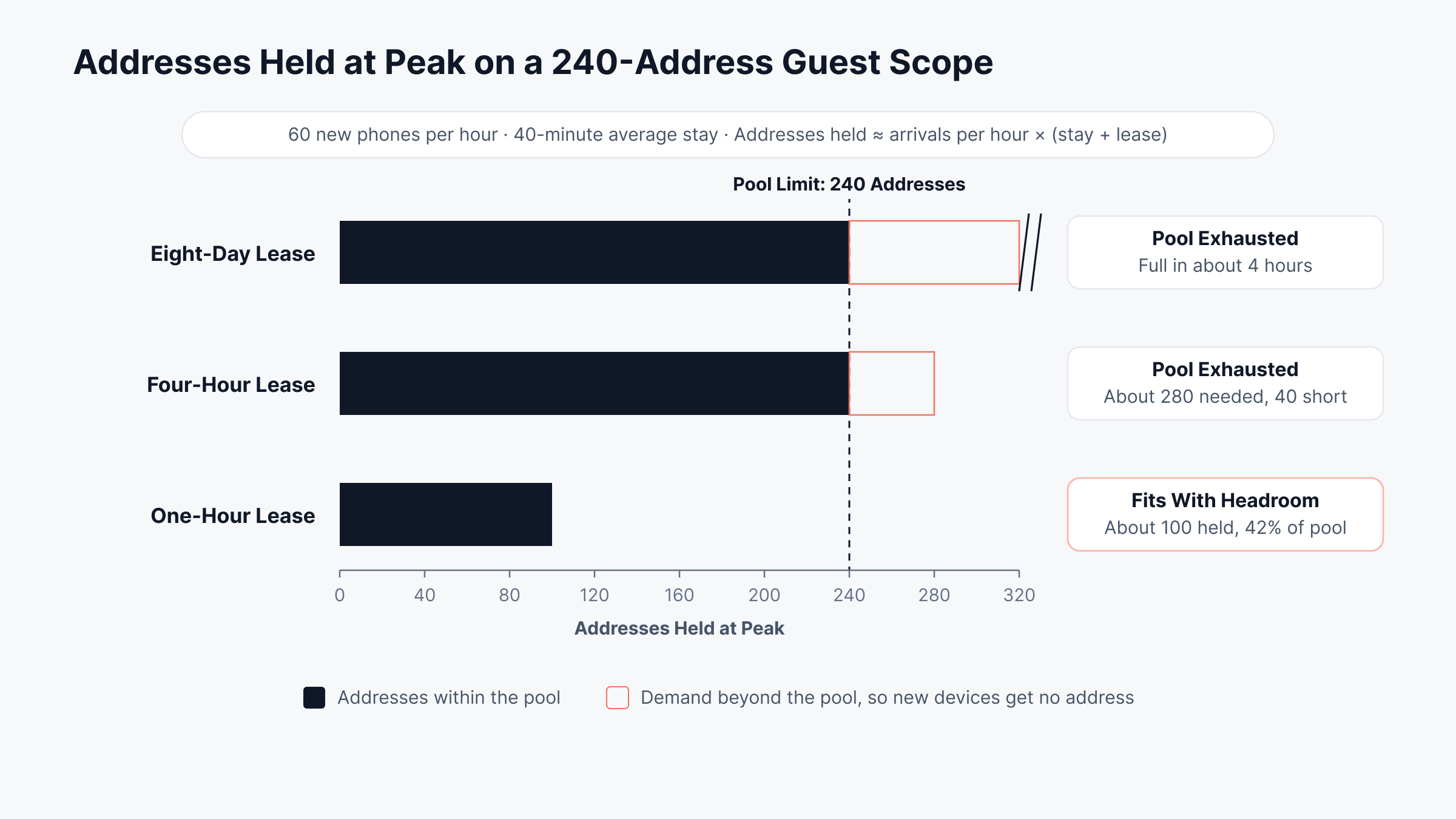
The formula is short. Addresses held ≈ new devices per hour × (average stay + lease time), with both times in hours. It treats every departed device as if it kept its address for a full lease, which makes the result a safe upper estimate.
Take a store whose guest Wi-Fi runs on a /24 scope with about 240 usable addresses. At the busiest hour, 60 new phones connect, and each stays roughly 40 minutes (0.67 hours):
Eight-day lease: Departed phones hold addresses for days; pool full in about four hours
Four-hour lease: About 280 needed (60 × 4.67), and the scope has only 240
One-hour lease: About 100 in use (60 × 1.67), well under half the scope
We'd run this check on every busy segment before settling on a lease. The chart below compares the same guest scope under three lease times against its 240-address limit.
Every segment works this way once you know its peak arrival rate. Leave headroom for sale weekends and big meetings, when arrivals run well past a normal day. We size from measured utilization wherever we can, and the same figures feed wider network capacity planning.
Should You Set DHCP Lease Time to Forever?
We'd advise against setting DHCP lease time to forever. Addresses from retired or departed devices never come back, so over months the scope fills with equipment that left long ago and someone has to clean it up manually. DHCP does allow it (an infinite lease is the maximum 32-bit value), and Windows Server offers an "Unlimited" option in scope properties.
For devices that need a stable address, we'd use a DHCP reservation instead: one address tied to one MAC, with the lease still renewing as usual. Our guide to DHCP vs static addressing goes through the options. A reservation beats a forever lease in three ways:
Central control: Gateway and DNS changes still reach the device through DHCP
Clean records: Each reservation documents who owns which address
Easy reclaim: Delete the reservation when the device retires, and the address is free again
In larger environments, reservations, subnets and static ranges usually live together in one DDI platform. That stops the same address being assigned twice.
How do You Check DHCP Lease Time?
You can check DHCP lease time on the client or on the server. A client shows its own lease details, and the server shows what each scope hands out. We reach for these commands first:
Platform | Command | What it tells you |
Windows client | ipconfig /all | Shows Lease Obtained and Lease Expires per adapter |
macOS | ipconfig getpacket en0 | Shows the lease_time from the server, in hex seconds |
Linux with NetworkManager | nmcli -f DHCP4 device show eth0 | Lists the dhcp_lease_time option |
Linux with dhclient | cat /var/lib/dhcp/dhclient.leases | Shows renew, rebind and expire times |
Windows Server DHCP | Get-DhcpServerv4Scope | Lists the lease duration on each IPv4 scope |
Windows Server DHCP | Get-DhcpServerv4Lease -ScopeId 10.0.20.0 | Lists each client and its lease expiry |
Cisco IOS DHCP server | show ip dhcp binding | Lists bound clients and when each lease ends |
A client showing a different lease length from the scope means something else answered it. Most of the time that's a policy or a reservation. Now and then it's an unauthorized DHCP server on the segment, so rule that out too.
How do You Change DHCP Lease Time?
DHCP lease time is changed on the server, in the scope or pool settings, and clients take the new value at their next renewal. Here's a four-hour lease set on five common platforms:
Platform | Command or setting | What it does |
Windows Server, PowerShell | Set-DhcpServerv4Scope -ScopeId 10.0.20.0 -LeaseDuration 0.04:00:00 | Sets four hours (days.hours:minutes:seconds) |
Windows Server, DHCP console | Scope Properties, then Lease duration for DHCP clients | Same change, made in the console |
Cisco IOS | lease 0 4, entered inside the ip dhcp pool block | Gives that pool zero days and four hours |
ISC DHCP | default-lease-time 14400; and max-lease-time 28800; in dhcpd.conf | Four-hour default, eight-hour ceiling |
Kea DHCPv4 | "valid-lifetime": 14400 in the subnet4 block | Four-hour lease on that subnet |
Some platforms need a service reload before the change takes hold. Afterward, confirm the value from a client with the check commands. If an IPAM platform manages your scopes, make the change there so its records stay in step.
How do You Roll Out a DHCP Lease Time Change Safely?
A new lease time never reaches every device at once, because clients keep their old lease until they renew. Shortening an eight-day lease can take up to four days to reach the last one. So before a re-addressing project or a DHCP server migration, we shorten leases several days ahead and lengthen them again afterward.
A lease change goes smoothly in four steps:
Record current utilization, lease settings and conflict counts for the scope
Change one scope first, during normal working hours
Wait at least half the old lease length so clients renew onto the new value
Compare utilization, NAK counts and help desk tickets against the baseline
What is Passthrough DHCP Lease Time?
Passthrough DHCP lease time comes up when an ISP gateway runs in IP passthrough mode and hands its public address to your own router or firewall over DHCP. The passthrough timer decides how often your device renews that address.
Keep it too short and the firewall renews its public address all day; any delay at the gateway then shows up as a brief WAN drop. We'd set it to a few hours or a full day instead.
What Problems does the Wrong DHCP Lease Time Cause?
Get the DHCP lease time wrong and you'll usually see address shortages, stale records or slow investigations. Rarely does it produce a DHCP error. Here's what network engineers run into most:
Scope exhaustion: New devices fall back to 169.254.x.x addresses; users call in with "connected, no internet"
Stale DNS records: Old registrations for devices long gone, so lookups hit the wrong host
Address conflicts: Two devices claim one address, often after a static assignment lands inside the dynamic range
Slower investigations: With short leases, one address maps to different devices across a day, so analysts need DHCP logs to tie it to a MAC address and hostname
Outage sensitivity: Short leases on WAN-served segments drop clients soon after a link failure
On Windows networks, we keep DNS scavenging intervals longer than the longest lease. Otherwise scavenging can delete records for devices that are still online. Our guide to DNS monitoring covers the resolution side of the same problem.
These problems build slowly. A scope can run at 60% for months, then hit 100% within a week of a new office opening or a guest policy change; that's why lease settings belong on any network troubleshooting checklist.
How does Network Observability Keep DHCP Lease Time Right Over Time?
Network observability keeps DHCP lease time right by watching scope utilization, lease activity and DHCP events all the time. Lease changes then rest on measured usage. A lease that fits today can stop fitting as headcount, devices and guest traffic change.
Watch these signals:
Utilization trend: Scope and pool usage, hour by hour and day by day
Free addresses and pending offers: The first signs that new clients are waiting
Message counters: Discovers, offers, NAKs, declines and releases
Abandoned addresses: Leases the server set aside after finding the address already in use
DHCP events: Full scopes, conflicts, lost failover and unauthorized servers
Lease duration per scope: So a stray setting stands out against its peers
How We Built DHCP Lease Visibility Into Motadata ObserveOps
We built ObserveOps to watch DHCP servers alongside the switches, routers and links they depend on, inside one network monitoring tool. Windows and Linux DHCP servers come in as integrations, reporting at server, scope and pool level.
On Windows Server we read the configured lease duration for every scope, so lease settings across sites can be compared side by side. The integration also reports:
Scope capacity: Utilization and free percentages, plus used, available and reserved addresses
Client demand: Pending offers and the full message counters, from discovers through releases
Failover split: Used and available addresses on the current server and its partner, where failover is configured
For Linux DHCP servers, ObserveOps reads the server's configuration file and lease file, which needs root or equivalent access. That gives you active, abandoned and transient address counts at the scope and pool level. For each lease, it also reports the start and end times, the binding state, the MAC address and the client hostname, which is part of our Linux network monitoring coverage.
Windows DHCP event logs add the context that counters can't. Our Windows log coverage classifies DHCP events by severity, including these:
Event ID and log | What it signals |
1020, System | Scope full, so the server cannot assign an address |
1026, DHCP-Server | Lease denied because the scope is full |
1070, System, and 1025, DHCP-Server | Address conflict detected, or an address declined after a conflict |
1058, System | Unauthorized DHCP server detected |
20292, DHCP-Server | Failover relationship lost |
1029, DHCP-Server | MAC address mismatch during lease renewal |
How ObserveOps Turns DHCP Data into Early Warnings
Data only helps if the right engineer hears about a problem early. ObserveOps offers four kinds of metric policy for scope utilization and the other DHCP counters:
Threshold: Alerts when a value crosses a fixed limit you set
Baseline: Alerts when usage drifts from its learned normal for that hour and day
Anomaly: Flags unexpected behavior without a fixed limit
Forecast: Needs at least 24 hours of history; rechecks about every 15 minutes
Events work through a log policy. It counts entries such as full-scope or conflict events over a time window, then alerts at the severity you choose; both policy types can notify people and run a runbook, as our real-time alerts page explains. With metric policies you can also declare an incident: Motadata ServiceOps gets a request at the severity you set, and closing it there clears the alert.
For conflict alerts, the MAC Address Resolver tracks down the device. Enter the IP address and an SNMP profile for the switch or router; ObserveOps reads that device's ARP table and forwarding state and comes back with the MAC address and the interface in use.
What does a DHCP Lease That is Too Long Look Like in ObserveOps?
ObserveOps shows a DHCP lease that is too long through three signals on one scope. Utilization climbs, the configured duration is long, and almost no release messages reach the server. Take a branch whose guest scope passes 90% every weekday afternoon: a baseline policy flags it, the lease reads eight days, and releases barely register.
Look at all three together before touching the setting. The diagram below traces how they combine into a likely cause and a fix.
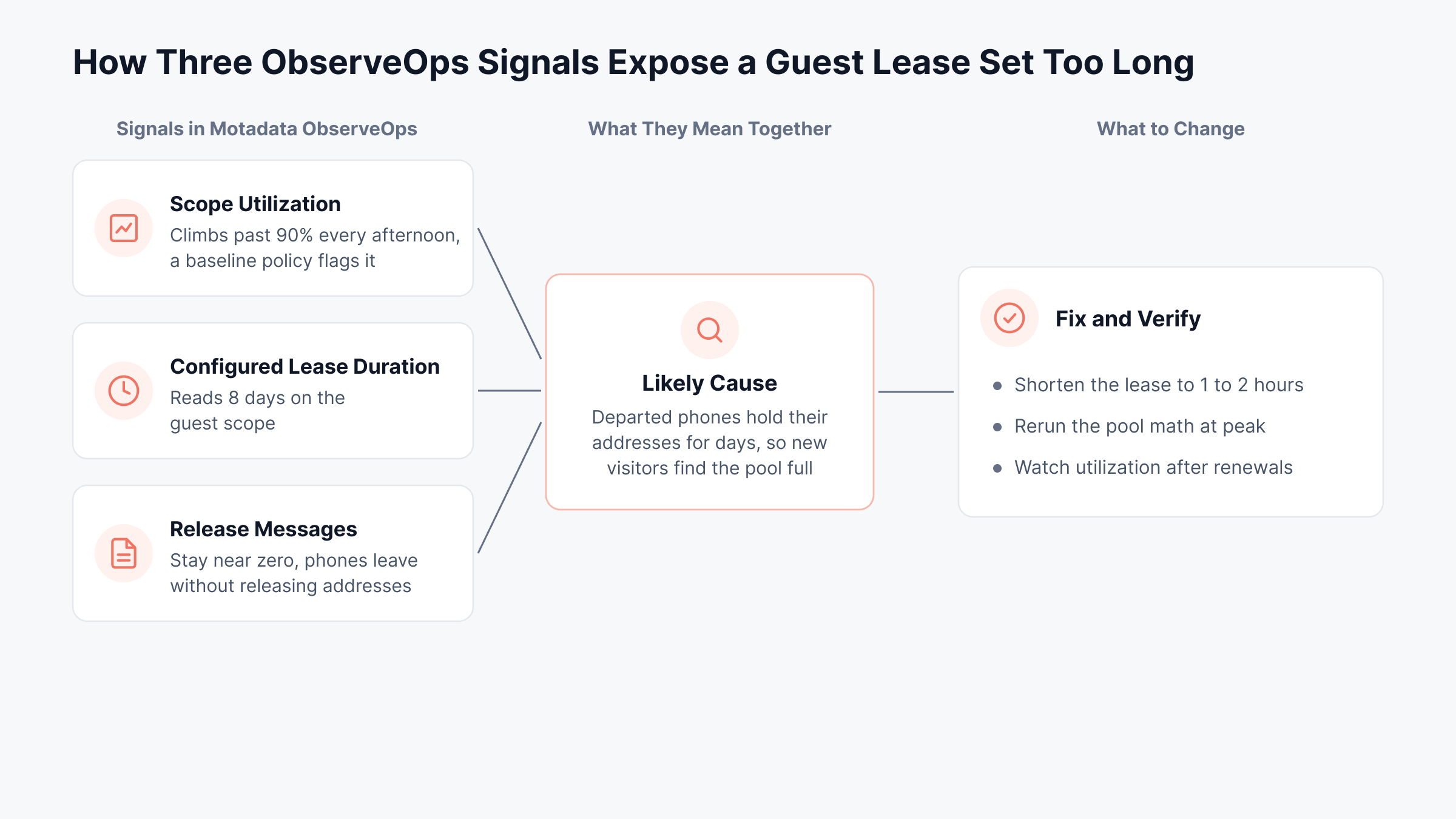
All three point at the lease. Once it's shortened, set a forecast policy on the same scope; it can warn when utilization is predicted to cross your limit within the window you choose.
How do DHCP Address Changes Affect IT Asset Records?
DHCP address changes only affect IT asset records if your inventory tool identifies devices by IP address. Where it does, a laptop that moves to a new address can end up as two records, and duplicates throw off license counts, audit evidence and support history.
In Motadata ServiceOps, you pick which identifiers decide whether discovery updates an asset or creates a new one:
Stable identifiers: MAC address plus hostname keeps the same record even as DHCP changes the IP
Any-adapter MAC match: A match on any network adapter's MAC updates the record during Windows (WMI) and Linux or macOS (SSH) discovery
IP-based matching: Best kept for devices on a reservation or static address, since an IP change can otherwise create a new item
IP Range Location: Maps address ranges to sites, so devices found through agent-based discovery are placed at the right location
That way, a lease change that moves many devices to new addresses leaves the asset inventory intact. Our page on automated asset discovery covers how those scans run.
A Quarterly DHCP Lease Review Checklist
Put lease settings on the same review calendar as firewall rules. These five checks fit in a short session each quarter:
Pull peak utilization for every scope over the last 90 days
Compare each scope's lease duration against the segment table above
Rerun the pool formula for any scope that peaked above 80%
Review conflict, unauthorized server and failover events for repeat offenders
Confirm reservations still match devices in your asset records
Forecasts make step one far easier. Our capacity planning capability uses the same trend data to show which scopes will need more room.
Move From Default Lease Settings to Measured Scope Capacity With Motadata ObserveOps
DHCP lease time is easy to overlook, yet it controls how fast addresses come back, how long clients last through an outage and how easily an incident can be traced. Your segments deserve lease times based on how their devices actually arrive and leave, checked against pool size with simple arithmetic.
Observability won't pick the lease for you; that setting stays on your DHCP server or IPAM tool. What ObserveOps adds is evidence, through per-scope lease durations, utilization trends, anomaly detection and forecasts that show when a setting no longer fits. Lease changes then happen as planned adjustments, well before users notice a problem.
FAQs
Can I change my DHCP lease time without disrupting users?
Yes. Connected devices keep their current address and simply receive the new lease length at their next renewal. Timing is the one thing to plan for: shortening a long lease can take up to half the old lease length to reach every device, so make the change well before any planned migration.
Does a shorter DHCP lease time slow down the network?
Not in any way users would notice. Renewal messages are tiny, and even a busy server handles them easily. The costs that matter with very short leases are higher log volume, less tolerance for a DHCP server or WAN outage, and IP addresses that map to different devices throughout the day.
Why does my device renew its DHCP lease every 12 hours?
That pattern usually means the server issued a 24-hour lease. Clients try to renew at the halfway point, known as T1, so a 24-hour lease produces a renewal every 12 hours. If the renewal succeeds, the lease restarts and the cycle repeats without any interruption.
Does DHCP lease time affect DNS records?
Yes, when DHCP registers hostnames in DNS on behalf of clients. Long leases can leave records pointing at devices that left, while aggressive DNS scavenging can remove records for devices still online. Keep scavenging intervals longer than your longest lease so the two settings work together.
How can I tell if my DHCP lease time is too long?
Watch scope utilization at peak alongside the release counter. If a scope fills steadily while releases stay near zero, departed devices are holding addresses for too long. Motadata ObserveOps reports utilization and the configured lease duration for each scope, alongside the server's release count, so the mismatch is easy to spot.
Author
Poonam Lalani
Content Strategist
Poonam Lalani is a B2B content strategist and writer with a background in computer engineering and experience across enterprise technology domains, including AI, cloud, DevOps, data engineering, and IT operations. She specializes in creating research-driven content that simplifies complex ideas and supports product education, thought leadership, and business growth.