Enterprise Wi-Fi: How to Plan, Secure and Monitor a WLAN
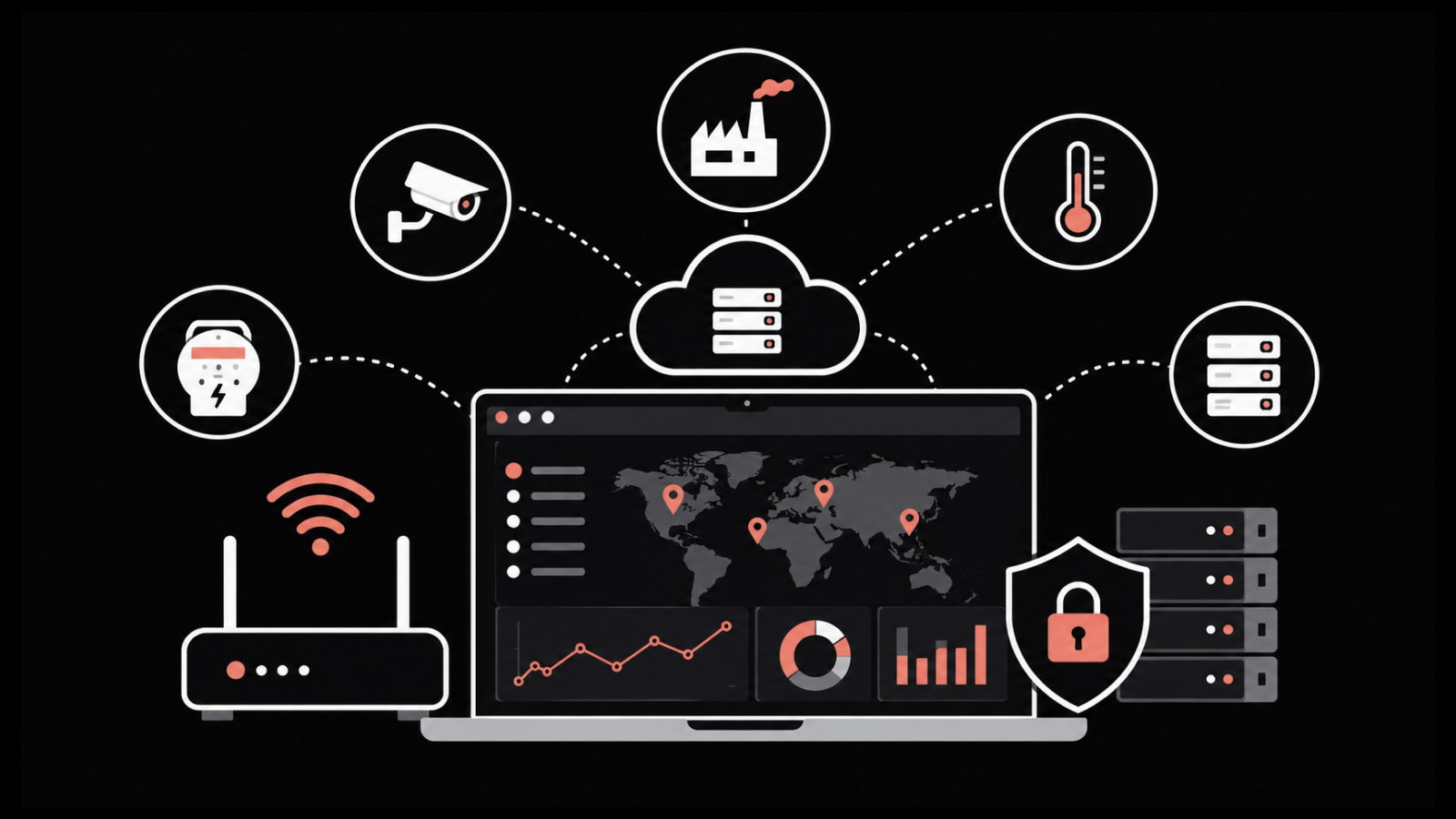
Enterprise Wi-Fi is what a business needs once one router can't keep up with the people and devices that depend on it. Many access points work together as one network, each user signs in with their own credentials, and guests stay off the staff network.
Getting there takes more than better hardware. It's a planning job first, a security job second, and after go-live it becomes a monitoring job that sits inside your wider enterprise network management work.
In this blog, you will:
Learn where home gear runs out, and which parts take over (APs, controllers, PoE switches, RADIUS).
Choose between three network designs and find out what Enterprise actually means in WPA3-Enterprise.
Plan, secure and monitor a WLAN, down to the controller metrics worth watching.
What Is Enterprise Wi-Fi?
It's a wireless network built to run many access points as one system, with central management, per-user sign-in and separate networks for staff, guests and devices. You'll also see it called an enterprise wireless LAN, or just an enterprise wireless network. They all mean the same thing.
Size isn't the test. A two-floor clinic can need it as much as a campus does, and two questions settle it.
Can you take one person's access away without changing the password for everyone? Can a laptop walk from one end of the floor to the other without dropping a video call? If the answer to either is no, you're running home Wi-Fi at work.
Enterprise Wi-Fi vs Home Wi-Fi
A home router and an enterprise AP use similar 802.11 radios. What's different is everything around those radios:
Area | Home Wi-Fi | Enterprise Wi-Fi |
Access points | One router, maybe two if someone bought a mesh kit | Could be 12 APs in a clinic or 3,000 across a campus, run as one system |
Sign-in | One passphrase, probably on a sticky note somewhere | 802.1X, where each user or device logs in with its own credentials and a RADIUS server checks them |
Traffic separation | Everything lands on one flat network | Staff, guests and IoT get their own SSIDs, each mapped to a VLAN |
Roaming | Clients hang on to a weak AP far too long | 802.11k, v and r help clients find and jump to a better AP |
Power | A wall socket | Power over Ethernet from the switch |
Management | A phone app, one device at a time | A controller or cloud dashboard with policies pushed to every AP |
Visibility | Close to none | Per-client signal data, rogue AP detection and telemetry over SNMP or APIs |
Most of what people call the benefits of enterprise Wi-Fi is in that right-hand column. Offboarding someone takes one click, a guest phone can't see the payroll server, and when someone complains, there's data to look at instead of a reboot to try.
How Does Enterprise Wi-Fi Work?
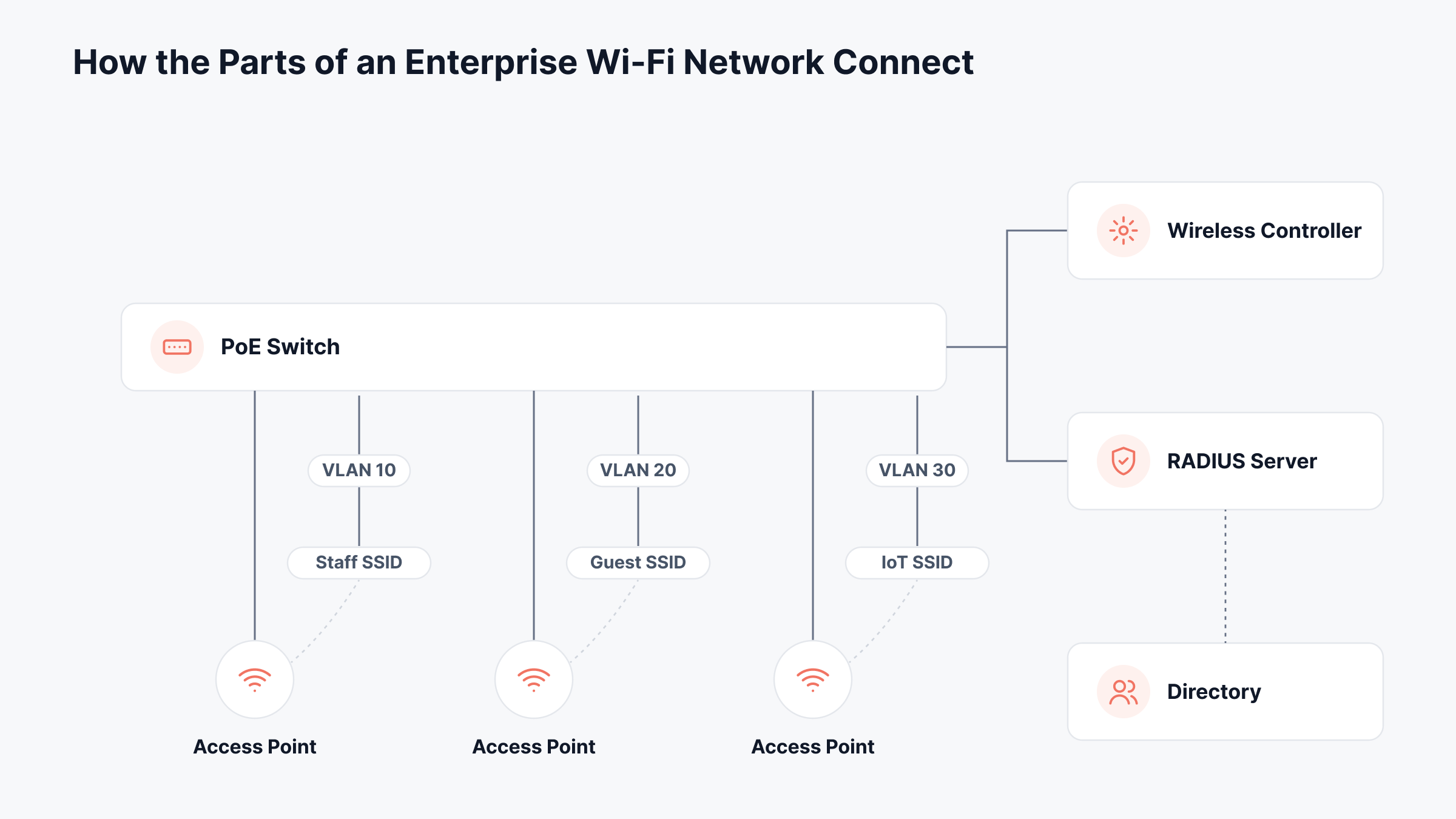
Only the APs use radio. Everything else in the design is wired. Switches power the APs over the same cable that carries their traffic. Policy comes from a controller, in a rack or in a vendor's cloud, and a RADIUS server has the final say on who gets on at all.
1. Access Points
APs are the only part users ever really notice. Open up a current enterprise AP and there are two or three radios in there, 2.4 GHz and 5 GHz on most models, with a 6 GHz one added on Wi-Fi 6E and Wi-Fi 7 gear.
Whatever connects over the air gets bridged onto the wired network through it. Enterprise APs get mounted on ceilings in a planned grid, and they're meant to hand clients to each other as people move around.
2. Wireless Controllers
Picture 300 APs with no controller. Each one picks its own channel, ends up fighting its neighbors, and needs its own login whenever an SSID changes. A controller stops that.
It sets channels and transmit power across the whole estate, keeps one copy of the SSID and security config, and steers clients toward better APs as they walk around. Where it runs varies, from a rack appliance to a vendor's cloud to software shared across the APs.
3. Switches and PoE
Many Wi-Fi tickets turn out to be switch problems. The AP's power and its uplink both come from one port, so a switch that ran out of PoE budget, or an uplink that negotiated down to 100 Mbps, shows up to users as bad Wi-Fi. That's a big reason network switch management belongs in any Wi-Fi plan.
4. Authentication Server
A RADIUS server checks each sign-in against your directory and tells the AP what the user's allowed to reach. Bigger estates usually fold it into a network access control setup, so a laptop that's missing disk encryption or a month of patches can be kept off even with the right password.
5. Management and Monitoring
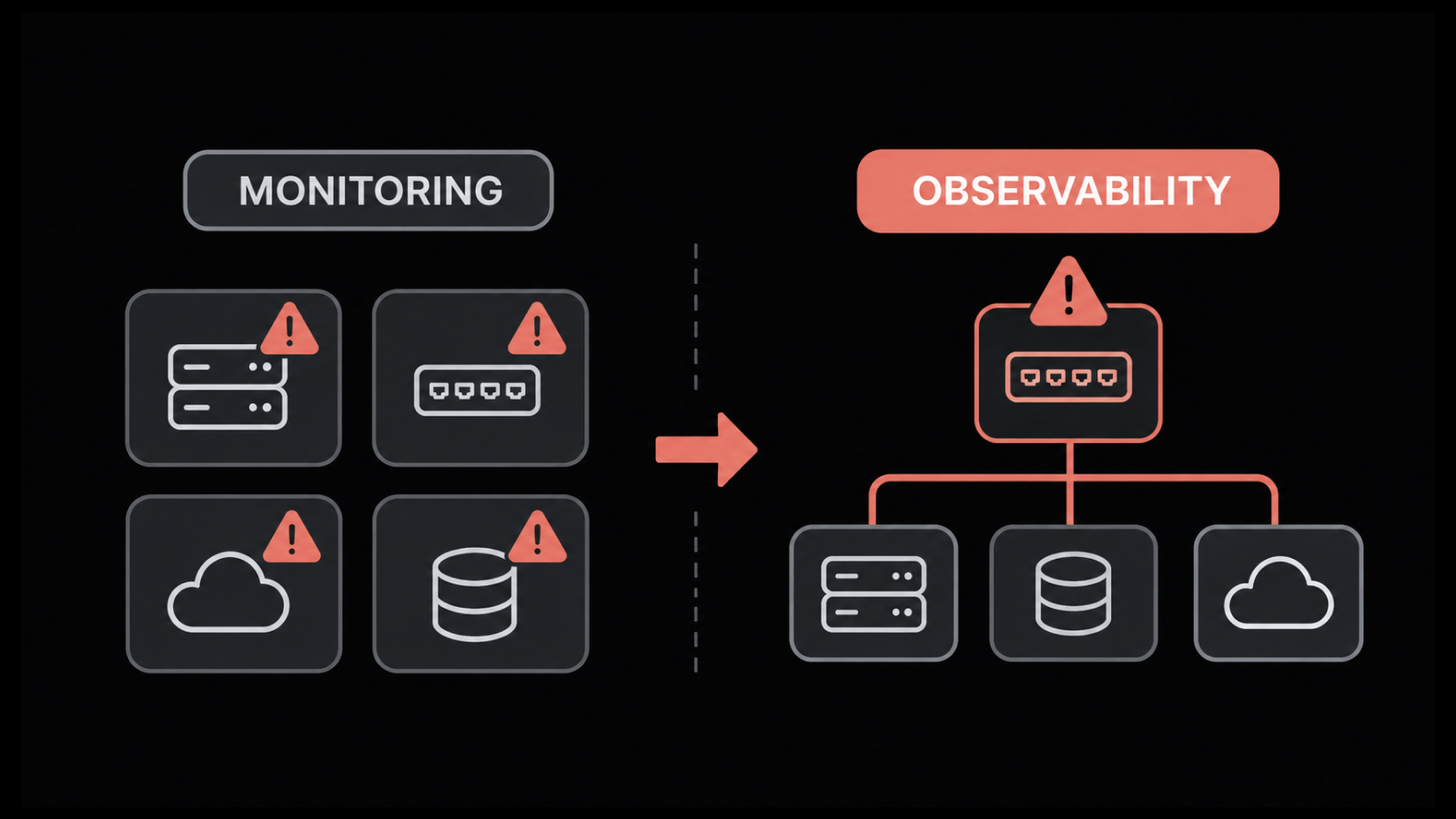
Someone has to see what the network's doing once it's live. Vendor dashboards are decent on their own APs.
But ask one why an AP rebooted and it often can't tell you, because the cause is a PoE budget on a switch it can't see. That gap is why a lot of teams add a monitoring platform covering the switches, firewalls and apps behind the Wi-Fi.
Controller-Based vs Cloud-Managed vs Controllerless Wi-Fi
Ask where the controller lives and what happens when the link to it drops. That's most of the difference between these three. None of them is always right, and we'd pick based on how many sites you run and how much you trust the WAN.
Design | Where the Controller Lives | Fits Best | Watch Out For |
Controller-based | A hardware or virtual appliance on-site, often in a redundant pair | Large campuses, hospitals, sites with strict data rules | Controller capacity limits and licensing per AP |
Cloud-managed | The vendor's cloud, with APs forwarding user traffic locally | Many small sites with little IT on the ground | Subscriptions that stop management when they lapse, and a dependency on the internet link |
Controllerless | Software shared across the APs, with one AP elected to coordinate | Single sites with a few dozen APs | Feature and scale ceilings well below the other two |
Cloud-managed Wi-Fi tends to win on branch count. It's also the design that ties your wireless most closely to someone else's platform, so it's worth reading up on cloud networking before you sign a multi-year license.
What Does Enterprise Mean in Wi-Fi Security?
It means each person or device gets its own login, checked through 802.1X by a RADIUS server. Home networks run Personal mode instead, with one passphrase for the whole household.
The encryption is broadly similar between WPA2-Personal and WPA2-Enterprise, and the same goes for the WPA3 pair. The real gap shows up the day someone leaves the company, when Personal mode means re-entering a password on every laptop, printer and phone in the building.
Here's how the four modes compare:
Mode | How You Sign In | What Revoking One User Takes | Fits |
WPA2-Personal | Shared passphrase | Changing the password on every device | Legacy gear that can't do better |
WPA3-Personal | Shared passphrase, with SAE making offline guessing much harder | Same as above | Small shops, some IoT networks |
WPA2-Enterprise | 802.1X, with a login per user or per device | One disabled account in the directory | Still what most corporate networks run |
WPA3-Enterprise | 802.1X again, plus management frame protection that's no longer optional (and a 192-bit mode if you need it) | Same, one disabled account | New rollouts, and the only Enterprise option on 6 GHz |
That 6 GHz note catches people out. WPA2 simply isn't allowed on the band, which means a Wi-Fi 6E or Wi-Fi 7 upgrade also turns into a WPA3 migration, including client driver updates.
Inside 802.1X sits one more choice, the EAP method, and it's where most of the rollout effort goes. The two common options work like this:
EAP-TLS: Both the client and the server present certificates, so there's no password to phish. It's our pick whenever it's manageable, but somebody has to issue and renew a certificate for every laptop and phone.
PEAP: A username and password travel inside a TLS tunnel, which makes it far easier to start with. It's only as safe as the clients are strict, though, because a laptop that doesn't validate the server certificate will hand its credentials to any fake AP that asks.
Windows Credential Guard also blocks saved MSCHAPv2 logins, the kind PEAP usually relies on, which is pushing a lot of Windows shops toward certificates anyway.
How to Plan an Enterprise Wireless Network
Start from the devices and the apps, not the floor plan. Coverage is the easy part of enterprise Wi-Fi design. We've seen far more rollouts go wrong on capacity, channels and power.
Step 1: Count Devices and Name the Demanding Apps
Walk each area and count what'll be connected at the busiest hour of the week. Laptops and phones are easy. It's the rest that gets missed, like handheld scanners, badge readers, cameras and the screen in every meeting room (in a hospital, add infusion pumps and patient monitors).
Then ask which app will be first to complain. A floor of 40 people on video calls and a floor of 40 barcode guns can share the same square footage and still need completely different designs.
Step 2: Survey Before and After
We'd start with a predictive model built from the floor plan and wall materials, then go and check it. Concrete cores, glass meeting rooms and metal shelving never quite match what the software assumed, and a warehouse full of stock behaves differently from the same warehouse empty.
A day of on-site survey before install, plus a validation walk after, catches most of it. The number to hit for voice and video is usually minus 67 dBm or stronger, with SNR at 25 dB or better, measured where people actually sit (not in the corridor).
Step 3: Plan for Capacity, Not Just Coverage
Don't plan for coverage alone. One AP at full power might reach every corner of an open floor, and it'll still fall over with 200 people on it, because clients sharing a channel take turns on the airtime.
Dense spaces work the other way round, with more APs turned down low, each serving a smaller patch (lecture halls, open-plan sales floors, the cafeteria at lunch).
Vendors publish clients-per-AP figures, and we'd read those as an absolute ceiling, since old client devices and video calls drag the real number well below it.
Step 4: Build a Channel Plan for Each Band
Each band behaves differently, and the plan has to account for that:
2.4 GHz: Only channels 1, 6 and 11 don't overlap in the US. In a dense building, most designs turn 2.4 GHz off on some APs and keep it mainly for older devices.
5 GHz: There are roughly two dozen 20 MHz channels, but many are DFS channels that an AP has to leave if it detects radar. Enterprise designs usually run 20 MHz or 40 MHz widths, since wider channels mean fewer of them to reuse.
6 GHz: In the US you get up to 59 channels at 20 MHz, or seven at 160 MHz, with no legacy clients slowing things down (Wi-Fi 7 can bond up to 320 MHz here).
Which of those bands you get to use comes down to the standard your APs and clients support:
Standard | IEEE Name | Bands | What It Adds for Enterprise |
Wi-Fi 5 | 802.11ac | 5 GHz | The baseline in a lot of buildings still. Fine for light use |
Wi-Fi 6 | 802.11ax | 2.4 and 5 GHz | OFDMA, so one transmission can carry data for several clients (a big deal in crowded rooms) |
Wi-Fi 6E | 802.11ax | 2.4, 5 and 6 GHz | The clean 6 GHz band, open only to WPA3 clients |
Wi-Fi 7 | 802.11be | 2.4, 5 and 6 GHz | 320 MHz channels and 4096-QAM, though the bigger change is multi-link operation, where a client uses two bands at once |
Step 5: Check the PoE Budget
Ever had an AP boot with one radio dark? That's usually a PoE shortfall. 802.3af gives at most 15.4 W per port at the switch, PoE+ (802.3at) gives 30 W, and 802.3bt goes to 60 W or 90 W depending on the type. Tri-band Wi-Fi 6E and Wi-Fi 7 APs often want more than PoE+ to run everything at full power. So before ordering, put the AP's datasheet next to the switch's per-port limit and its total PoE budget (it's usually the total that runs out first).
Step 6: Keep the SSID List Short
Every SSID sends its own beacon about ten times a second on every radio, and those beacons go out at the slowest data rate. Five or six SSIDs can eat a real share of airtime before anyone sends any data. We'd stop at three or four (staff, guest, IoT and maybe one for voice) and separate everything else using VLAN assignment from RADIUS instead of new network names.
How to Secure an Enterprise WLAN
Most wireless breaches don't need clever radio attacks. The usual cause is simple: a shared password that hasn't changed since the office opened. Close behind are guest networks that can reach internal servers, and the odd AP somebody plugged in under a desk (usually to fix their own bad signal). Fix these first:
Per-user sign-in: Get staff onto WPA3-Enterprise. Some older clients will force WPA2-Enterprise on you for a while, and that's fine. Use EAP-TLS wherever you can hand out certificates.
Separate staff, guests and devices: Give each SSID its own VLAN and put firewall rules between them. If a guest phone can ping the finance server, the segmentation isn't done yet, and the network segmentation rules are where that gets fixed.
IoT on its own network: A lot of sensors, printers and cameras simply can't do 802.1X. They still deserve their own SSID, ideally with a different passphrase per device group (some vendors support this), and access to only the few servers they actually talk to.
Rogue AP detection: Rogue scanning is usually in the controller already, often switched on and never looked at. Someone has to review what it finds, because one cheap AP on a desk port quietly bypasses every control on this list.
Firmware and config hygiene: Patch APs and controllers on a schedule. SSID settings need a look every few months too, since a test SSID left on open security is one of the most common things we find.
The same principle shows up across wired and wireless networks under the name zero trust security, where being on the network doesn't count as being trusted.
How to Monitor Enterprise Wi-Fi
Monitor it from the client's side as well as the AP's. An AP can look perfectly healthy while half the people on it are struggling, so the metrics that matter cover both ends:
Client experience: Signal strength, SNR, the channel and band each client is on, and how long sign-in takes.
AP and radio health: Clients per AP and per radio, channel utilization, transmit power and AP uptime.
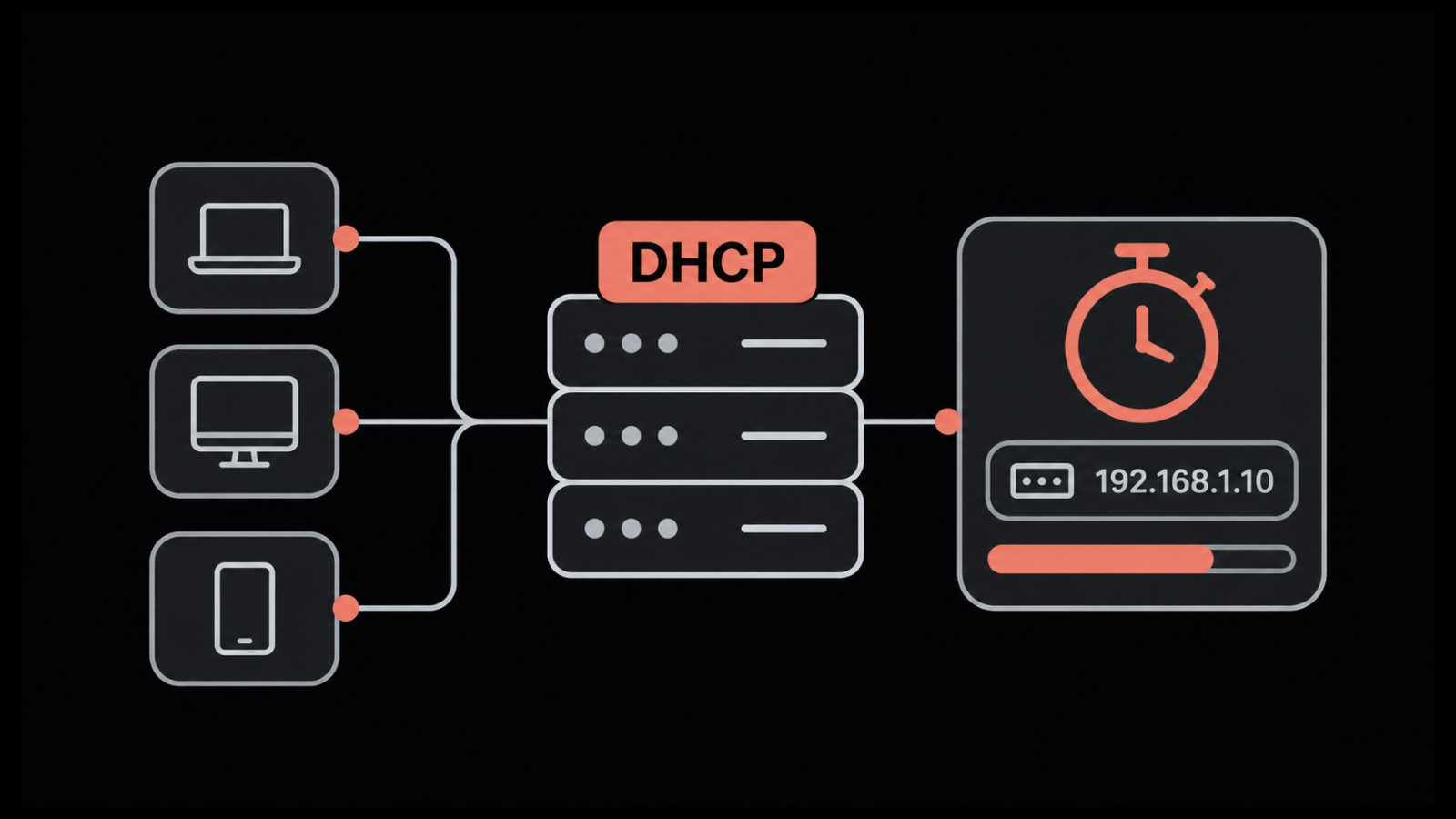
The wired side: PoE draw, switch uplink errors and utilization, and DHCP and RADIUS response times.
Security: New rogue APs and clients, and any SSID whose security settings changed since last week.
We cover all four groups in ObserveOps Wi-Fi monitoring, whether the gear is Cisco, Aruba, Ruckus, Ruijie, Extreme or Meraki.
Teams still choosing a platform can weigh eight wireless network solutions against these same metrics.
What Your Wireless Controller Already Knows
Every enterprise controller collects far more than its own dashboard shows you, and most of it can be pulled into one place over SNMP or an API. In ObserveOps, part of our unified observability and ITSM platform, this is how we turn that data into answers. The metric names are the ones our integrations collect.
1. Discover the Controller, Not Every AP
You don't add APs one by one. In a Discovery Profile, pick Wireless from the sidebar, choose the vendor, and give it the controller's IP. Discovery then pulls in the controller and the APs it manages. What changes per vendor is how ObserveOps talks to the controller:
Vendor | Credential Profile | Port That Must Be Open | Extra Setting |
Cisco, Aruba, Ruijie, Extreme | SNMP v1/v2c, or v3 if you want authentication and encryption | 161, open from the ObserveOps server | Nothing extra |
Ruckus | HTTP/HTTPS login (username, password and authentication type) | 8443 | Pick SmartZone or ZoneDirector as the Controller Model, and set URL Type |
Cisco Meraki | Its own Meraki integration | None to open, since it's cloud-managed | Switches, radios, cellular gateways and the controller all come in together |
If discovery comes back empty while SNMP walks fine from a laptop, check Ping Check first. It's on by default, and a lot of controllers sit behind ACLs that drop ICMP. Big estates should also spread controllers across Collectors (the profile takes more than one), since a single Collector polling thousands of APs is asking for gaps in the data.
2. Turn a Slow Wi-Fi Complaint Into One User's Numbers
Most Wi-Fi tickets name a person, not an AP, so start from the username. On Cisco controllers that gets you the client's cisco.wireless.client.snr and cisco.wireless.client.signal.strength.dbm, the channel it's on, the 802.11 protocol it negotiated and how it signed in (cisco.wireless.client.auth.method), along with the AP it's attached to.
SmartZone has a shorter list covering the same ground, with ruckus.wireless.client.snr in dB, ruckus.wireless.client.username and an auth.status field.
Here's one we see a lot. A manager in a corner office complains every afternoon, and their laptop turns out to be sitting at about 14 dB SNR on 2.4 GHz channel 6. It's still hanging on to an AP down the corridor while the one outside their door is close to idle.
Sticky clients like that need band steering, a minimum RSSI on the far AP or a newer driver. Upgrading the internet link, which is often the first thing someone suggests, won't help.
Watch the auth.status field too. A client stuck on a failed or pending status during a RADIUS outage looks exactly like a Wi-Fi problem to the user, but the radio data will be fine.
3. Read the Radio and SSID Layer
Some problems only show up when you look across APs. Cisco reports cisco.wireless.access.point.interface.current.channel and cisco.wireless.access.point.interface.power.level for each radio, which is what radio resource management actually picked (not what the design doc says). Add cisco.wireless.access.point.clients and the load picture fills in.
Three neighbors on the same channel at full power? That's co-channel interference, and it's usually quick to fix.
Meraki has a field we'd love every vendor to copy. Channel busy time comes split in two, with cisco.meraki.channel.wifi.utilization.percent for Wi-Fi traffic and cisco.meraki.channel.non.wifi.utilization.percent for everything else.
When the second one runs high, something that isn't Wi-Fi is eating the airtime (a microwave in the break room, an analog wireless camera, a lot of Bluetooth), and no AP setting will fix it.
Per SSID, cisco.meraki.ssid.channel.width.hz and cisco.meraki.ssid.power.dbm will show you an 80 MHz channel that crept into a dense floor.
Aruba's counters work per WLAN. Comparing aruba.wireless.wlan.up.access.points with aruba.wireless.wlan.down.access.points shows how many APs are actually serving an SSID right now.
We like it because of the failure it catches, a staff SSID that's down on 4 of 60 APs. No AP is down, so nothing alarms, and every complaint comes from one wing.
4. Audit Security Settings and Rogues From the Same Data
Your controller already knows how every WLAN is secured, and on Ruckus that's four fields per WLAN:
ruckus.wireless.wlan.authentication.type
ruckus.wireless.wlan.encryption
ruckus.wireless.wlan.cipher
ruckus.wireless.wlan.access.vlan.
Put them in one report and the drift shows up on its own, like a test WLAN still on open authentication or a guest WLAN mapped to a staff VLAN.
Rogue data is just as detailed:
Cisco: cisco.wireless.rogue.access.points and cisco.wireless.rogue.clients as counts, with class type, state, channel, MAC address, client count and last detected time for each rogue AP, and the SSID each rogue client joined.
Aruba: rogue AP and rogue client class type, status, channel and SSID, plus aruba.wireless.rogue.client.ap.bssid to show which rogue each client is talking to.
Ruckus: rogue type, channel, MAC address and ruckus.wireless.rogue.access.point.encryption, so you can tell an open rogue from an encrypted neighbor.
A rogue AP broadcasting your own SSID on open security, with clients attached, is the one to chase today. A neighbor's encrypted network that's been there for months can usually be classified and ignored.
5. See Which Apps Use the Airtime
SNMP tells you how busy a WLAN is. Flow data tells you who's making it busy. Our flow analytics works with wireless controllers directly:
Cisco wireless controllers: Create an exporter pointing at the ObserveOps server on port 2055, attach the ipv4_client_app_flow_record record to a flow monitor, then enable it per WLAN with config wlan flow and the WLAN ID. Because it's per WLAN, you can export the guest SSID without touching staff traffic, or the other way round.
Aruba WLC-7210 (IPFIX): An ip-flow-export-profile with wireless-export enabled, UDP transport to port 2055, a flow cache of 1000, and upload intervals of 60 seconds for all flows, 15 for inactive ones and 60 for templates.
From there, Flow Explorer shows the top applications, clients and destinations per WLAN, so a guest network that suddenly carries 40% of the building's traffic stops being a mystery.
Here's how the five signals fit together:
Signal | What It Answers | Where It Comes From |
Controller discovery | Which APs exist and which controller owns them | Wireless Discovery Profile over SNMP or HTTPS |
Per-client SNR, signal, channel and auth status | Why one specific user is having a bad time | Cisco and Ruckus client metrics |
Channel, power, clients per AP and channel utilization | Where the RF plan isn't holding up | Cisco AP, Meraki channel and Aruba WLAN metrics |
WLAN security settings and rogue details | Whether config has drifted and which rogues matter | Ruckus WLAN metrics plus Cisco, Aruba and Ruckus rogue metrics |
Wireless flows | Which apps and clients use the airtime | NetFlow from Cisco controllers, IPFIX from Aruba |
Keep Enterprise Wi-Fi Fast and Secure With Motadata ObserveOps
Most enterprise Wi-Fi trouble traces back to one of three skipped jobs. Someone planned for coverage and forgot capacity, or left a shared password in place, or stopped watching the network once it went live.
The first two mostly get done before launch. Watching is the one that decides how the network holds up a year later, when the device count has doubled and a few APs have appeared that nobody mentioned.
We built ObserveOps to make that part less painful. Controller, client, rogue and flow data from Cisco, Aruba, Ruckus, Ruijie, Extreme and Meraki land next to the switches and links behind them, and network performance monitoring covers the wired half.
FAQs
What is WPA2-Enterprise?
It's the version of WPA2 where everyone signs in with their own credentials (through 802.1X, checked by a RADIUS server) instead of a shared passphrase. Locking one person out then takes a single disabled account, and nobody else's devices are touched.
How many devices can one enterprise access point handle?
Fewer than the datasheet says, usually. Vendor maximums run into the hundreds, but voice and video traffic need far fewer clients per radio to feel good. Plan below the published figure, and add APs at lower power in dense rooms.
Is mesh Wi-Fi good enough for a business?
In a small office, it often is. Bigger sites do better with cabled APs, because each wireless mesh hop spends airtime that clients would otherwise get. We'd keep mesh for the spots where pulling cable isn't an option.
Do you need a wireless controller for enterprise Wi-Fi?
You need what a controller does, but maybe not a controller box. Cloud-managed and controllerless designs handle channels, power, roaming and policy too, from a vendor's cloud or from software running on the APs themselves.
Can ObserveOps monitor Meraki Wi-Fi?
Yes. Our Cisco Meraki integration brings in switches, radios, cellular gateways and the controller. You get clients, SSIDs and radio status, plus channel utilization split between Wi-Fi traffic and non-Wi-Fi interference.
Author
Ramya Shah
Technical Writer
Ramya Shah is a technical content writer with a computer engineering background and roots in automotive journalism. He covers IT Service Management, observability, IT operations, and AI-driven automation. An early adopter of AI-assisted writing workflows, he turns complex IT processes into clear, engaging content optimized for search and answer engines (AEO), lifting content output and organic visibility.