All Features
Network Observability
Network Switch Monitoring
A switch port that keeps dropping packets often goes unnoticed until users report slow or failed connections. Motadata ObserveOps puts every switch's availability, port status, performance and Layer 2 state in one console, and we route each alert to the engineers and tools you choose.
What Is Network Switch Monitoring?
With network switch monitoring, each LAN switch reports its availability, port utilization and error counts on a schedule, along with Layer 2 state such as spanning tree, VLANs and stacks. Those switches carry traffic for every PC, wireless access point, printer and server on the floor, matching each frame to a network address. If the core switch at a branch goes down, the whole office can lose its connection to the ERP server.
That is why good switch monitoring software looks past a basic up or down check. It covers four areas:
Availability: Whether each switch and each port is reachable and passing traffic
Performance: CPU, memory, traffic, errors and discards on every interface
Layer 2 state: Spanning tree, VLAN membership and stack health
Topology: Uplinks, neighbor switches and the end devices on each port
ObserveOps handles all four. Layer 2 depth varies by vendor: Cisco switches report STP, stacks and client MAC addresses, while Dell and Apresia report VLANs. Any breach of a limit you set raises an alert for the person who looks after that switch.
Discover Every Switch and Port Automatically
Discovery runs over SNMP. Each switch ObserveOps finds becomes a monitor once you provision it. Two profiles do the setup work: a credential profile holding the SNMP v1, v2c or v3 details, and a discovery profile listing the addresses to scan.
Address scope: One IP or hostname works, as does a range, a CIDR block or a CSV upload
SNMP port: 161 over UDP unless you change it; firewalls between ObserveOps and the switches must allow it
Ping check: Leave it on for most networks, or disable it where ICMP is blocked
Interface discovery: Also on by default, classifying every port on the switch and adding it to the inventory
Scheduling: Save and Schedule reruns the scan and catches switches added since the last one
The Provisioning screen lists what was found; select the switches you need and choose Add Selected Objects. They then appear under Monitor > Network, configuration details included. The same profile assigns groups, tags and collectors; on a multi-site network, that keeps a growing switch inventory organized from the first scan.
Monitor Switch Availability and Port Status
The first job of availability monitoring is simple. It confirms that each switch answers and each port carries traffic. SNMP handles the polling, and a ping check alongside it records latency and packet loss per switch.
Interval and frequency are set per device. Core and distribution switches can then be checked as often as their criticality demands.
See Every Switch and Port on One Screen
One screen lists every monitored switch with its current availability. Per port, you get operational status, admin status and the time of the last change. Flap detection then tells a port that keeps bouncing apart from one that went down once.
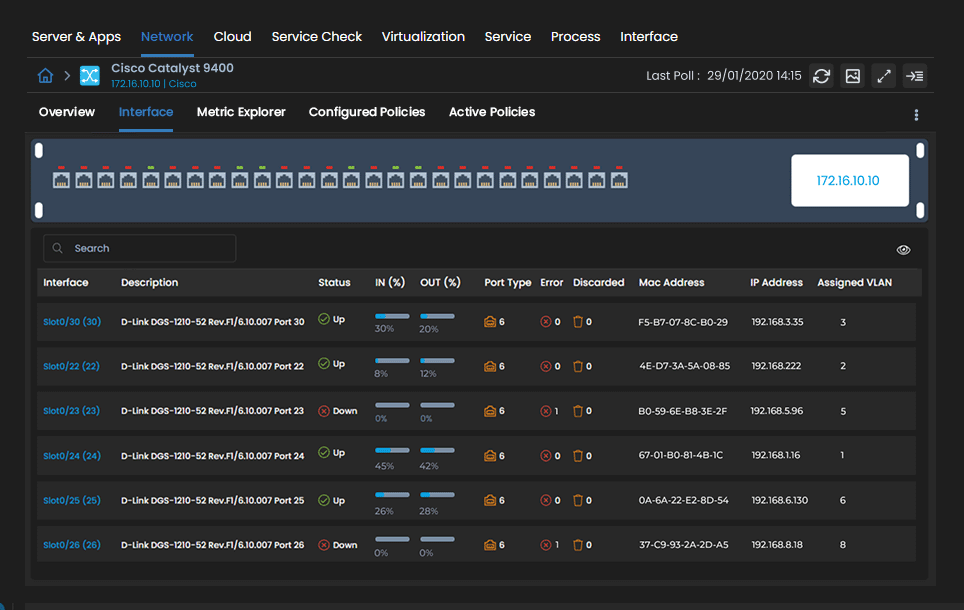
History from those checks builds availability reports per switch and per port, scheduled or run on demand. They give you the evidence you need for SLA reviews.
Get Downtime and Threshold Alerts
Two things trigger a switch alert: a switch or port going down, and a metric breaking a threshold you set. Common switch policies include:
Switch or port down: Raised when a monitor or one of its instances stays down for the time window you set
Discarded packets: Raised when discards on a port climb past your threshold
Port utilization: Raised when traffic on a port stays above the utilization limit you set
Link events between polls: Traps such as linkDown arrive on UDP 1620 for v1 and v2c, or UDP 1630 for v3, the moment the switch sends them
Email and SMS both work for notifications, and so do Microsoft Teams and Slack handles from an integration profile. If a known fix exists, attach a runbook and the alert runs it. Repeat reminders are optional; Do not renotify if acknowledged stops them as soon as an engineer acknowledges the alert.
Track Switch Performance Metrics
Performance monitoring shows how hard each switch is working. It spans processor load on the chassis down to error counts on a single interface.
These counters come in over SNMP for each physical switch, its ports and its interface connections. The main metric groups are listed below, each with the problem it helps you catch.
Metric Group | What ObserveOps Tracks | What It Tells You |
CPU | Current CPU percentage, plus 1-minute and 5-minute averages | Shows when traffic, protocol activity or a misconfiguration overloads the switch |
Memory | Memory used percentage, used bytes and available bytes | Warns when the switch runs short of memory for its tables and processes |
Interface traffic | Packets in and out, octets sent and received | Shows how much load each port carries and where bandwidth goes |
Errors and discards | Sent and received error packets, sent and received discards, per-interface CRC/FCS errors | Points to faulty cabling, duplex mismatches or congested ports dropping traffic |
Reachability | Ping latency, sent, received and lost packets, packet loss percentage | Confirms the switch responds quickly and consistently |
Hardware sensors | Temperature, voltage, fan and power supply status, where the vendor exposes them | Flags cooling or power faults before they take a switch offline |
Uptime | Time since the switch and each interface last started | Catches an unplanned reboot or a port that reset |
Vendor and model decide the exact counters. Our Cisco switch KPIs page has the full list for Cisco hardware; Dell and Apresia switches have their own integrations too.
Interface Traffic, Errors and Discards
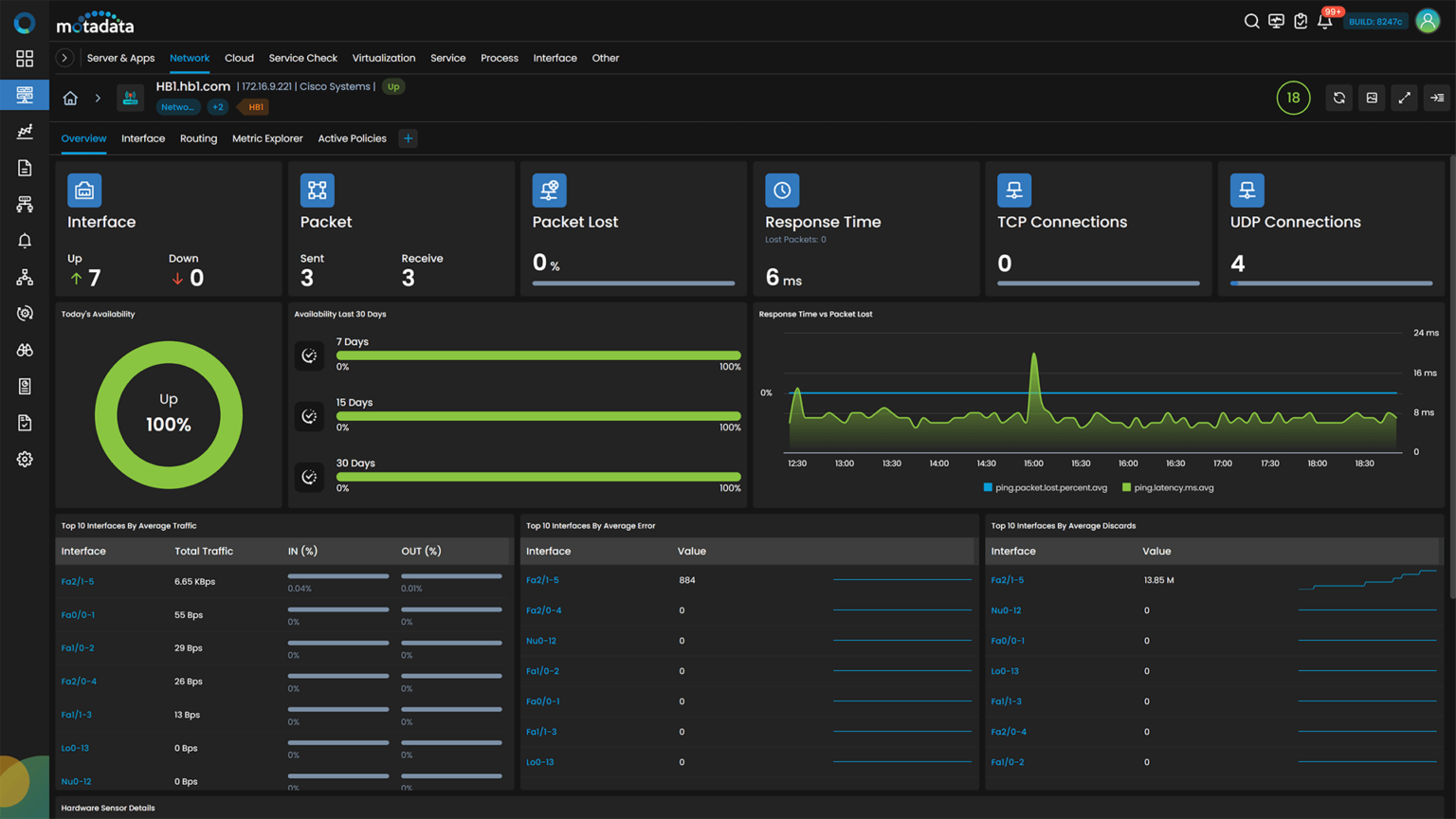
Trouble usually starts at a single port. For each interface, ObserveOps records traffic and speed in both directions, along with error and discarded packets. Top-N views sort ports by utilization, errors or discards, worst first.
For the meaning of each counter and what a rise usually points to, see interface monitoring.
Map Switch Ports to Connected Devices
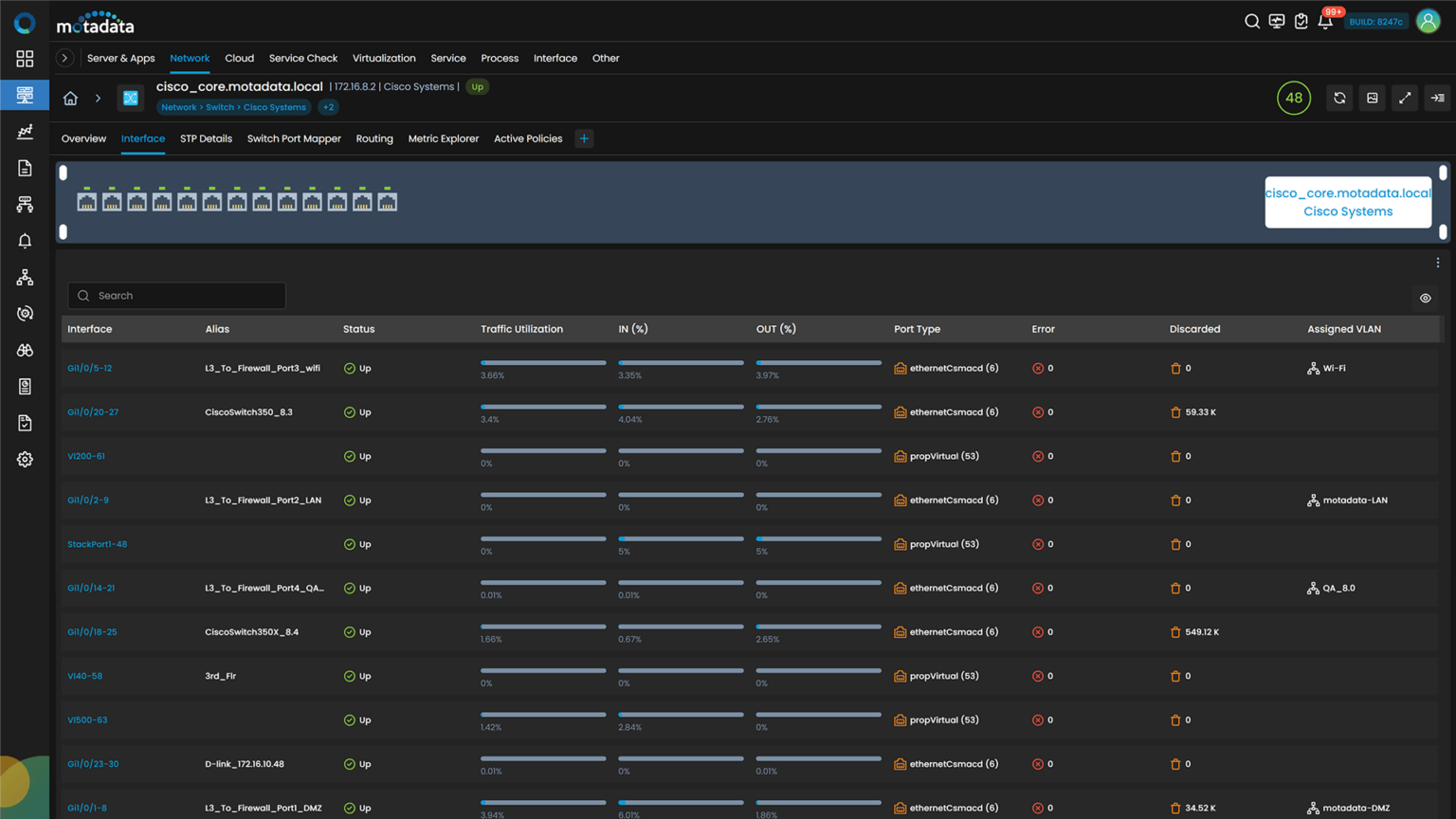
Switch port mapping links devices to ports. It relies on the MAC addresses a switch learns on each interface.
In switch port management, tracing a device to its access port is routine work; in the middle of an outage, it is also time lost. On Cisco switches we collect each client MAC address and the port it was learned on, and discovery adds the IP, MAC, status and availability of every port. Together, that data helps in three common situations:
Fault isolation: Find the port behind a device that has lost connectivity
Unknown devices: Locate where an unrecognized MAC address is plugged in
Moves and changes: Confirm that a relocated device came up on the expected port and VLAN
Watch Spanning Tree, VLANs and Switch Stacks
Three Layer 2 functions keep a switched network running: loop prevention, segmentation and redundancy. ObserveOps reports VLAN data for Cisco, Dell and Apresia switches, and spanning tree and stack data for Cisco switches.
Spanning Tree Protocol
Two uplinks between the same pair of switches give you redundancy and, without Spanning Tree Protocol (STP), a broadcast loop. STP keeps one path blocked until it is needed; each topology change makes the switches recalculate and drop learned MAC addresses sooner than usual. Frequent changes therefore surface as brief outages that are hard to explain.
ObserveOps flags a topology change and stores when the latest one happened. Port counts are kept for every STP state: forwarding, blocking, listening, learning, disabled and broken. You also see the root bridge MAC address, bridge priority and root path cost, enough to confirm the intended switch is still root.
VLANs
Finance, HR and guest Wi-Fi traffic often share the same switch hardware, each kept apart in its own VLAN. ObserveOps shows the ID, name, status and member ports for each one. So when a config change drops port Gi1/0/12 from the finance VLAN, the gap is visible in the member list, and an inactive VLAN shows up in the same view.
Switch Stacks
Several stacked switches act as one logical unit, and losing a member or moving the active role can affect every port in it. For a Cisco stack, the member count and stack bandwidth show up in ObserveOps. Per member, it shows role, state, priority, model, serial number, software image and stack port status.
Map Switch Connections with CDP and LLDP Topology
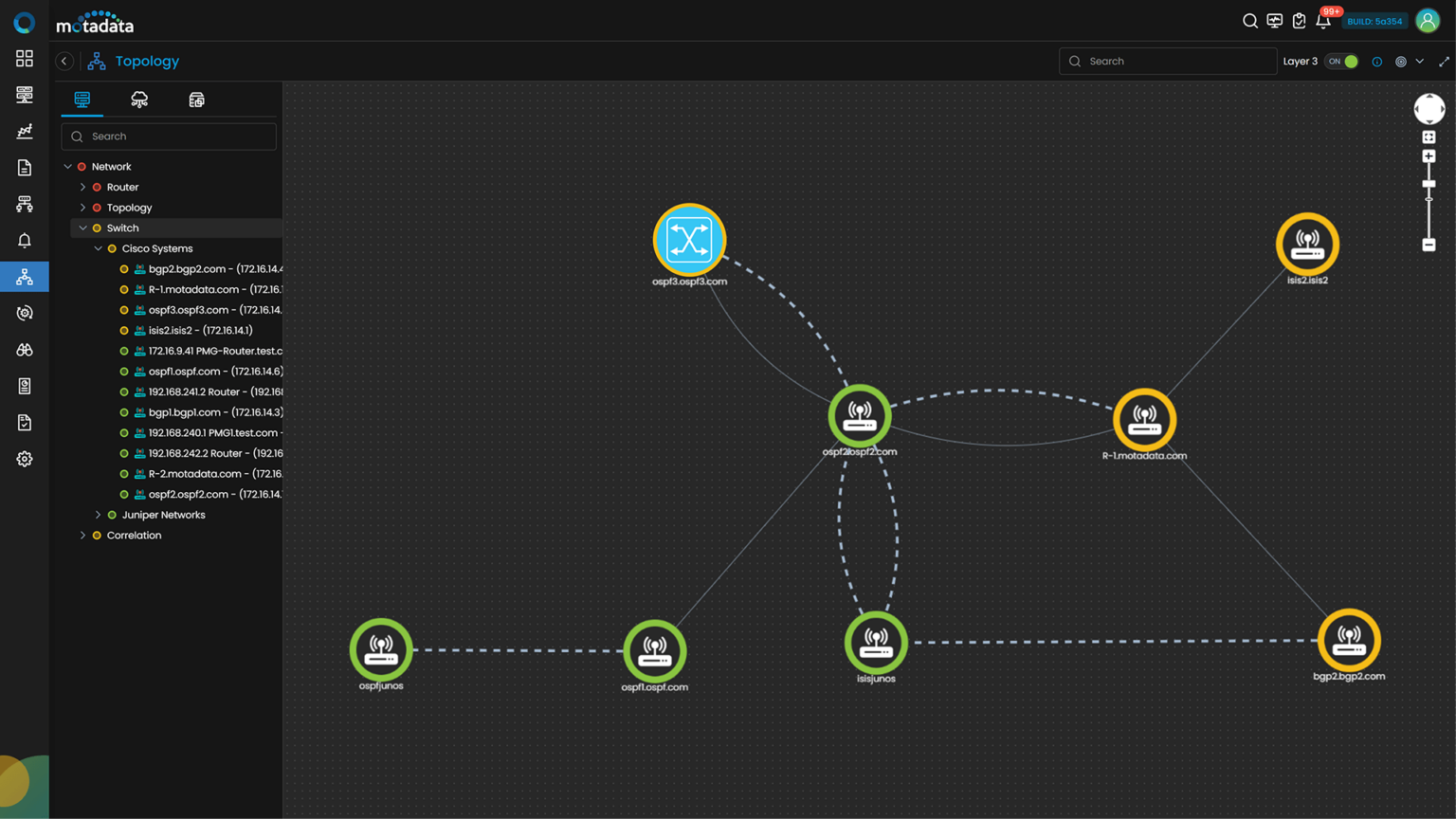
Topology mapping draws the links. It shows how each switch connects to its neighbors and to the wider network.
CDP and LLDP neighbor tables give ObserveOps the device connections for Layer 2 maps, in multi-vendor environments too. Layer 3 views come from routing data (OSPF, BGP and IS-IS). With dynamic topology mapping, scheduled rediscovery keeps the maps current and each device carries a live health overlay.
Troubleshooting: See which switches lie on the path between a failed device and the core
Alert noise: When an upstream switch fails, ObserveOps suppresses alerts from the devices behind it and keeps the root cause alert visible
Redundancy paths: Spanning tree mapping shows the Layer 2 redundancy paths across your switches
Manage Switch Configurations
Monitoring is only half of network switch management. Backups, restores and compliance audits run in the NCCM module (Network Configuration and Compliance Management). For Cisco switches, Cisco switch management goes further, with backups, change tracking and compliance checks.
Track Switch Health on Dashboards and Reports
Dashboards come ready to use. They cover every switch and interface, with issues you can rank by severity. The default switch dashboard brings together overall health, traffic patterns, port-by-port status, total bandwidth use, CPU and live interface state.
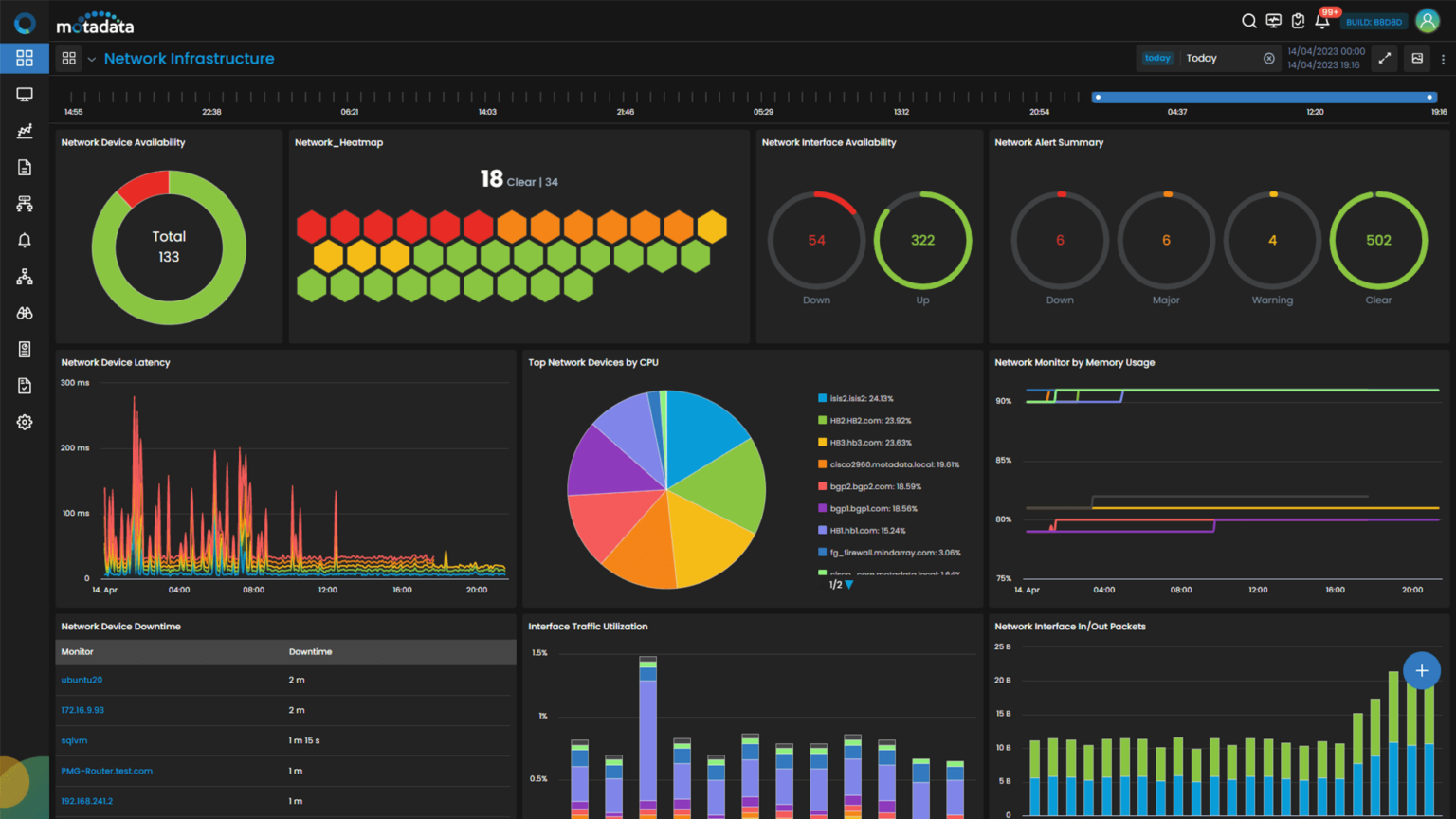
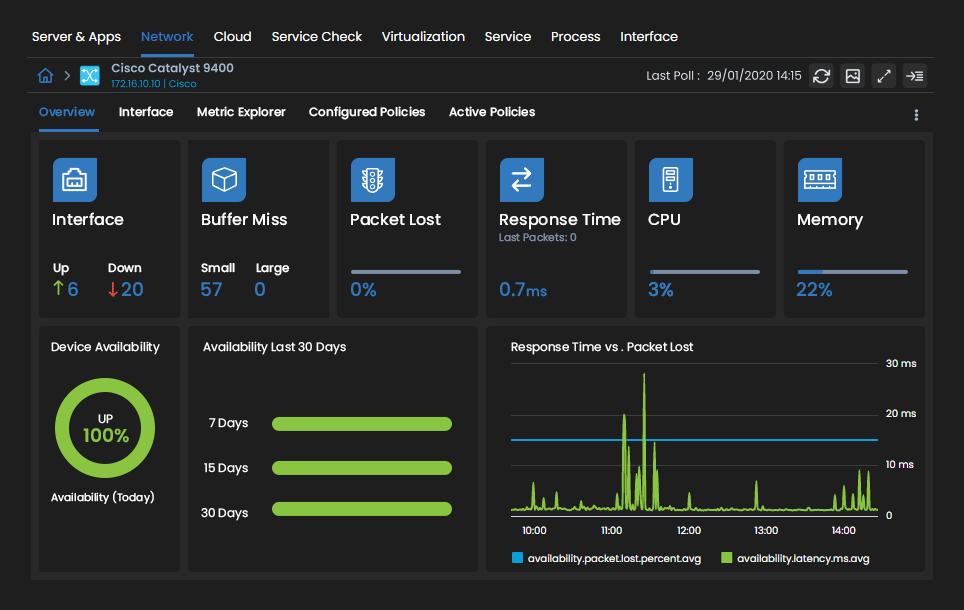
You can build network-specific dashboards as well. Default reports cover port utilization, error analysis and switch inventory, and custom reports can be built by category.
ObserveOps also shows configuration details for every device and interface in context. That makes it practical to work across hundreds of switches without losing track of which port belongs where.
Keep Every Switch and Port in View with Motadata ObserveOps
Many switch problems start small. One port drops out of its VLAN after a maintenance window, or the root bridge changes after a reboot. Often the first sign is a service desk ticket.
Every network switch monitoring tool works with the data a switch exposes over SNMP, and that data differs by vendor and model. Within it, ObserveOps brings availability, port status, performance, Layer 2 state and topology into one view. Every alert goes to the engineers you assign.
Ready to implement Network Switch Monitoring?
Discover how Motadata ObserveOps can help you monitor your infrastructure in real-time and respond to issues instantly.