What Is Cloud Networking? Types, Benefits and How to Monitor It
Think about Outlook, Salesforce or the shared drive your staff open each morning, and at least one of them probably runs in AWS, Azure or Google Cloud. That puts a good share of your traffic on a cloud network nobody on your team has ever seen.
You still own a lot of that path (the VPN link, the route tables, the security groups), and it breaks in ways an office network doesn't. Teams already doing cloud network monitoring know the pattern: a new VPC overlaps an old one, or a load balancer quietly runs out of outbound ports.
In this blog, you will:
See where a VPC, a subnet and a NAT gateway sit, and how traffic moves between them.
Sort your own setup into public, private, hybrid or multicloud (it's probably hybrid).
Pick four signals worth alerting on (with the real metric names from AWS and Azure).
What Is Cloud Networking?
When some or all of your network runs as software inside a public or private cloud, that's cloud networking. Your team builds the routing, firewalls, load balancers and VPN links from a console or an API, and the provider keeps the physical switches running somewhere you'll never visit.
Together, those pieces make up a cloud network (in AWS terms, mostly one or more VPCs plus their subnets and gateways), sitting between your offices and the apps your users need.
People searching for cloud computing network are usually after the same thing. Cloud computing is technically the wider term, since it also takes in compute, storage and databases. Networking is just the piece that carries traffic between them.
The first change you make shows the gap. A new subnet on-prem might need a ticket, a maintenance window and someone on the core switch, but in the cloud it's one API call or a few lines of Terraform. That ease is also why cloud networks drift so quickly.
How Does a Cloud Network Work Inside AWS and Azure?
Whatever the provider, a cloud network is made of the same five pieces, and you create every one of them yourself: a virtual network, subnets (each with a route table), gateways, load balancers and security rules.
The virtual network goes by a few names, and AWS and Google Cloud both say VPC. Azure calls it a VNet, and Oracle calls it a VCN, though all three do the same job.
1. VPCs and VNets: Your Private Address Space
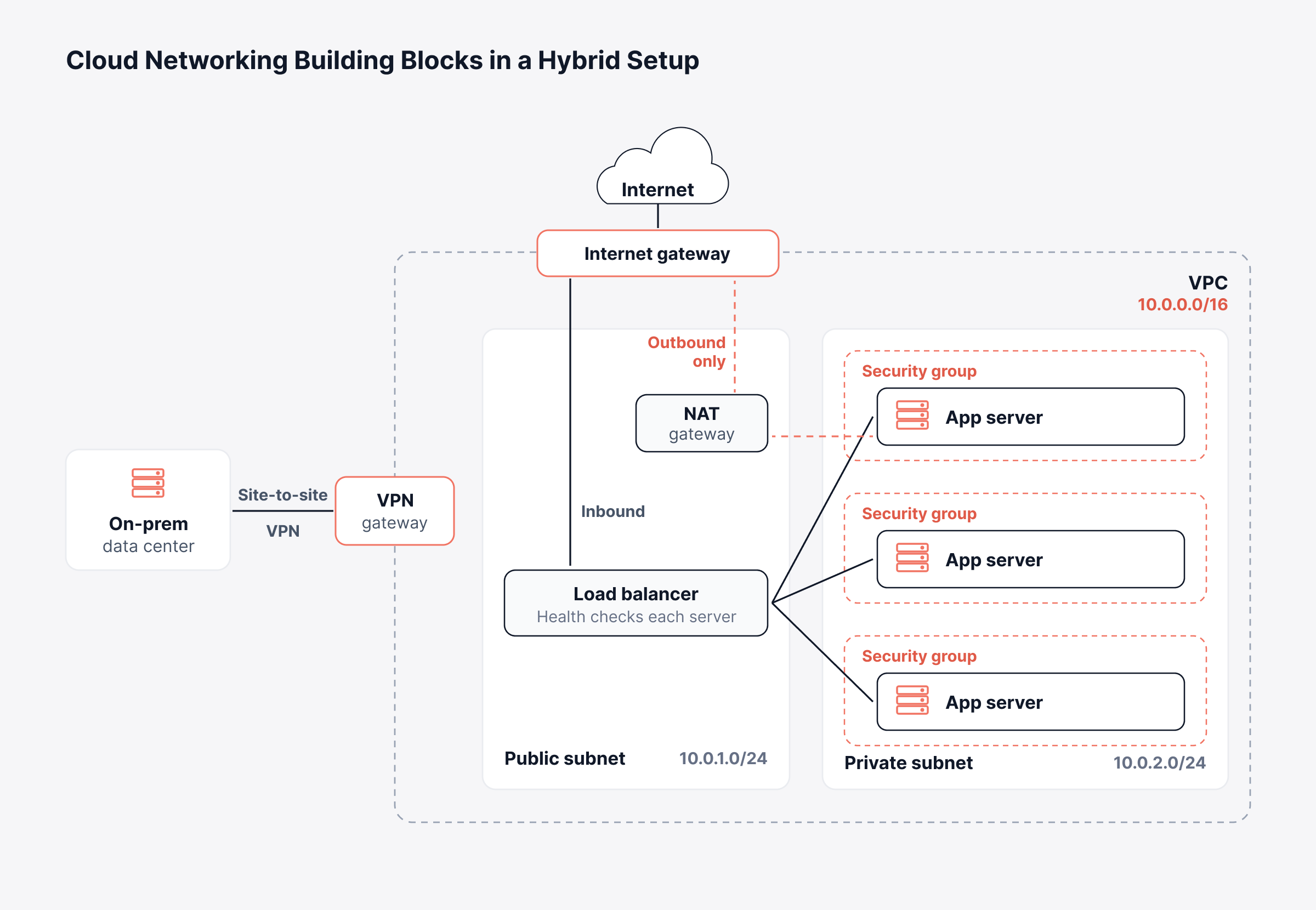
A VPC is a section of the provider's network that only your account can use. When you create it, you assign it an IP range, for example 10.0.0.0/16. All of your other cloud network resources are placed inside this range.
Choose this range carefully. If any address in one VPC also shows up in another, AWS won't let you peer the two VPCs. Extra ranges can be added later, but the first range cannot be changed.
2. Subnets and Route Tables: Where Traffic Can Go
A VPC is divided into smaller ranges called subnets. A common design uses 2 subnets in each availability zone, 1 public and 1 private. The math is the same as on-prem subnetting. Every subnet is tied to a route table, which says where its packets go next.
A public subnet has a route to an internet gateway. A private subnet doesn't, so its servers reach the internet only through a NAT gateway, if they reach it at all.
3. Internet, NAT and VPN Gateways: The Ways In and Out
Gateways connect the VPC to everything outside it. An internet gateway carries public traffic. Private servers use a NAT gateway to call out (for updates or an outside API, say) without anyone being able to call in. It's the same trick as NAT in networking on a branch router.
Most teams link the VPC back to their data center with a site-to-site VPN first. It's cheap, since it runs over the internet connection they already pay for. Companies with heavier traffic tend to add AWS Direct Connect or Azure ExpressRoute later on (a private line, with steadier latency than the internet gives you).
4. Load Balancers and Health Checks
A load balancer sits in front of a pool of servers and hands each new request to one of them, skipping any server that failed its last health check.
AWS gives you two main kinds (Application and Network Load Balancers). Azure splits the job across two products, with Azure Load Balancer handling layer 4 and Application Gateway handling layer 7.
5. Security Groups and Network ACLs
A security group works like a stateful firewall on each server or network interface. Stateful means the reply to an allowed request comes back in on its own, with no extra rule.
Network ACLs are a second layer at the subnet edge, and they're stateless, so return traffic needs its own rule there. Teams that forget this end up with traffic that one layer allows and the other blocks.
In our experience, a missing route or a too-tight security group causes far more cloud outages than anything physical does. There's very little physical left for you to break.
The diagram below is the hybrid version, with a VPC on the right and an office data center on the left.
What Are the Four Types of Cloud Networking?
Public, private, hybrid and multicloud are the 4 types of cloud networking. To place any setup, ask 2 questions: who owns the hardware, and how many environments does the network join?
Type | Hardware Owner | Where You See It |
Public | The cloud provider | New apps, fast-growing workloads |
Private | You, or a hosting provider on your behalf | Strict data residency or compliance rules |
Hybrid | Both sides, linked by VPN or a private circuit | Companies partway through a cloud move |
Multicloud | 2 or more public providers | Teams that want specific services from each provider, or no lock-in to one |
1. Public Cloud Networking
With public cloud networking, the whole network runs inside a provider such as AWS, Azure, Google Cloud or Oracle Cloud. You get their regions and backbone with no hardware to buy, and it's the usual starting point for new apps.
2. Private Cloud Networking
Private cloud networking is software-defined, but on hardware you own or rent, in your data center or a colocation rack. You'll see it at banks and hospitals. Their auditors usually want data on infrastructure the company controls, and software-defined networking lets internal teams work as if it were a public cloud.
3. Hybrid Cloud Networking
Hybrid cloud networking joins an on-prem data center to one or more clouds, using a VPN or a private circuit, and most large organizations run some version of it. It's rarely a short phase, since payroll may stay on a mainframe for years after the customer portal moves to Azure. Watching both sides at once is the hard part of hybrid cloud monitoring.
4. Multicloud Networking
Multicloud networking spans 2 or more public providers. A checkout app in AWS reading customer records from an Azure database is a typical case. The two clouds use different names for the same things, along with different consoles and different limits. A firewall rule written for one won't copy straight across to the other.
Cloud-Based vs Cloud-Enabled Networking: What's the Difference?
In cloud-based networking, the network itself lives in the cloud. Cloud-enabled networking is the halfway version, where the routers and switches stay in your building and only the tools that manage or secure them move to the cloud. A Wi-Fi controller you log into from a browser is a common case.
People mix the two terms up all the time, and vendor marketing doesn't help. A simple way to tell them apart is to ask where the routing happens. Boxes in your building mean cloud-enabled. A VPC means cloud-based.
How Cloud Networking Compares to a Traditional On-Premises Network
Cloud and on-prem networks differ mostly in 3 ways (how you build them, how you pay for them and how you change them), since the packets on the wire are identical. The table compares the two on the points IT teams ask about most.
Aspect | Traditional Network | Cloud Network |
Hardware | You buy, rack and refresh it | The provider owns it |
Adding capacity | New gear, often weeks of lead time | An API call or a template change |
Cost model | Upfront capital spend | Monthly by usage, data transfer included |
Making changes | Device CLI, change windows | Console, API or infrastructure as code |
Visibility | SNMP, flows and full device access | Provider metrics and logs only |
Common failure points | Cables, power, hardware | Routes, security rules, quotas |
Why Do IT Teams Move Their Networks to the Cloud?
IT teams mostly move to cloud networking for speed and cost. The other 3 benefits below (redundancy, reviewable changes and users closer to the app) tend to show up once the move is done.
1. New Sites and Environments Go Live in Hours
A new environment in the cloud is a template you run again. AWS puts it at hours for a new site with its own network setup, against the days or weeks that hardware takes.
2. You Pay for Capacity as You Use It
There's no five-year hardware refresh and no spare switch on a shelf. You pay by the hour or by the gigabyte. That works out cheaper for spiky traffic, though steady, heavy traffic can cost more than owning the gear (mostly because data transfer is billed too).
3. Redundancy Comes Built Into Every Region
Every cloud region is split into availability zones, and each zone is its own data center with separate power and cooling. AWS even builds this into the default VPC, which gets a public subnet in each zone. So 2 servers in 2 zones behind one load balancer can keep the app running through a full zone failure.
4. Network Changes Become Code You Can Review
Many teams store routes, subnets and security rules in Terraform or CloudFormation files. A route change becomes a pull request, which a teammate reviews before it ships and which you can revert like any other commit. On-prem, that same change might only exist in one engineer's terminal history.
5. Apps Can Run Near Your Users
Between dozens of AWS regions and the CDN edge locations on top of them, there's usually somewhere to run a workload close to the people using it. For chatty apps, that shorter round trip does more than extra bandwidth would.
What Are the Limits of Cloud Networking?
The four limits that catch teams out are latency, data transfer fees, split security duties and visibility. We wouldn't call any of them a reason to stay on-prem. They're just easier to plan for before go-live than after.
1. Distance and the Internet Path Set Your Latency
Latency to the cloud depends mostly on how far away the region is and which path the traffic takes. A region on the other side of the country can add tens of milliseconds to every round trip, whether you use the internet or a private circuit. Chatty apps that make many small calls feel it first.
2. Data Transfer Fees Add Up Fast
AWS, Azure and Google Cloud all charge for data leaving their network, and traffic between availability zones is often billed as well. We'd model the data transfer bill before the compute bill on any migration, since it's the line item teams most often underestimate. Cloud cost optimization usually starts there.
3. Security Is Split Between You and the Provider
Cloud providers work on a shared responsibility model. They look after the hardware and the physical network. Anything you configure is on you, from security groups and route tables to who's allowed into the management console.
4. You Can't Poll the Provider's Routers
There's no SNMP polling of the provider's routers (or of the ISP hops on the way there), because none of that gear is yours. What you can see is whatever the provider's APIs and logs choose to expose. That's why cloud network monitoring leans on different data sources than on-prem monitoring does.
How to Monitor a Cloud Network
Cloud network monitoring works best with 3 data sources used together: provider metrics, flow logs and synthetic path tests from your offices toward the cloud. Each has blind spots, and the other two cover them.
The phrase cloud based network monitoring gets used for two different things, which confuses buyers. Some vendors mean a monitoring tool that's hosted for you as SaaS.
Others mean watching the cloud network itself, wherever the tool runs, and that second meaning is the one that catches outages.
Data Source | What It Shows | What It Misses |
Provider metrics API (CloudWatch, Azure Monitor) | How load balancers and gateways are doing, plus VPC config | The internet path leading to it |
Flow logs (VPC Flow Logs, NSG flow logs) | Which IPs talked, and what got blocked | Latency or loss (neither is recorded) |
Synthetic path tests | Delay and loss at each hop from your offices | Any path you didn't set a test for |
Older tools struggle here because they expect device access the cloud doesn't give you. That gap, and how metrics, logs and traces fill it, is covered in tackling cloud network complexity with observability.
Four Cloud Network Signals Worth Alerting On
Four cloud network signals catch most problems before users report them: SNAT port use, client RTT against backend connect time, backend health and VPC address ranges. Each one comes from the cloud metrics ObserveOps collects for Azure and AWS, and we've listed the metric names so you can find them.
1. SNAT Port Use on Azure Load Balancer
Servers behind a public Azure Load Balancer share its frontend IP for outbound calls, through SNAT. According to Microsoft's SNAT guide, each frontend IP has 64,000 ports to hand out. With default allocation, a pool of 51 to 100 VMs gets only 512 ports per VM. Once a VM uses its share, its new outbound connections fail.
The failure is easy to misread. The load balancer still looks healthy, while calls to an outside API time out at random. ObserveOps collects allocated and used SNAT ports for each Azure Load Balancer, so we'd alert once used ports pass about 80% of allocated. Microsoft's usual fix is a NAT gateway (or connection reuse inside the app).
2. Client RTT Against Backend Connect Time on Application Gateway
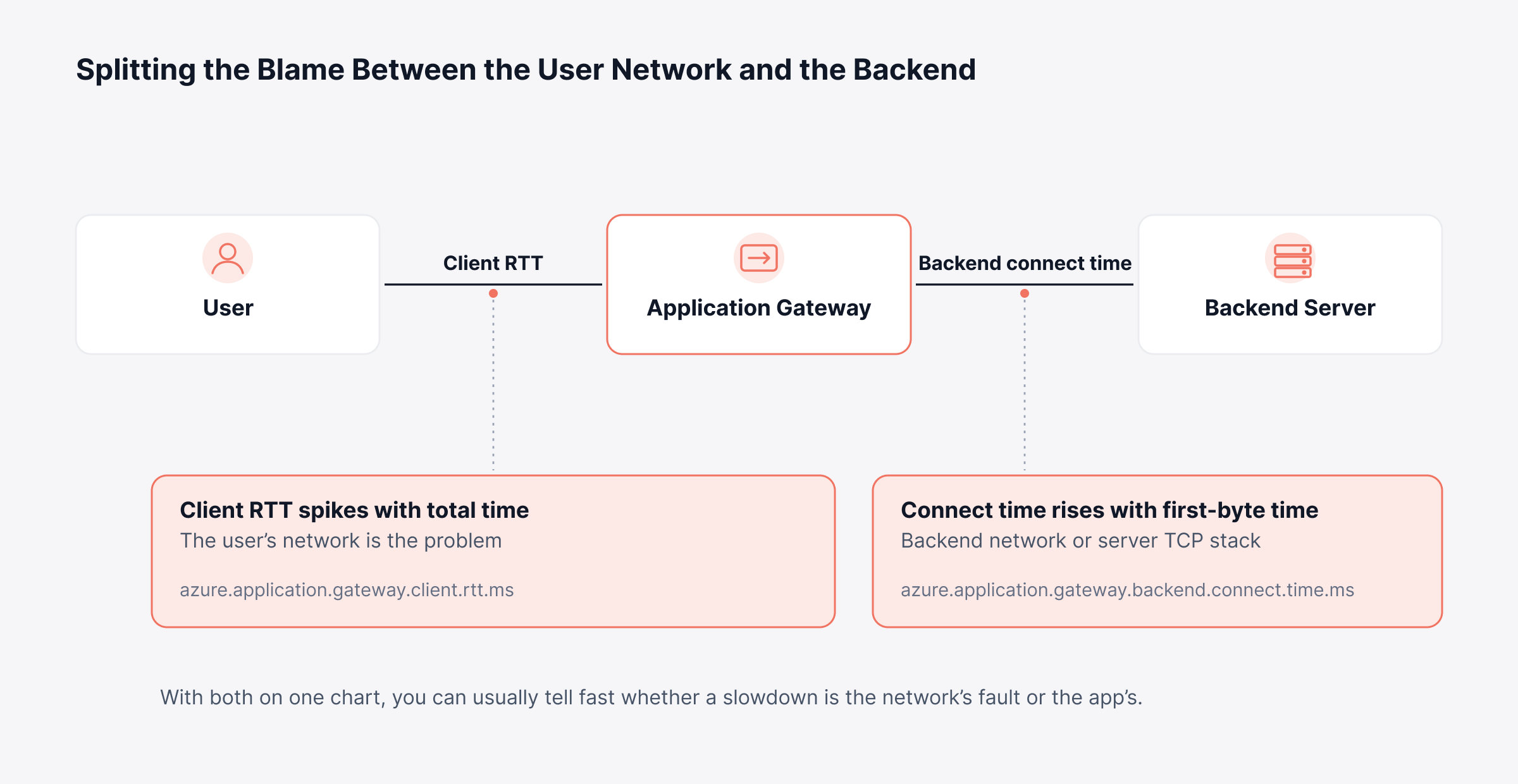
Azure Application Gateway times each leg of a request separately. Client RTT covers the network between the user and the gateway. Backend connect time covers the hop from the gateway to your servers.
Microsoft's metrics guide uses the pair to split the blame. When client RTT spikes along with total time, the user's network is the problem. If backend connect time rises with first-byte time, the network to the backend (or the server's TCP stack) is saturated.
ObserveOps collects both of those (and the backend first-byte and last-byte times too). With both on one chart, you can usually tell fast whether a slowdown is the network's fault or the app's.
3. Healthy and Unhealthy Hosts Behind Each Load Balancer
Backends that fail their health probe stop getting traffic from the load balancer. ObserveOps tracks healthy and unhealthy host counts on Application Gateway.
On Azure Load Balancer, it tracks backend (DIP) availability next to the load balancer's own availability.
Comparing the two saves a lot of time on an incident call. If the load balancer's availability holds while backend availability drops, the network path is fine, and the servers are the ones failing their probes.
4. VPC Address Ranges and Default VPCs in AWS
For every AWS VPC, ObserveOps stores 3 fields: the CIDR block, the state and a flag that shows whether it is the region's default VPC. These fields can reveal 2 problems that are otherwise easy to miss.
The first is an overlap. A new VPC that reuses part of an old one's range can never be peered with it, and nobody tends to notice until a migration months later. The second is a default VPC that suddenly has instances running.
That's usually an accident, and an awkward one, since default VPCs come with public subnets and an internet gateway already in place.
Here are all four signals in one place, with ObserveOps metric names and the thresholds we'd start from.
Signal | ObserveOps Metrics | Suggested Starting Point |
SNAT port use | azure.loadbalancer.used.snat.ports, azure.loadbalancer.snat.ports | Alert when used passes 80% of allocated |
Network vs app delay | azure.application.gateway.client.rtt.ms, azure.application.gateway.backend.connect.time.ms | Alert when either doubles its usual level for several polls |
Backend health | azure.application.gateway.unhealthy.hosts, azure.loadbalancer.dip.availability | Alert on any unhealthy host that stays down |
VPC ranges | aws.vpc.cidr.block, aws.vpc.is.default | Review every new VPC against existing ranges |
How ObserveOps Monitors Cloud and Hybrid Networks
We built ObserveOps to watch cloud and on-prem networks side by side, as part of a unified observability and ITSM platform. You add a cloud credential profile (an access key for AWS, an app registration for Azure), run discovery and pick the resources to monitor.
Discovery can filter by resource tags, and a Discover Down Instances option decides whether stopped instances get picked up too.
Coverage spans AWS, Azure, Google Cloud, Oracle Cloud (its Virtual Cloud Network included) and Office 365, with dedicated AWS monitoring and Azure monitoring.
For the hybrid path, NetRoute gives you network path visibility from a source monitor to any host, IP or URL and port, hop by hop. If you point it at your app's load balancer on port 443, it shows where latency jumps along the way.
ObserveOps Infinity is the current edition. Two limits are worth knowing. Our cloud integration docs cover metrics and configuration from each provider's API.
They don't list flow logs such as VPC Flow Logs, so you'll want the provider's own tools for traffic-level questions. ObserveOps is also self-hosted only, which means you run it on your own servers or in your private cloud.
Treat the Cloud Network as Part of Your Network
Moving the network into AWS or Azure changes where routing, firewalls and load balancing live, not who answers for them. The design, the address ranges and the rules are still yours, and so are most of the outages.
If we had to pick 2 things to get right early, it would be the address plan and the link back to your data center, since neither is easy to change once workloads depend on them.
Then decide which signals matter before the first incident. SNAT ports, backend health and the hybrid path cover a lot of ground.
The teams that run cloud networks well tend to monitor them with the same network performance monitoring they use on-prem. It keeps one view of the path, from the branch office to the VPC.
FAQs
What is the downside of a cloud connection?
The main downside is that everything rides on one link. If the internet connection or private circuit to the cloud goes down, users lose their cloud apps until it comes back. You also pay for distance in latency, and for data leaving the provider by the gigabyte.
Is SD-WAN the same as cloud networking?
SD-WAN and cloud networking are different things that often show up together. SD-WAN decides which link each app's traffic uses between your sites, and in many setups it's what carries branch traffic up to the cloud network inside AWS or Azure.
Do you still need routers and switches with cloud networking?
You still need them in your offices and data centers, since laptops, phones and on-prem servers plug into local gear. Inside the cloud you won't touch a router at all, because the provider's virtual routing and switching do that job.
What is the difference between a VPC and a VNet?
There's no real difference beyond the name. AWS and Google Cloud call it a virtual private cloud (VPC) and Microsoft Azure calls it a virtual network (VNet), but both give you a private, isolated address space for your cloud resources.
Author
Ramya Shah
Technical Writer
Ramya Shah is a technical content writer with a computer engineering background and roots in automotive journalism. He covers IT Service Management, observability, IT operations, and AI-driven automation. An early adopter of AI-assisted writing workflows, he turns complex IT processes into clear, engaging content optimized for search and answer engines (AEO), lifting content output and organic visibility.