All Features
Network Observability
Network Management Dashboard for Live Infrastructure Visibility
A network management dashboard is the screen your engineers open when performance starts to slip, because it shows each monitored router, switch, interface and link in one place, along with the alerts each one has raised. We built the dashboards in Motadata ObserveOps on top of the metrics the platform already polls, so there is no second data source to maintain.
Our platform acts as a network management system, collecting metrics from routers, switches, firewalls and wireless controllers. Which of those metrics appear on a dashboard is up to you, and admins can add more as the network picks up new sites and devices.
What Should a Network Management Dashboard Show?
We'd put five signals on any network management dashboard: availability, latency, utilization, interface health and active alerts. Seen side by side, those five tell an operator in one look whether the network is healthy and, if it isn't, which device or link needs attention.
For an engineer on call, it is the obvious place to start an investigation. Managers use it differently. Their question is whether the services the business runs on are up, and the table below shows how each signal from your network devices lines up with a question and an ObserveOps visualization.
Signal | Question it answers | ObserveOps visualization |
Device availability | Which routers, switches and firewalls are up, down or unreachable? | Grid or Gauge |
Latency | Where is delay building before users report slow applications? | Chart or Top N |
CPU and memory utilization | Which devices are running close to their limits? | Top N or Gauge |
Interface traffic and errors | Which ports and links are congested or dropping packets? | Top N or Chart |
Wireless load and signal | Which access points carry the most clients, and which clients have a weak signal? | Top N |
Active alerts by severity | What needs attention right now, in priority order? | Stream, Active Alerts or Heat Map |
A useful network performance dashboard also keeps history close at hand. ObserveOps widgets open on the current day by default. Switch to the last 24 hours, or set your own range, when you want to find the point where a metric began drifting; individual widgets can hold a different timeline if you'd like them fixed.
What Are the Four Types of Network Dashboards?
We find it useful to think of dashboards in four types: operational, analytical, tactical and strategic. What separates them is how often someone checks the screen and how much detail they expect to find. Each one serves a different reader, so most network operations end up using all four, with different network metrics on each.
Type | Main audience | What it shows on a network | Where it lives in ObserveOps |
Operational | NOC operators | Live device status, active alerts and current utilization | Alert Summary Dashboard and NOC View |
Analytical | Network engineers | Trends, baselines and the detail behind a slowdown | Chart widgets, Metric Insight and flow widgets |
Tactical | IT managers | Performance against targets over days or weeks | Custom dashboards set to a longer timeline |
Strategic | IT leaders | Overall health and network availability at a glance | Business overview and infrastructure overview dashboards |
Some of these views come prebuilt in ObserveOps, which gives you a base to work from.
Start with Out-of-the-Box Network Dashboards in ObserveOps
ObserveOps includes out-of-the-box dashboards, which means a working network management system dashboard is available before you configure anything yourself.
ObserveOps includes business overview and infrastructure overview dashboards by default. So do dashboards for each monitoring category and supported technology stack, while the network-specific widgets rank devices, interfaces and wireless components by what engineers usually check first in a troubleshooting session. They are grouped below by what they watch:
Group | Widget | What it shows |
Device | Top Network Monitor by Latency | Devices with the highest response delay |
Device | Top Network Monitor by CPU Utilization | Devices under the heaviest processor load |
Device | Top Network Monitor by Memory Usage | Devices closest to their memory limits |
Device | Top Network Monitor by Downtime | Devices with the most time unavailable |
Interface | Top Interface by Traffic Utilization | The busiest ports and links |
Interface | Top Interface by Error Packets | Ports recording the most packet errors |
Wireless | Top Wireless AP by Clients | Access points (APs) serving the most clients |
Wireless | Top Wireless Clients by Traffic Bytes | Clients using the most bandwidth |
Wireless | Top Wireless by WLAN Traffic | Wireless LANs (WLANs) carrying the most data |
Wireless | Top Wireless Client by Signal Strength | Clients ranked by signal level |
Wireless | Top Wireless Client by Connection Retries | Clients reconnecting most often, a common sign of weak coverage or interference |
Each widget ranks monitors by one metric, so the devices that need attention appear first. The downtime widget is a good example: it lists the devices whose downtime keeps growing over the period you have selected. For errors and discards on individual ports, go to interface monitoring; wireless controllers, access points and clients have their own page under Wi-Fi monitoring.
Some organizations need views the defaults do not cover. For those, ObserveOps lets you build dashboards yourself.
Build Custom Network Dashboards and Widgets in ObserveOps
In a customized dashboard for network management, your operators pick the metrics and decide where each one goes on the screen.
Say you need an overview dashboard for the whole network environment. You create the dashboard, then add widgets for critical devices, devices with high CPU utilization and interfaces with heavy traffic, and all of them appear together on one centralized network management dashboard. Every widget comes together in three steps:
Choose a visualization.
Query the data the widget should show.
Set styling, thresholds and sort order.
Pre-defined widgets are the fastest starting point, and you can always build one yourself if none of them fit. Layout is handled with drag, drop and resize. The visualization types below cover most network use cases.
Visualization | Best used for |
Chart | Metric trends over time as line, area or bar charts, stacked or unstacked |
Grid | Tabular data grouped by a key, such as status per device, with CSV export |
Top N | Ranking monitors by the highest or lowest value of one metric |
Gauge | A single value on a scale, shown as a metro tile or solid gauge with color thresholds |
Heat Map | Many monitors at once, each colored by its highest-severity active alert |
Sankey | A flow diagram where line width shows traffic volume between sources and destinations, with the protocol used |
Map | Log and flow traffic paths by city or country |
Stream | A live feed of alerts, newest first |
Active Alerts | Alerts that are open right now |
Event History | Raw, unaggregated log events |
Free Text and iFrame | Section labels, and embedded views from other web tools |
Sankey and Map widgets read from the flow data ObserveOps collects, so traffic views appear next to device health. The custom dashboard below brings device, CPU and traffic widgets into one unified view.
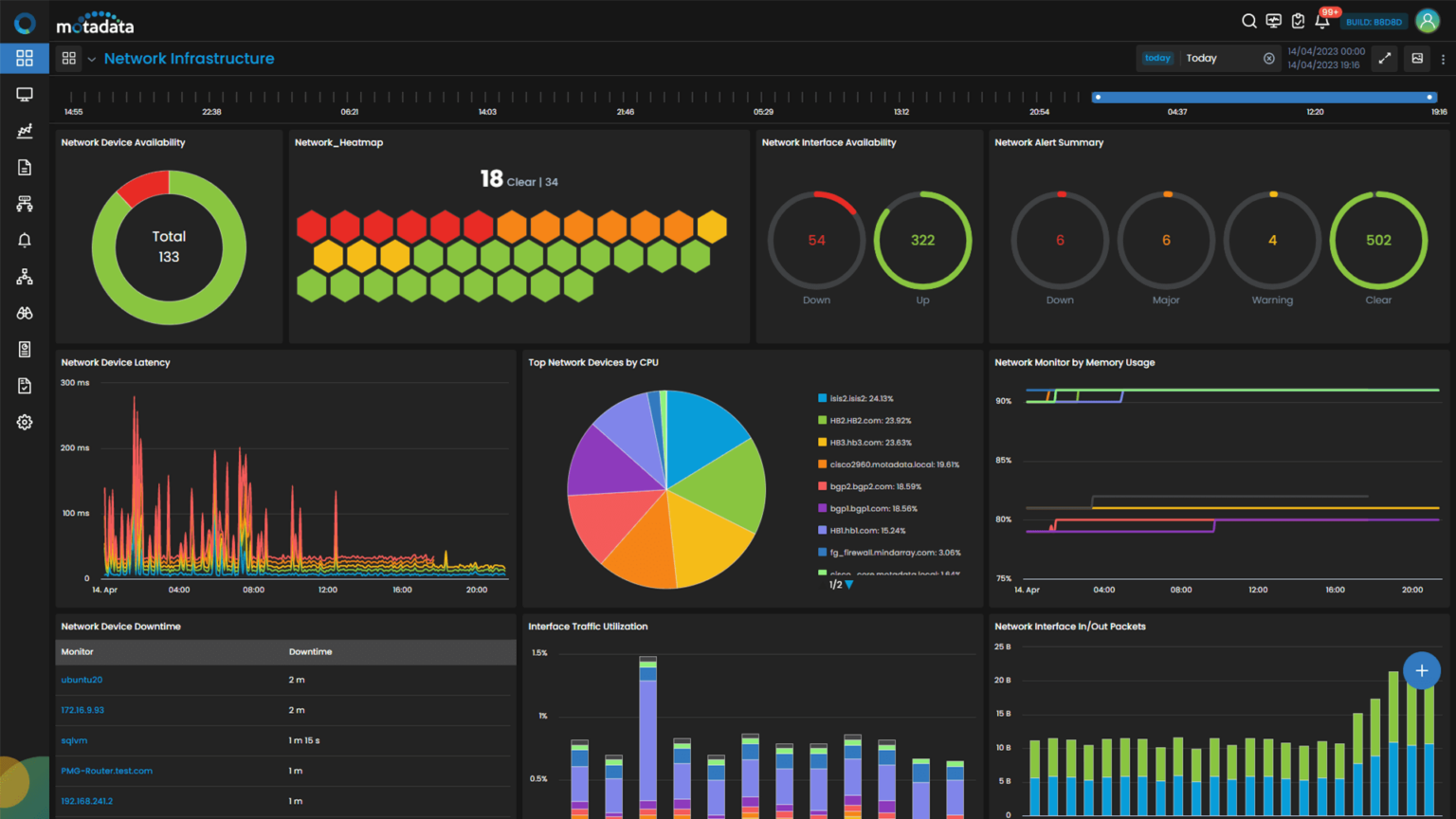
With the layout in place, line chart widgets add Metric Insight for quick statistical context. Next to the average, peak and minimum, it shows standard deviation and P95 (the value 95% of readings fall at or below), then labels the metric Healthy, Degrading or Critical in a KPI summary. Performance insight explains how AI baselines extend that analysis across devices and interfaces.
Seeing the state of the network is one job. Deciding what to act on is another, and that belongs to the Alert Summary Dashboard.
Track Live Network Alerts with the Alert Summary Dashboard
The Alert Summary Dashboard is where live network issues get ranked by severity, which puts the critical ones in front of operators before anything else.
Alerts in the ObserveOps alert view are first split by device type, such as network, server, virtualization or cloud, and each of those groups is then ordered by severity. Custom widgets and KPIs can go on the summary too. That way the context you care about is on screen when you are deciding where to start.
Severity | What it means |
Down | The device or service is unreachable or not responding to monitoring requests |
Critical | A major problem is disrupting service and needs immediate action |
Major | An issue, such as sustained high CPU or memory use, is likely to affect performance if left alone |
Warning | An early sign of a future problem, such as low disk space |
Clear | A previous alert has been resolved |
In the alert summary below, open alerts are grouped by severity.
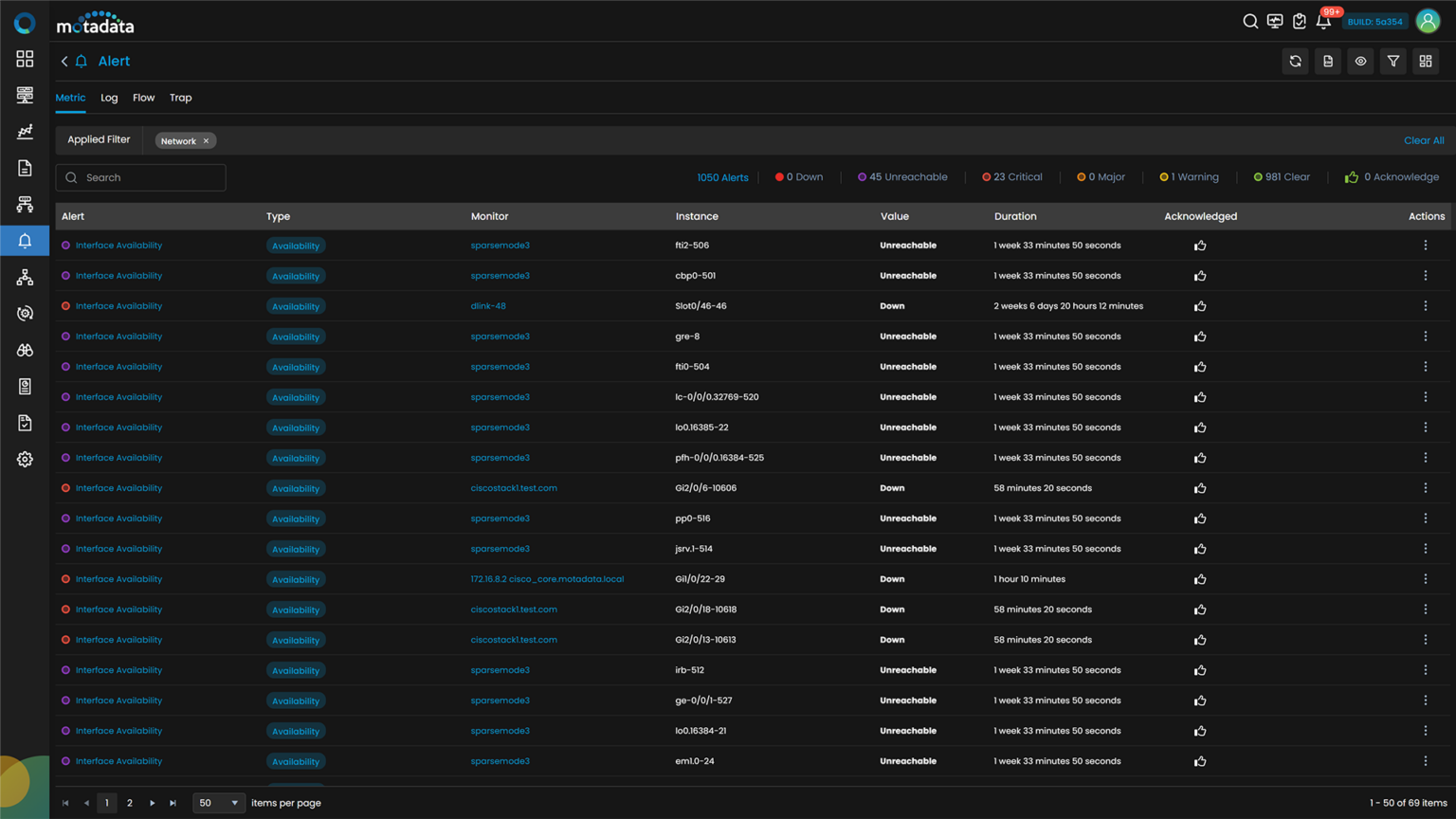
Alerts are handled from the same screen. From the alert list, operators can:
Acknowledge an alert to show that work is under way
Add notes that carry context to the next person on shift
Clear an alert manually once the issue is resolved
Suppress notifications for up to 48 hours, for example during planned maintenance
Spot Predicted Network Problems with Forecast and Anomaly Alerts
Beyond current issues, ObserveOps can raise alerts for problems that are still forming. A forecast policy needs at least 24 hours of history before it can predict where a metric is heading, and it alerts you if that metric looks likely to cross your chosen level within a set window. Anomaly detection policies take another route, learning a metric's normal range from at least 8 hours of polling and flagging any reading that falls outside it.
They are listed with your threshold alerts, and forecast or anomaly widgets can go on any dashboard you like. They are most useful for metrics with daily cycles, since a static threshold on those tends to trigger too often or miss slow drift. For the wider picture of how these models feed automated operations, see predictive analytics.
Share Network Dashboards Across the NOC with NOC View
A network operations dashboard is only useful if operators in the network operations center (NOC) can reach the right view without hunting for it. ObserveOps handles that through dashboard security, default landing dashboards and NOC View.
Public or private dashboards: Make a dashboard visible to all users or keep it private and share it with selected users or user profiles.
Default landing dashboard: Set one dashboard to open first for yourself or for selected users, so every NOC operator starts from the same screen.
NOC View: Combine several dashboards into an auto-rotating sequence for a wall display, with a 30-second default interval, a countdown on the active tab, and pause, pin and full-screen controls.
Widget sharing: Send any widget to a user, group or user profile by email, username or handle, along with a custom message.
Export and snapshots: Export grid widget data as CSV, take a snapshot of the whole dashboard, or open any widget in full screen.
Cloning: Clone a dashboard or a single widget to build a variant for another site or function.
Picking panels for a shared NOC screen is its own question, and our guide to network monitoring dashboards walks through it.
See Your Whole Network at a Glance with Motadata ObserveOps Dashboards
Begin with the prebuilt network dashboards and adjust them with custom widgets as your needs become clearer. Keep the Alert Summary Dashboard and NOC View on the screens of the people who respond. Because every view in Motadata ObserveOps reads from the same monitored data, admins, operators and IT leaders end up looking at the same numbers.
A dashboard can only surface what its policies catch. Pair each view with thresholds, forecast policies and anomaly policies tuned to your network, so emerging problems reach the screen as early as your data allows.
Ready to implement Network Management Dashboard for Live Infrastructure Visibility?
Discover how Motadata ObserveOps can help you monitor your infrastructure in real-time and respond to issues instantly.