How to Troubleshoot VPN Problems and Keep Remote Access Running
Why does the VPN work for most of the company while one branch office, or a handful of remote staff, reports that it won't connect or crawls the moment they sign in? The difficulty with VPN troubleshooting is that the tunnel relies on every layer below it. If the laptop, home Wi-Fi, internet route, gateway, or security policy on either end misbehaves, the connection suffers.
One complaint about a slow file share could originate at any of those points. When there is no agreed order of checks, the help desk tends to restart the client, try another server, and escalate a ticket that later returns unresolved. Remote workers lose hours of productivity, and engineers lose even more time guessing.
A structured method changes that outcome. The layered approach used in general network troubleshooting applies directly to VPNs, with a few tunnel-specific checks added on top.
In this blog, you will see:
What VPN issues cost the wider business
How to scope a VPN problem before changing any settings
Fixes for VPN connection issues on laptops and phones
Ways to diagnose a slow VPN, frequent disconnects, and IPsec tunnel faults
How network observability keeps the same VPN issues from returning
What is VPN Troubleshooting?
VPN troubleshooting is the process of finding and fixing whatever stops a virtual private network from connecting, staying connected, or carrying traffic at acceptable speed. Its purpose is to restore secure access quickly and confirm the cause, so the same fault does not come back.
Two VPN designs shape where troubleshooting begins:
Remote access VPN: An individual laptop or phone connects to a corporate gateway, so problems often trace back to the client, the home or public network, or sign-in
Site-to-site VPN: Two gateways, usually firewalls or routers, hold a permanent tunnel between locations, so problems usually involve configuration mismatches, routing, or the carrier link
A remote access fault affecting one person rarely calls for gateway changes, while a site-to-site outage almost always does. Before the fixes, it helps to understand why VPN faults matter to business leaders as well as IT.
What do VPN Issues Cost the Business?
VPN issues cost the business in lost work hours, delayed customer-facing work, support spend, and security exposure. For many organizations, the VPN is the only route remote and branch staff have to ERP, CRM, finance, and file systems, so a tunnel fault stops work outright.
The impact usually shows up in five places:
Productivity: Every blocked user stops working, and the employee productivity loss grows with each branch or remote team affected
Customer commitments: Sales, support, and finance staff miss calls, orders, and deadlines while access is down
Support cost: Repeat tickets and escalations pull senior engineers away from planned projects
Security exposure: Frustrated users turn to personal email or unapproved file-sharing apps that bypass company controls
Spending decisions: Without clear evidence, organizations buy larger gateways or more bandwidth when the cause was a configuration mismatch
For leadership, two questions matter most: how quickly the organization can locate a VPN fault, and whether that fault keeps returning. Answering both starts with understanding where VPN problems come from.
Why do VPN Issues Happen?
VPN issues happen because a VPN depends on the user's device, the local network, the internet connection, and the gateway all working at once, and any of them can fail. In practice, nearly every VPN problem belongs to one of five groups:
Connectivity: Unstable Wi-Fi, a captive portal (the sign-in page public Wi-Fi shows before granting access), or an internet provider outage that stops the VPN from connecting
Authentication: Expired passwords, missed multi-factor prompts, expired certificates, and identity service timeouts
Policy and filtering: Firewalls, antivirus tools, or guest networks blocking the ports and protocols the VPN needs
Configuration: Mismatched encryption settings, overlapping IP address ranges, incorrect routes, or outdated client versions
Capacity and path quality: An overloaded gateway, exhausted license seats, or delay and data loss along the route
Once a symptom is matched to its group, dozens of possible fixes shrink to a handful. Scoping the problem, before anyone touches a setting, is the quickest route to that match.
How do You Scope a VPN Problem Before Fixing It?
Scoping a VPN problem comes down to three facts: Who is affected, how the failure shows up, and what changed recently. Skipping it leads to an expensive error in troubleshooting VPN tickets, where a gateway change disrupts everyone to solve one person's problem.
Answer three questions first:
Who is affected: If only one user is affected, look at the device, account, or local network, and if many users across locations are affected, look at the gateway, the sign-in service, or a recent change
What kind of failure it is: A VPN that won't connect and a VPN that connects but runs slowly need different fixes, often from different people
What changed recently: Firewall rule updates, certificate renewals, client upgrades, and ISP maintenance explain a large share of sudden failures
Consider a regional sales office reporting a slow VPN while head office staff notice nothing unusual. Because only one office is affected, the central gateway is unlikely to be the cause, so the branch internet link or local firewall becomes the first place to check. Asking who is affected gives root cause analysis a clear starting point.
Use the number of affected users and locations to decide where to start, since each pattern points to a different part of the network. The decision tree below matches three common patterns to their most likely source.
Once the scope is known, the failure type decides what to check next. Among VPN tickets, a connection that never comes up is the one help desks see most.
Why is My VPN Not Connecting?
When your VPN is not connecting, the failure happens before any secure tunnel exists. Internet access, sign-in, and blocked ports are the usual causes to rule out. Work through these checks in order to troubleshoot VPN connection failures, since each one rules out a full layer.
Confirm the Internet Connection Works Without the VPN
Start by turning the VPN off and opening a few public websites. Should those pages fail too, restart the router or modem and contact the ISP, since the problem lies with the internet connection itself. Hotel and airport Wi-Fi add another step: A captive portal holds back all traffic, including the VPN, until the user accepts its terms in a browser.
Check Credentials, MFA Prompts, and Certificates
Many VPN connection issues trace back to authentication, even though the user may only see a vague timeout message. Check these points:
Passwords: A recent password change that hasn't yet updated in the system the VPN uses to verify users
Multi-factor prompts: Push notifications that expire before the user approves them
Certificates: Expired client or gateway certificates, the digital credentials that prove identity, and a common reason a VPN fails after months of working normally
Gateway authentication logs usually state the exact failure reason. With those logs gathered centrally, support staff can read the reason first and spare the user a round of password retries.
Verify Ports, Protocols, and Firewall Rules
Each VPN protocol reaches its gateway through specific network ports, and many networks limit which outbound ports are open. Make sure the firewall at each end, user and gateway, permits the protocol your VPN uses:
IPsec with IKE: UDP 500, plus UDP 4500 when traffic passes through a router that translates addresses (NAT traversal)
OpenVPN: UDP 1194 by default, or TCP 443 where configured
SSL and TLS VPNs: TCP 443, often with UDP 443 for faster data transport
WireGuard: A single configurable UDP port, commonly 51820
Antivirus and endpoint security software on the laptop can also stop VPN traffic, so pause them briefly for a test if company policy permits. Many guest networks permit web browsing and little else, which rules out most VPN protocols. Offering a VPN option that runs over TCP 443, the same port secure websites use, gives users a fallback that connects on almost any network.
Match Client Versions and Protocol Settings
If the gateway has dropped support for older encryption, an outdated VPN app may simply fail with no useful error. Resetting a VPN on most platforms means installing the current app version and returning it to default settings. Two VPN clients on the same device tend to conflict, and removing any client the organization has retired avoids that.
Why is VPN Not Working on My Phone?
A VPN not working on a phone usually traces back to mobile-specific behavior. Check these four areas:
Network switching: Moving between Wi-Fi and cellular data can break the tunnel until the client reconnects
Battery optimization: Power-saving modes can suspend the VPN app in the background
Carrier filtering: Some mobile networks restrict IPsec traffic, so an alternative protocol may connect where the default fails
Device management profiles: An always-on VPN profile pushed by IT can conflict with a manually installed one
Failed connections make up just part of the picture. Below, each frequent symptom is paired with its likely cause and a first check.
What are the Most Common VPN Problems and Their First Checks?
Help desk staff can narrow down the most common VPN problems with a single check apiece, well before escalation. Routing tickets from this table gets them to the right person on the first try.
Symptom | Likely cause | First check |
Tunnel never connects | Blocked ports, expired certificate, or wrong credentials | Test the internet with the VPN off, then read gateway authentication logs |
Connects, but internal sites fail by name | Split DNS misconfiguration | Open the resource by IP address and compare with the hostname |
Connects, but some apps hang | Packet size mismatch causing fragmentation | Ping with the don't-fragment flag at decreasing packet sizes |
Slow for every user | Gateway CPU or uplink saturation | Check gateway utilization and concurrent session counts |
Slow for one site only | Branch internet link congestion or loss | Measure latency and packet loss on the branch uplink |
Drops at regular intervals | Rekey or idle timer mismatch | Compare tunnel lifetimes and idle timers on both ends |
Drops when changing networks | Client reconnect behavior | Enable auto-reconnect and retest on a stable connection |
Site-to-site tunnel up, no traffic | Protected network or routing mismatch | Compare Phase 2 subnets and route tables on both gateways |
How do You Troubleshoot a Slow VPN?
To troubleshoot a slow VPN, test performance with the tunnel on and off, then trace the delay to the internet connection, packet size, traffic routing, or the gateway. Encryption adds processing to each packet, so a modest slowdown is expected and only larger delays need investigating.
Measure Latency, Packet Loss, and Jitter with and without the VPN
Run identical tests, including a standard speed test, to the same destination with the VPN on and off. Relying on a speed test by itself can hide the problem. Download speeds may look healthy while growing packet loss or jitter inside the tunnel breaks up voice and video calls.
Record four measurements for each path:
Round-trip delay: Time to reach the gateway and to reach internal applications
Packet loss: Share of test packets that never arrive, which disrupts calls even at low levels
Jitter: Variation in delay from one packet to the next
Route: A traceroute showing unexpected hops or long geographic detours
Fix MTU and MSS Mismatches in VPN Tunnels
Each encrypted packet carries extra headers, and those headers take space that business data would otherwise use. Once packets exceed the MTU, the largest size a link carries in one piece, big transfers stall even though small requests still succeed. For users, this looks like an app that opens but never finishes loading, so these tickets are often sent to the application team by mistake.
Lower the tunnel MTU or cap the TCP maximum segment size (MSS), the amount of data TCP places in each packet, so encrypted packets stay within the size the network can carry. The walkthrough below breaks a standard packet into the space encryption takes and the space left for data.
To find the right MTU for a connection, send pings with the don't-fragment flag set and reduce the size until replies return. Add 28 bytes of IP and ICMP headers to the largest size that succeeds, and the result is the usable path MTU.
Review Split Tunneling and Traffic Hairpinning
Full tunneling sends all traffic, including streaming services and SaaS apps, through the corporate gateway and back out to the internet. That detour, known as hairpinning, adds distance and fills the gateway with traffic it doesn't need to inspect. Split tunneling sends only company traffic through the VPN, which often restores speed, provided security policy approves which traffic can go directly to the internet.
Check VPN Gateway Capacity and Licensing
A gateway that handles normal load can struggle when an entire workforce connects at once, such as during an unplanned office closure. Check four limits:
CPU utilization: Encryption is processor-heavy, and consistently high CPU slows the connection for every user
Concurrent sessions: License or hardware limits, after which new connections are refused
Uplink bandwidth: The gateway's own internet link, which every tunnel shares
Address pools: Exhausted ranges of client IP addresses that stop new users from connecting
Tracking these figures over time with bandwidth monitoring shows when the gateway is nearing its limits, before users notice a slowdown. The same data gives capacity planning clear evidence for deciding when an upgrade is worth the budget.
Compare VPN Protocols and the Internet Path
Protocol choice affects speed as well. WireGuard and IKEv2 generally carry less overhead than TCP-based SSL tunnels, and TCP-based tunnels slow down further on unstable connections because lost data gets resent twice. If a slow VPN affects only one internet provider or region, that provider's network is the likely cause, and organizations with many branches often pair VPNs with SD-WAN to steer traffic across multiple links.
Frequent drops call for a separate diagnosis, usually starting with timing settings.
Why does a VPN Keep Disconnecting?
When a VPN keeps disconnecting, look first for timing settings that differ between the two ends, then for an unstable internet connection. Tunnels swap in fresh encryption keys at set intervals, which only works if both sides use the same interval. When the drops happen tells you most about why:
Drops at fixed intervals: Mismatched key lifetimes or idle timeouts between the two ends
Drops after inactivity: Routers closing quiet connections because the VPN doesn't send keepalive messages, small signals that show the connection is still in use, often enough
Drops under load: Packet loss causing dead peer detection, a regular heartbeat check, to wrongly decide the other side is offline
Drops after sleep or roaming: Clients that fail to rebuild the tunnel when a device wakes or changes networks
Placing disconnection events, device logs, and connection quality on one timeline usually makes the pattern clear. Site-to-site tunnels between offices have extra setup steps, so they need their own troubleshooting process.
How do You Troubleshoot IPsec Site-to-Site VPN Tunnels?
IPsec VPN troubleshooting mirrors how the tunnel comes up: First the gateways verify each other, next they agree on the networks to protect, and after that traffic can flow. Because branches, warehouses, and stores often reach head office systems this way, a single failure can halt work across a whole site. NIST's IPsec VPN guide remains the standard reference for secure configuration choices.
Check the tunnel state on both gateways before editing any settings, since each setup stage fails for different reasons. The sequence below shows how two sites build the tunnel and what can stop each step.
Diagnose IPsec Phase 1 Failures
Phase 1 fails when the two gateways can't agree on identity or encryption. Compare these settings side by side:
Authentication: Pre-shared keys or certificates, including their expiry dates
Encryption proposals: Algorithm, hash, key exchange group, and IKE version
Peer identity: The names each gateway uses to identify itself, which often stop matching when one gateway is behind a router that translates addresses
Diagnose IPsec Phase 2 Failures
Phase 2 fails most often because the two gateways list different networks to protect, settings often called proxy IDs or traffic selectors. A /24 range on one gateway and a /23 on the other looks minor, yet it is enough for the connection to be refused. Key lifetimes and perfect forward secrecy settings also need to match exactly.
Resolve an IPsec Tunnel That is Up but Passes No Traffic
When a tunnel shows as connected but no traffic gets through, the cause is usually routing, address translation, or firewall rules. Check that traffic for the other site is routed into the tunnel and that address translation rules leave tunnel traffic unchanged. Two sites using the same IP address range cause the same symptom, which often happens after an acquisition or a new branch opening.
Read IPsec Tunnel Status on Vendor Gateways
Each firewall vendor has its own commands for checking these stages. Cisco ASA VPN troubleshooting is a good example: The command show crypto ikev2 sa verifies Phase 1, and show crypto ipsec sa reports Phase 2 along with its encrypt and decrypt counters. When encrypted packets keep climbing on one gateway but the far gateway's decrypted count stays flat, traffic is getting lost between sites, most often because of a routing or policy problem.
Engineers who pull syslog from both gateways into one location can compare each side's account of the setup. After applying a fix, verify that it solved the problem.
How do You Test if Your VPN is Working?
Learning how to test if your VPN is working gives you proof that traffic uses the tunnel, internal systems respond, and server names resolve correctly. Run these four checks after every fix and as a regular health check:
Public IP address: When all traffic goes through the VPN, websites should see the gateway's IP address instead of yours
Internal reachability: An internal server responds when you ping or open it by IP address
Name resolution: The same server opens by hostname, which confirms internal names are being looked up on company DNS servers
DNS and IPv6 leak test: Website lookups and IPv6 traffic travel through the VPN instead of going directly to the local internet provider
These checks confirm that a fix worked. Preventing the same problems from coming back takes continuous visibility.
How does Network Observability Prevent Repeat VPN Issues?
Network observability prevents repeat VPN issues by linking gateway health, path quality, traffic flows, and logs, which brings problems to light before users call them in. Manual troubleshooting, by contrast, starts once a ticket is logged, and by then people have already lost working time. VPN monitoring tells you a tunnel is down, while observability explains why.
Four types of data provide most of that explanation:
Gateway health: CPU, memory, session counts, and interface throughput on the firewalls and routers where VPN tunnels connect
Path quality: Latency, packet loss, and jitter between sites and between users and each gateway
Traffic flows: Flow records showing which applications consume tunnel bandwidth
Logs and events: Sign-in failures, tunnel down events, and configuration changes on network devices
Read in isolation, any one of these signals can send engineers after the wrong cause.
Take a branch where VPN complaints rise during the working day, while gateway health and sign-in activity look normal everywhere. Latency is climbing at that one site, and flow records show a file backup using most of the branch internet link. Rescheduling the backup fixes the slowdown without a gateway upgrade, and event correlation across these signals is what reveals the cause.
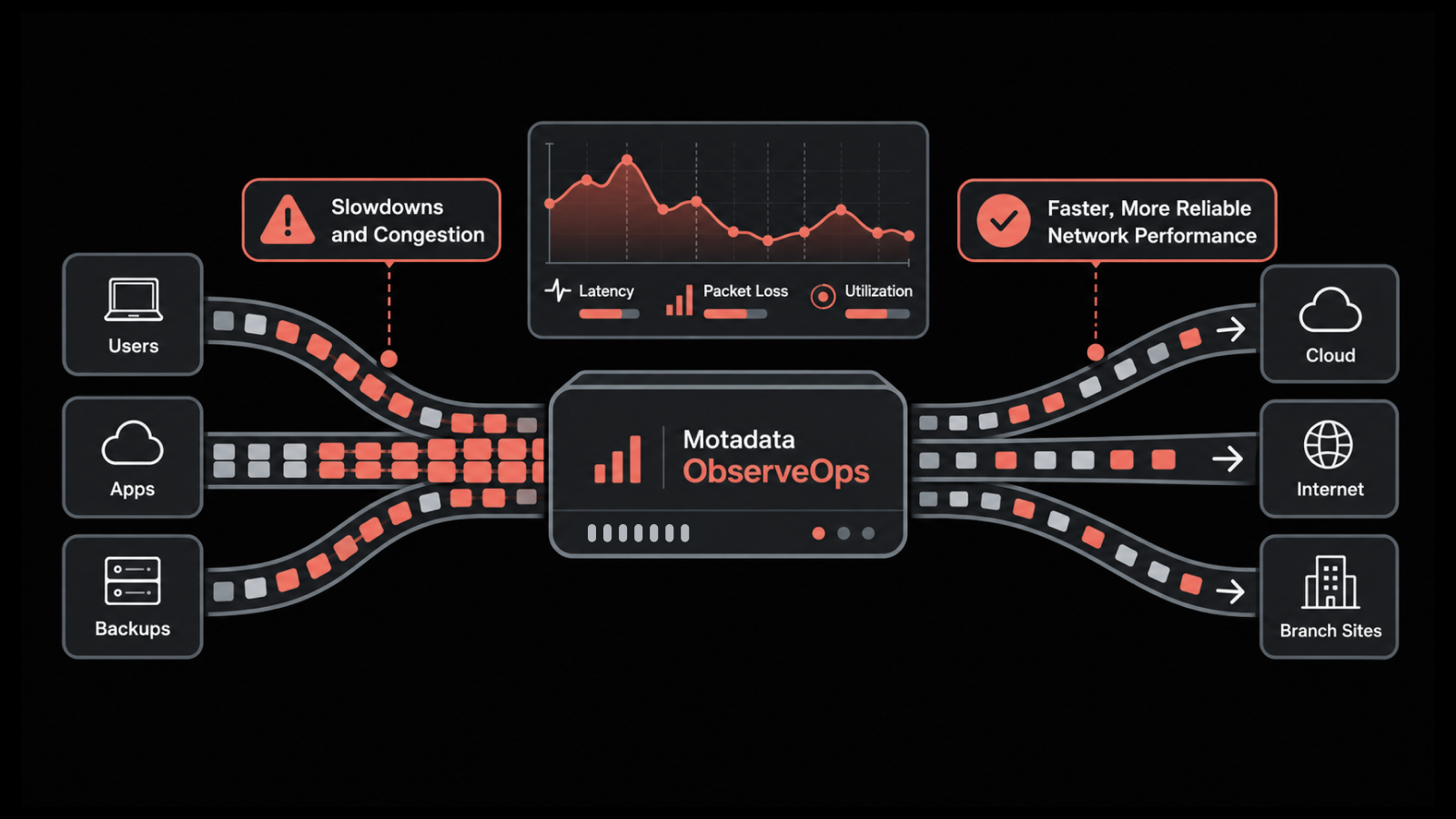
Motadata ObserveOps applies this approach across multi-vendor routers, switches, and firewalls. It brings together device metrics, NetFlow, sFlow, jFlow, and IPFIX traffic data, device syslog, and Windows remote access event logs, alongside a live network topology map that shows which sites depend on each tunnel. That shared view helps IT leaders reduce MTTR for network problems that users experience as VPN issues.
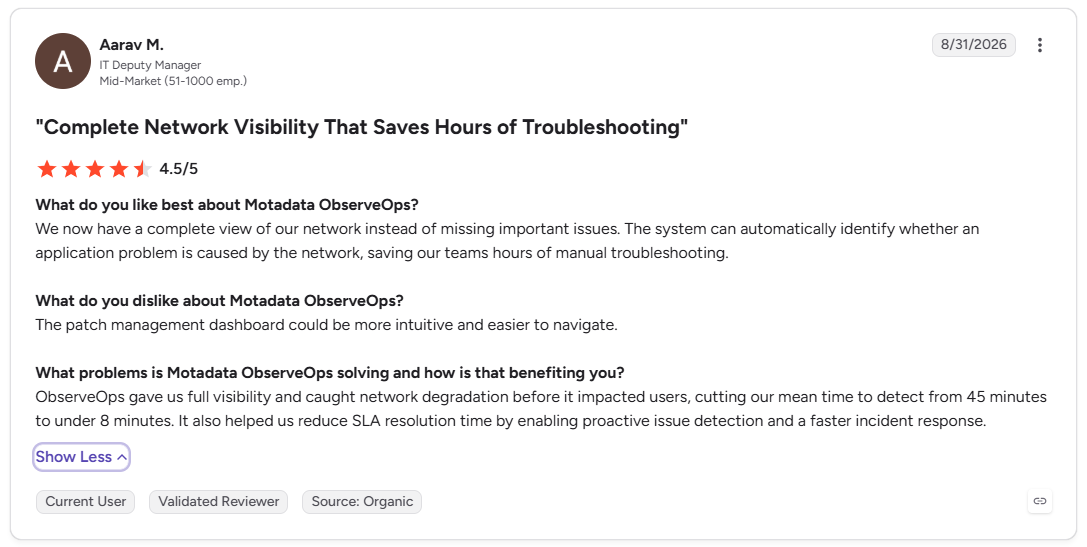
This is what one of our clients says about Motadata ObserveOps on G2:
Move from Reactive VPN Fixes to Early Warnings with Motadata ObserveOps
The typical VPN troubleshooting guide ends at the client, with advice to restart the app, change servers, or switch protocols. Those steps can help one user, but overloaded gateways, mismatched timing settings, and weakening branch links stay hidden until more tickets arrive. No platform can repair a user's home router or a carrier outage, and some VPN issues will always need hands-on work at the device.
Motadata ObserveOps shortens the time it takes to locate the fault. Gateway health, path quality, traffic flows, and logs appear in one correlated view. Engineers can trace a complaint to its cause without switching tools, and leaders can see when the network is nearing capacity early enough to plan the budget.
FAQs
How do I reset my VPN?
Disconnect the VPN, quit the client completely, and restart the device. If the problem continues, remove the VPN profile, reinstall the latest client version, and import a fresh configuration from your IT department. On phones, also toggle airplane mode to clear stale network sessions before reconnecting.
Why is my VPN suddenly not working?
A VPN that stops working without warning usually reflects a recent change. Common triggers include an expired certificate, a password reset, a client or operating system update, a new firewall rule, or ISP maintenance. Checking gateway authentication logs and recent change records typically reveals the cause within a few steps.
Can a VPN cause packet loss or high latency?
A VPN adds encryption overhead and often a longer route, so some added delay is normal. Significant packet loss or latency through the tunnel usually points to a packet size mismatch, an overloaded gateway, full-tunnel hairpinning, or a congested internet link. Testing the same destination with the VPN on and off isolates the source.
What is the difference between remote access and site-to-site VPN troubleshooting?
Remote access troubleshooting focuses on the individual user, including the client software, credentials, and home or public network. Site-to-site troubleshooting focuses on two gateways and their shared settings, such as encryption proposals, protected networks, and routing. Scoping who is affected tells you which approach applies.
How does network observability help with VPN troubleshooting?
Network observability correlates gateway health, latency, packet loss, traffic flows, and device logs continuously, so problems surface before users report them. Platforms such as Motadata ObserveOps bring those signals into one view, which helps engineers confirm whether a VPN complaint starts at the gateway, along the path, or inside an application.
Author
Poonam Lalani
Content Strategist
Poonam Lalani is a B2B content strategist and writer with a background in computer engineering and experience across enterprise technology domains, including AI, cloud, DevOps, data engineering, and IT operations. She specializes in creating research-driven content that simplifies complex ideas and supports product education, thought leadership, and business growth.