How to Fix Slow DNS Lookups Across Clients, Resolvers and Networks
Why does every page, login and business application hesitate before anything loads, even when bandwidth graphs look healthy? That pause usually comes from name resolution: no connection starts until its hostname has been translated into an IP address, and whatever time that translation takes is added to the request.
Slow DNS seldom shows up as a clear error. What people notice instead are complaints that "the internet is slow," occasional application timeouts and branch logins that drag while headquarters feels fine. With DNS working in layers, the delay may start at the client, the resolver, the network path or the authoritative servers, and a change to the wrong layer wastes hours of engineering time.
This guide treats slow DNS resolution as a structured part of network troubleshooting, with measurement first and fixes second. In this blog, you will see:
How DNS lookup time adds up: Each hop between a client and the final answer, and where the time goes
What slow DNS costs the business: How small delays turn into lost hours, tickets and misdirected spend
How to diagnose slow DNS lookups: A six-step sequence with commands for Windows, Linux and macOS
How to fix slow DNS lookups: Client, resolver, network and record-level fixes, including Active Directory specifics
How to keep DNS fast: An observability approach that catches DNS latency before users do
What is a Slow DNS Lookup?
A slow DNS lookup is any name resolution that takes long enough to delay the connection behind it. DNS lookup time is measured from the moment a client sends a query to the moment it receives a usable IP address, and it adds directly to page loads, authentication and service-to-service calls.
Most lookups are answered from a cache in well under a millisecond. Slow lookups tend to fall into two groups. Some are cache misses that send the resolver through the DNS hierarchy; others stall on a timeout until a retry gets through.
How does a DNS Lookup Travel from Client to Answer?
An uncached lookup can touch up to five stages, with each one adding latency of its own:
Local cache: The browser and operating system check their own caches first
Stub resolver: The client's resolver library sends the query to its configured DNS server
Recursive resolver: The internal or public resolver answers from cache or starts a recursive lookup
Root and TLD servers: The resolver asks which servers are responsible for the domain
Authoritative server: The domain's nameserver returns the final record, which the resolver caches for the record's TTL
Stages one to three are usually fast because they are local or cached. Stages four and five cross the internet, so they account for most uncached DNS latency.
Knowing where the time goes tells you which fix to try. The diagram below separates the steps inside your network from the three steps on the internet.
Each step takes only milliseconds, but users and applications repeat these lookups all day. That repetition is where the business cost comes from.
What does Slow DNS Cost the Business?
Slow DNS costs the business time, support effort and sometimes money spent on the wrong fix, because the delay is repeated on almost every connection users and applications make. A single page or SaaS login can involve many hostnames for scripts, APIs, identity services and content delivery, so a small delay per lookup becomes a noticeable wait per task.
The cost shows up in four places:
Lost productive time: Employees wait on slow logins, file shares and business applications many times a day, and the delay is easy to underestimate because it arrives in small pieces
Support load: Vague "the network is slow" tickets are hard to triage, so they bounce between network, server and application owners before anyone looks at name resolution
Misdirected spend: Organizations sometimes buy more bandwidth or escalate to their ISP when the actual bottleneck is a resolver setting that costs nothing to change
Customer-facing risk: When public DNS for your own domains is slow, first-time visitors wait longer for every page, checkout and API call
Consider an online retailer whose storefront loads assets from several third-party domains. Its infrastructure metrics look normal, yet first visits from one region feel sluggish, and the cause turns out to be authoritative nameservers hosted in a single distant location. Moving the zone to a provider with nameservers in several regions shortens those first visits without touching the application.
If the cause is left in place, slow lookups can turn into failed lookups and outages, with the cost of downtime that follows. To decide whether your DNS is slow, you first need a benchmark for normal.
What is a Good DNS Response Time?
A good DNS response time is under 50 ms when an internal resolver answers, and roughly 100 ms or less for an uncached external lookup. The local operating system cache should reply in under a millisecond. If lookups regularly take longer than 150 ms, investigate.
Treat these numbers as guidelines, since your own baseline depends on where users and resolvers are located. A branch office that reaches its resolver over a WAN link will always carry that round trip in every lookup.
Lookup type | Healthy range | Investigate when |
OS or browser cache hit | Under 1 ms | Repeat lookups are as slow as first lookups |
Internal resolver, cached record | 1 to 20 ms | Consistently above 50 ms |
Internal resolver, internal zone | Under 50 ms | Spikes during logons or business hours |
External domain, uncached | 50 to 100 ms | Regularly above 150 ms |
Any lookup that hits a timeout | Should not happen | Pauses of one second or more |
Average response time can look healthy while some lookups are slow. Track the 95th percentile and the worst cases as well, because a resolver that answers most queries quickly and stalls on a few will still produce intermittent complaints. Percentile tracking is the same method used for p99 latency in applications, and it works just as well for DNS performance.
What Causes Slow DNS Lookups?
Slow DNS lookups are caused by delay in at least one layer between the client and the authoritative server. In practice, that means the client, the resolver, the network path or the DNS records. Pinpoint the layer before changing anything, since one symptom can have several origins and each calls for a different fix.
Client-Side Causes of Slow DNS
Problems on the client side usually hit a single device, user or office. A typical sign is a long pause, after which browsing carries on normally.
Unreachable DNS servers in the list: A stale entry left by an old VPN client, a virtual adapter or a decommissioned server forces the client to wait for a DNS timeout before it tries the next server
Parallel A and AAAA queries: Some firewalls and NAT devices drop the second of two queries sent from the same socket, so the client waits out a full timeout before retrying
Search domain expansion: Short names are tried against every suffix in the search list, and Kubernetes pods default to ndots:5, which can turn one lookup into several before the full name is queried
VPN, security software and browser settings: Tunnels can route DNS through a distant gateway, filtering agents can inspect every query, and browsers with encrypted DNS enabled may bypass the internal resolver entirely
Altered DNS settings: Malware or unauthorized changes can point devices at slow or untrusted resolvers, which is also a security concern
Resolver-Side Causes of Slow DNS
Resolver problems usually affect everyone who uses that server, and they often get worse under load.
Low cache hit ratio: Very short TTLs, frequent restarts or undersized cache memory force the resolver to repeat full recursive lookups
Overloaded resolver: Growth in endpoints, containers and services without matching resolver capacity leads to queued queries and slow responses
Chained or missing forwarders: Queries that pass from one resolver to another before reaching the internet pick up extra round trips, and internal zones without conditional forwarders are sent into the public hierarchy first
DNSSEC validation overhead: Validating resolvers fetch and check extra records, which adds time on cache misses
Network Path Causes of Slow DNS
The network between client and resolver, or between resolver and the internet, can slow DNS even when every server is healthy.
Packet loss on port 53: DNS runs mostly over UDP, so a lost packet means the client waits for a timeout and retries, and even modest packet loss turns into visible delays
Truncation and TCP fallback: Large responses are truncated over UDP and retried over TCP, which fails or slows down when TCP port 53 is blocked
Fragmentation: Responses larger than the path MTU can be fragmented and dropped along the way
Distance and routing: Branch offices that send DNS across a WAN to headquarters add that round trip to every uncached lookup
Authoritative Server and Record Causes of Slow DNS
Some slow DNS resolution comes from how a domain is published, outside your own infrastructure.
Slow or distant authoritative servers: A domain served from a few nameservers in one region answers slowly for users far away
Long CNAME chains: Each alias adds another lookup before the resolver reaches the final A or AAAA record
Very low DNS TTL values: Records that expire every few seconds are rarely cached, so users repeatedly pay the full recursive cost
Missing reverse DNS records: Services that look up the PTR record of a connecting address, such as mail and some authentication systems, wait on a timeout when that record is missing
Lame delegations: Nameservers listed for a zone that no longer answer for it force resolvers to time out before they try the next one
The table below maps common symptoms to the layer most likely at fault, which gives service desk and network staff a shared starting point.
Symptom | Most likely layer | First check |
First lookup slow, repeat lookup fast | Client or resolver cache miss | Compare cached and uncached query times |
Pauses of several seconds, then success | Client timeout or packet loss | Look for unreachable servers in the client's DNS list |
Slow for one office, fine elsewhere | Network path or resolver placement | Measure round trip to that office's resolver |
Slow for everyone during busy hours | Resolver capacity | Check resolver CPU, query rate and cache hit ratio |
Slow for one domain only | Authoritative servers or CNAME chain | Run a delegation trace for that domain |
The table points to a likely cause. The six steps below confirm it before you change anything in production.
How do You Diagnose Slow DNS Lookups Step by Step?
You diagnose slow DNS lookups by timing each layer in turn, working outward from the client until one result stands out. That order keeps DNS troubleshooting focused. Every one of the six steps below uses standard, freely available tools for Windows, Linux and macOS.
1. Confirm DNS is the Bottleneck
Start by separating DNS time from network time. If a lookup takes far longer than a ping to the same resolver, DNS is adding the delay.
Platform | Command | What it tells you |
Linux and macOS | ping -c 4 10.0.0.10 | Network round trip to the resolver |
Linux and macOS | dig example.com @10.0.0.10 | DNS answer time, shown on the "Query time" line |
Windows | Test-Connection 10.0.0.10 -Count 4 | Network round trip to the resolver |
Windows | Measure-Command { Resolve-DnsName example.com -Server 10.0.0.10 } | Total DNS lookup time, shown as TotalMilliseconds |
Browser developer tools help here too. The Timing view for any request shows a separate DNS Lookup row, which confirms whether name resolution is where the page load stalls.
2. Check Which DNS Servers the Client is Actually Using
Many slow DNS problems come from a DNS server list that differs from what administrators expect. List every configured server on every active interface, then test each one.
Windows: Get-DnsClientServerAddress and ipconfig /all, then Test-NetConnection 10.0.0.10 -Port 53 for each server listed
Linux: resolvectl status on systemd-resolved hosts, or cat /etc/resolv.conf elsewhere
macOS: scutil --dns to see the resolver order, including resolvers supplied by a VPN
Any server that does not answer is a likely source of multi-second pauses. On Windows, also check Get-DnsClientNrptPolicy, since Name Resolution Policy Table rules can send some namespaces to resolvers that are unreachable from the current network.
3. Compare Your DNS Resolver with a Public Resolver
Query the same name through your internal resolver and through a public resolver, twice each. The first query shows uncached timing, and the second shows cached timing.
Command | Run it | What it tells you |
dig example.com @10.0.0.10 | Twice | Uncached, then cached, answer time from your internal resolver |
dig example.com @1.1.1.1 | Twice | Uncached, then cached, answer time from a public resolver |
If the public resolver is consistently faster, the internal resolver or its forwarders are the bottleneck. If both are slow on the first query only, the delay is upstream, in the delegation path or the authoritative servers.
4. Trace the DNS Delegation Path with dig
A dig trace, run as dig +trace, walks the hierarchy from the root servers down and prints the time spent at each level. It is the fastest way to find a slow or unresponsive authoritative server.
Command | What it tells you |
dig example.com +trace | Time spent at the root, TLD and authoritative levels |
dig NS example.com +short | Which nameservers are authoritative for the domain |
dig example.com @ns1.example-dns.net +stats | Response time of one specific nameserver |
Query each authoritative nameserver individually. One slow or silent server in the set is enough to make some lookups slow, because resolvers pick among them and wait for a timeout when one fails.
5. Inspect DNS Resolver Health
A DNS resolver with a low DNS cache hit ratio or high CPU will be slow for everyone. Pull its statistics and compare them with normal periods.
Windows Server DNS: Get-DnsServerStatistics for query, recursion and cache counters
systemd-resolved: resolvectl statistics for cache hits, misses and current cache size
Unbound: unbound-control stats for cache hit and recursion timing data
A cache hit ratio above roughly 80% is typical for a stable environment. A lower ratio points to short TTLs, frequent restarts or a cache that is too small for the query volume.
6. Check the Network Path to the DNS Resolver
If the resolver looks healthy, test the path to it. mtr shows loss and latency at every network hop, and a short packet capture shows retries and TCP fallback directly.
Command | What it tells you |
mtr -n 10.0.0.10 | Packet loss and latency at each hop to the resolver |
sudo tcpdump -i eth0 -n port 53 | Retransmitted queries and fallback to TCP |
dig example.com +cd | Lookup time with DNSSEC checking disabled, for comparison |
Repeated queries with the same ID indicate retransmissions caused by loss. Truncated responses followed by TCP connections indicate large answers, and comparing a normal query with a +cd query shows how much time DNSSEC validation adds.
Working through these checks in order stops you from changing resolvers when the actual cause is a client setting. The decision flow below shows which result sends you to which layer.
These manual checks work well for one incident at one site. They cannot warn you when DNS slows down at another office next month, which is why the last part of this guide covers continuous measurement.
How do You Fix Slow DNS Lookups?
You fix slow DNS lookups by correcting whichever layer the diagnosis identified. The eight fixes below start with low-risk client changes and move on to resolvers, the network and DNS records. Knowing how to fix slow DNS lookup problems layer by layer also prevents a public-resolver switch in places where it will not help.
1. Correct the Client's DNS Configuration
Client fixes are quick and affect only the device or policy you change.
Remove unreachable servers: Delete stale DNS entries from every active interface and disable virtual or VPN adapters that are no longer needed
Put the closest resolver first: Order the server list so the fastest reachable resolver is queried first
Tune Linux resolver options: Add options timeout:1 attempts:2 to shorten stalls, and single-request-reopen where firewalls drop parallel A and AAAA queries
Fix search domains: Trim long suffix lists, and lower ndots for workloads that mostly query fully qualified names
After any of these changes, flush DNS caches so the client drops answers it received through the old path.
Platform | Command to flush the DNS cache |
Windows | ipconfig /flushdns |
macOS | sudo dscacheutil -flushcache; sudo killall -HUP mDNSResponder |
Linux with systemd-resolved | resolvectl flush-caches |
Browsers hold a separate DNS cache. In Chrome, clear it at chrome://net-internals/#dns; Edge uses edge://net-internals/#dns. When lookups fail outright, the steps in our guide to DNS not responding errors are the better starting point.
2. Choose a Faster DNS Resolver Where it Fits
Switching to a public resolver often speeds up DNS for standalone devices and small offices whose ISP resolver is slow. The table compares three of the best-known public resolvers.
Public resolver | Primary and secondary addresses | Notable behavior |
Cloudflare | 1.1.1.1 and 1.0.0.1 | Privacy-focused, supports DNS over HTTPS and TLS |
Google Public DNS | 8.8.8.8 and 8.8.4.4 | Large anycast network, supports DNS over HTTPS and TLS |
Quad9 | 9.9.9.9 and 149.112.112.112 | Blocks domains associated with malware and phishing |
Which is faster, 1.1.1.1 or 8.8.8.8, varies with your location and your ISP's peering, so test both from each site. Domain-joined clients are a different case. They should stay on internal resolvers, with public resolvers added as forwarders on those internal servers.
3. Tune DNS Caching and TTL Values
Caching has the largest effect on DNS performance, because a cached answer skips the entire recursive path. DNS TTL values decide how long an answer stays cached.
Stable records: Use TTLs of one hour to one day for servers and services whose addresses rarely change
Failover and migration records: Use 60 to 300 seconds, and restore longer values once the change is complete
Planned changes: Lower the TTL a day or two before a migration so cached answers expire before the switch
Some resolvers can also avoid the wait when a cached record expires. Unbound's prefetch option refreshes popular records before they expire, and serve-stale features in Unbound and BIND answer from an expired record while a fresh one is fetched, which keeps users from waiting on a slow upstream.
4. Fix DNS Forwarders and Place Resolvers Near Users
Where resolvers are placed, and where they forward queries, decides how far each query travels. For enterprise networks, this layer is often where slow DNS resolution gets solved.
Add conditional forwarders: Send internal and private DNS zones, including cloud private zones, straight to the servers that host them
Remove forwarder chains: Point each resolver directly at its upstream source instead of through other internal resolvers
Deploy local resolvers at branches: Hand out a nearby resolver through DHCP so lookups do not cross the WAN
Keep two resolvers per site: Give every client a primary and secondary that are both reachable from that location
Windows Server needs a single command to create a conditional forwarder: Add-DnsServerConditionalForwarderZone -Name "corp.example.com" -MasterServers 10.0.0.10. Resolver assignments are also easier to keep consistent across sites when DNS, DHCP and IP address management are handled together, an approach known as DDI.
5. Scale DNS Resolvers Before They Run Out of Capacity
Often, a slow DNS server was sized for a smaller environment. As endpoints, containers and services are added, its response times keep creeping up. Watch query rate, CPU and memory together through server monitoring, since a rising query rate with falling cache efficiency is an early warning.
Load testing with the open-source dnsperf tool shows how much traffic a resolver handles before latency climbs. Add resolvers and spread subnets across them before that limit is reached, since this costs less than dealing with a slowdown that affects the whole organization.
6. Clean Up DNS Records and Shorten CNAME Chains
Cleaning up DNS records removes extra lookups and avoidable timeouts.
Flatten CNAME chains: Replace multi-level aliases with direct records, or use your DNS provider's alias or CNAME flattening feature at the zone apex
Add missing PTR records: Publish reverse DNS for servers that other systems connect to, especially mail and authentication hosts
Remove stale records: Delete records for decommissioned systems, and enable scavenging on Active Directory integrated zones
Host public zones across regions: Use an authoritative DNS provider with anycast nameservers in several regions so customers everywhere get fast answers
7. Clear Network Path Problems That Delay DNS
When the network path causes the delay, make the change in the network and firewall configuration, then use network performance data to confirm the delay is gone.
Allow TCP port 53: Permit TCP as well as UDP so truncated responses can be retried
Set a safe EDNS buffer size: A 1,232-byte buffer, the value recommended by the DNS Flag Day initiative, avoids fragmentation on most paths
Review DNS inspection rules: Firewall features that inspect or rewrite DNS can add delay or drop valid responses
Check VPN split tunneling: Route only internal namespaces through the tunnel so public lookups stay local
8. Speed Up DNS for Web Applications
The simplest way to speed up DNS for web users is to reduce how many lookups each page needs. Browsers resolve every third-party domain on a page separately, so each extra domain adds a potential delay on a first visit.
Use DNS prefetch: Add <link rel="dns-prefetch" href="//cdn.example.com"> for domains the page will need
Use preconnect for critical origins: Resolve, connect and negotiate TLS early for the few domains that matter most
Reduce third-party domains: Consolidate scripts, fonts and assets onto fewer hostnames
Real user monitoring shows how much of each page load is spent on DNS for actual visitors, broken down by region and device. These fixes apply to most environments. Windows domains need a few extra checks, covered next.
How do Windows and Active Directory Environments Change the Fix?
Windows and Active Directory environments change the fix because DNS handles service discovery in addition to name resolution. Domain controllers publish SRV records, and clients read them to locate logon, Kerberos and LDAP services. When DNS is slow, the result is slow logons, late Group Policy processing and authentication that fails now and then.
This means three extra checks when you fix slow DNS lookups in a Windows domain.
Keep domain members on internal DNS: Pointing clients or servers at a public resolver breaks SRV lookups for the domain, even if public browsing becomes faster
Check multi-homed servers: Servers and domain controllers with several interfaces can register addresses that clients cannot reach, which produces timeouts for some users only
Read the DNS Client log: The Microsoft Windows DNS-Client operational log in Event Viewer records which server was queried and where timeouts and retries occurred
Consider a mid-sized company where logons at one branch take far longer than at headquarters. A check of the branch laptops shows a secondary DNS entry pointing at a server retired months earlier, and removing it through DHCP brings logon times back in line.
The fixes above solve the current slowdown. Growth in users, sites and applications can bring the problem back, which makes continuous measurement the next step.
How do You Keep DNS Lookups Fast Over Time?
Keeping DNS lookups fast over time requires DNS observability: continuous measurement of resolution time, resolver health and the network path. Most DNS latency problems come and go, and a one-off dig captures only the moment it ran. With ongoing data, rising response times, a slipping cache hit rate or more errors show up before users feel them.
A practical DNS observability setup covers four signals:
Resolution time from each site: Run synthetic monitoring checks that resolve key internal and external names from every office and data center
Resolver server health: Track query rates, recursive query timeouts, response time and cache memory on each DNS server
Error rates kept separate from latency: Watch SERVFAIL and NXDOMAIN counts alongside response time, since a SERVFAIL spike with normal latency usually points to an authoritative problem
Network path to each resolver: Measure hop-by-hop latency and loss so path issues are separated from server issues
Compare each resolver against its own normal response time as well as a fixed limit. A resolver that normally answers in 5 ms and now answers in 40 ms is degrading, even though 40 ms is still within most static limits, so dynamic thresholds that learn normal behavior catch drift that fixed limits miss.
For IT leaders, three questions show whether DNS is under control:
Is DNS measured from every site? A single check from the data center says little about branch or remote users
Is DNS part of your service objectives? Treating resolution time as an SLO ties it to the applications and customers that depend on it
Is ownership clear? DNS often falls between network, server and security groups, so one named owner shortens every future investigation
If you are choosing a platform for this, our comparison of DNS monitoring tools explains how the main options cover public and internal zones.
How does Motadata ObserveOps Provide DNS Observability?
Motadata ObserveOps collects DNS checks, resolver metrics and network path data in one console. When lookups slow down, that combined view shows whether the client side, the resolver or the path is at fault. It covers the four signals above as follows.
DNS service checks: Scheduled DNS checks verify that servers resolve queries and record DNS latency and lookup time in milliseconds
Windows DNS server metrics: Windows DNS monitoring tracks query handling, recursive query failures and timeouts, response time, zone transfers and cache memory
Distributed collectors: Collectors at branch and remote sites poll local resources, so checks run from where users actually are
Network path analysis: Hop-by-hop path visibility shows whether delay comes from a specific link or device on the way to the resolver
Dynamic thresholds and alerting: Real-time alerts combine anomaly detection with policy thresholds, and ping and traceroute runbooks can run automatically when an alert fires
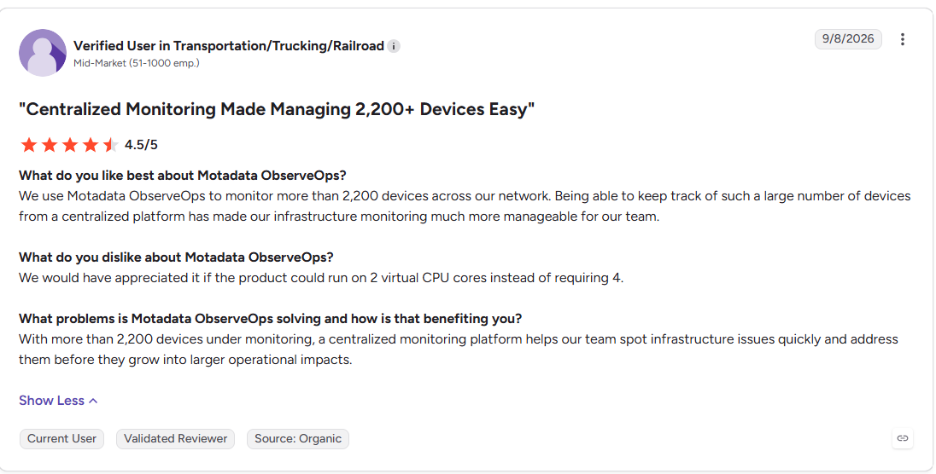
This is what one verified user says about Motadata ObserveOps on G2 when it comes to catching infrastructure issues early.
Measure DNS from each location your users work in, since a lookup that is fast at one office can still be slow at another. The layout below shows where the checks run and how the results reach one console.
DNS issues often arrive alongside other symptoms. ObserveOps log correlation lines up resolver event logs, network device syslog and response time data on one timeline, so a general "the network is slow" ticket can be traced to a specific cause and assigned to the right owner.
Catch Slow DNS Before Users Do with Motadata ObserveOps
A single change rarely cures slow DNS lookups. The delay might trace back to a client setting, an overloaded resolver, a lossy path or a poorly published record. Measuring before fixing works best, and the order is simple:
Confirm the bottleneck: Compare lookup time with a ping to the resolver
Isolate the layer: Test the client list, compare resolvers and trace the delegation path
Correct the cause: Change the client, resolver, network or records, lowest risk first
Keep watching: Track response time from every site against a learned baseline
For investigating one lookup on one machine, command-line tools such as dig, Resolve-DnsName and mtr are still the quickest option, and hands-on diagnosis depends on them. They cannot watch every site, every resolver and every critical name around the clock.
Motadata ObserveOps adds that continuous view, with DNS checks from each location, Windows DNS server metrics, hop-by-hop path analysis and alerts that learn what normal looks like. This lets you see DNS slowing down on a dashboard before users lose time and raise tickets about a slow network.
FAQs
Is 8.8.8.8 or 1.1.1.1 better for DNS speed?
Neither is faster everywhere, because speed depends on your location, your ISP's peering and the nearest anycast node. Measure both from each site with repeated queries before choosing. In a domain environment, keep clients on internal resolvers and use public resolvers as forwarders.
Why is my DNS lookup so slow?
A DNS lookup is usually slow because one layer is adding delay, such as an unreachable server in the client's list, an overloaded resolver, packet loss on the path or a slow authoritative server. Compare the lookup time with a ping to the resolver, then test each layer in turn.
What is the difference between slow DNS and DNS server not responding?
Slow DNS means lookups succeed but take longer than they should, often because of timeouts, cache misses or distant resolvers. DNS server not responding means lookups fail entirely. Both usually share the same causes, such as an overloaded resolver or an unreachable server, so rising response time is often an early warning of failures to come.
How can I fix a slow DNS server in a business network?
Check the server's cache hit ratio, CPU and query rate, then review its forwarders for chains or unreachable upstream servers. Add conditional forwarders for internal zones, place resolvers close to users, and add capacity before load peaks. Recheck response times from each site after every change.
How do you monitor DNS response time continuously?
Run scheduled DNS checks from every site, collect metrics from each DNS server and track error rates separately from latency. Compare results against learned baselines to catch gradual drift. Platforms such as Motadata ObserveOps bring DNS checks, Windows DNS metrics and network path data into one console for this purpose.
Author
Poonam Lalani
Content Strategist
Poonam Lalani is a B2B content strategist and writer with a background in computer engineering and experience across enterprise technology domains, including AI, cloud, DevOps, data engineering, and IT operations. She specializes in creating research-driven content that simplifies complex ideas and supports product education, thought leadership, and business growth.