How to Fix DNS Server Not Responding Errors and Keep Users Online
Has your service desk ever filled with "the internet is down" tickets while every switch, firewall and uplink is reporting normal? The connection is usually fine. What has failed is name resolution, and the message your users see says the DNS server is not responding.
That single error covers a long list of causes, from a stale client cache or a bad adapter setting to an overloaded resolver, a security agent intercepting port 53, a domain controller short on memory, or a forwarder that quietly stopped answering. All of them surface with identical wording on screen. That is why the error outlives so many reboots and so much guesswork.
The way through it is a fixed order of checks that narrows the failure to one layer before anyone changes a setting, the same method a good network troubleshooting guide applies to any fault. In this blog, you will see what the error means and the eight fixes that clear most Windows cases. It then covers the equivalent steps for macOS, Linux and consoles, a method for pinpointing the failing layer, the business cost of a repeat outage, and how to keep the error from returning next quarter.
What does the "DNS Server Not Responding" Error Mean?
The DNS server not responding error means the device sent a name lookup and nothing usable came back before the timeout expired. Your network link is intact. The step that converts a name such as intranet.company.com into an IP address failed.
Every connection starts with that conversion, and the client works through three sources in a fixed order:
Local resolver cache: Answers already stored from recent lookups, held until their time to live expires
Hosts file: Manual name-to-IP entries on the machine itself, read before any query leaves it
Configured resolver: The DNS server received from DHCP or set manually on the adapter
Silence from that resolver, a server failure response, or an answer that arrives too late will each end the same way, with the operating system reporting that the DNS server is not responding. Users read the wording as an internet outage, and that reading is wrong. Only the lookup step has broken, so everything on the network still answers on its IP address while nothing answers by name.
Watch for these symptoms, which point to a DNS resolution failure instead of a broken connection:
Websites fail by name but work by IP: 8.8.8.8 responds while google.com does not
Ping behaves inconsistently: IP addresses reply, hostnames return "could not find host"
Only some services break: internal applications fail while public sites load, or the reverse
The error follows the network: one laptop fails on Wi-Fi and works on a mobile hotspot
One connection type fails: Wi-Fi reports that it cannot connect to the DNS server while an Ethernet cable on the same desk works
The last two signals matter most in a business environment, because a fault that follows the network will not respond to any amount of client-side work. The stakes are higher than a browser that will not load, since email, payment gateways, single sign-on, VPN access and cloud applications each resolve a name before they do anything else. One of the least visible network protocols can therefore take an entire site offline.
What Causes DNS Server Not Responding Errors?
DNS server not responding errors come from four layers, and identifying the layer decides which fix to attempt. Work on the client while the resolver is at fault and the hour is spent for nothing.
The four layers, in the order a query travels through them:
The client: corrupted local cache, wrong adapter settings, disabled DNS Client service, IPv6 preference issues
The local network path: router or gateway acting as a forwarding resolver, DHCP handing out a dead server address, firewall rules blocking UDP and TCP port 53
The configured resolver: an internal domain controller, a public resolver, or an ISP resolver that is overloaded, unreachable or refusing recursion
The upstream chain: forwarders, root hints, DNSSEC validation failures, or an authoritative zone that has genuinely gone away
Client-side causes account for most single-machine reports, usually cache corruption or a stale adapter setting. Network-path causes hit several users at once, whether a gateway stops forwarding queries while it continues to route packets normally or a DHCP scope hands out the address of a decommissioned server. Resolver-side causes are the ones that recur, since a domain controller under memory pressure, a forwarder that changed IP, or a rate limit on a public resolver will each produce a DNS server unavailable message and count among the hidden downtime causes a simple availability check never registers.
Knowing where a query stops saves you from changing settings that were never the problem. The diagram below traces a single lookup from cache to authoritative server and marks the four points where it commonly fails.
How do You Fix DNS Server Not Responding on Windows?
To fix DNS server not responding on Windows, work through the eight fixes below in sequence, beginning with the least disruptive. Anyone looking up how to fix DNS server not responding Windows 10 or how to fix DNS server not responding Windows 11 can follow the same order, since both releases share a DNS Client service and adapter stack.
1. Rule Out a Stale Browser DNS Cache
Open the failing address in a second browser and in a private window. If it loads, the cause is a browser-level cache or an extension, and nothing at the network layer needs touching. Chromium browsers keep their own resolver cache at chrome://net-internals/#dns.
2. Restart the Device and Power-Cycle the Gateway
Reboot the affected machine first, since that clears the resolver cache and restarts the DNS Client service in one move. Where a reboot is impractical, open services.msc and restart the DNS Client entry directly. Should the error survive both, cut power to the router or gateway for thirty seconds, because consumer and small-office gateways run a caching forwarder that degrades over long uptimes while traffic continues to pass normally.
Test both connection types while you are here. Resolution that works over Ethernet and fails over Wi-Fi puts the wireless adapter or the access point under suspicion. Disabling any adapter you are not currently using also removes a common source of conflicting resolver entries.
3. Flush the DNS Cache and Reset the Stack
Run the following commands in sequence from an administrator Command Prompt. Most guides tell you to flush DNS cache first, and it does clear corrupted entries that survive a browser restart:
ipconfig /flushdns
ipconfig /registerdns
ipconfig /release
ipconfig /renew
netsh winsock reset
Restart the machine afterwards. That netsh winsock reset line rebuilds the socket catalog, and it earns its place when a removed VPN client has left a filtering layer behind.
4. Change the DNS Server on the Adapter
Press Win + R, enter ncpa.cpl, and open the properties of the adapter currently in use. Under Internet Protocol Version 4, supply a known-good public DNS server, then apply and retest.
Google Public DNS: 8.8.8.8 and 8.8.4.4
Cloudflare: 1.1.1.1 and 1.0.0.1
Quad9: 9.9.9.9 and 149.112.112.112
If resolution recovers immediately, the fault lies with your previously configured resolver. On a corporate machine, revert this afterwards and raise the finding, because internal names will stop resolving while a public resolver is set.
5. Disable IPv6 on the Adapter as a Test
Networks that advertise IPv6 without a working IPv6 resolver leave the client preferring AAAA lookups that never complete. Untick Internet Protocol Version 6 in the adapter properties and retest. A pass here is a signal to correct the router advertisement, since switching IPv6 off across a fleet brings problems of its own.
6. Turn Off Security Software Temporarily
Switch off your VPN client, proxy, third-party firewall and antivirus one at a time, retesting after each. Agents that inspect or tunnel DNS traffic cause a large share of the DNS not responding error reports that appear only on managed devices. Once the culprit is identified, re-enable everything and adjust that agent's rules instead of leaving protection off.
7. Update or Reinstall the Network Adapter Driver
In Device Manager, expand Network adapters, then right-click the adapter and choose Update driver. If no update is available, uninstall the device and reboot so that Windows reinstalls it cleanly. Outdated drivers produce intermittent failures that look identical to server-side problems.
8. Start Windows in Safe Mode with Networking
Boot into Safe Mode with Networking and test resolution again. Working resolution here confirms that a third-party service or driver is interfering and points you back at fix six with a much shorter list of suspects. A failure in Safe Mode moves the investigation off the client entirely.
Those eight steps cover the majority of Windows reports. The same reasoning transfers to every other device on the network, with the commands changed.
How do You Fix DNS Server Not Responding on macOS, Linux and Consoles?
Fixing DNS server not responding on non-Windows devices uses the same logic with a different set of commands. The four-layer model holds throughout, and only the syntax for clearing the cache and setting a resolver changes.
macOS: Flush the cache with sudo dscacheutil -flushcache; sudo killall -HUP mDNSResponder, then set resolvers under System Settings, Network, your active service, Details, DNS. Remove any leftover entries from an old VPN profile while you are there.
Linux: On systemd-resolved hosts, run resolvectl flush-caches and confirm the active resolver with resolvectl status. Check /etc/resolv.conf for a symlink pointing at a stub resolver, and whether NetworkManager overwrites your changes on every reconnect.
Routers and access points: Log into the admin interface and check the WAN DNS entries and the DHCP DNS option handed to clients. A single wrong value here produces the error on every device at once, which is the pattern to look for before touching any endpoint.
Consoles and smart devices: Anyone searching how to fix DNS server not responding PS5 errors should set DNS manually in the console network settings using a public resolver, since consoles cache aggressively and rarely recover on their own.
Anyone asking how to fix a DNS server that is not responding on a managed network has a different job from a home user. On corporate infrastructure the answer is almost never a client fix, and the checks below will confirm that within a minute.
How do You Confirm Which Layer Failed Before Changing Anything?
To confirm which layer failed, query the resolver directly and read the response code instead of the browser message. Three commands separate a client problem from a resolver problem in under sixty seconds.
Start by testing resolution against a resolver you trust, bypassing whatever the client was given:
nslookup company.com 8.8.8.8
nslookup company.com 10.0.0.10
dig @10.0.0.10 company.com +norecurse
Read the outcome against this short reference:
Both queries answer: The resolvers are healthy, so the fault is on the client or in a local security agent
Public answers, internal does not: Your internal resolver is the failure point, and client fixes will not help
Neither answers: The query is being blocked in the network path, most often UDP and TCP port 53
SERVFAIL returned quickly: The resolver is reachable and failing to complete, which points at forwarders or DNSSEC validation
NXDOMAIN returned: Resolution is working correctly and the name genuinely does not exist
Response time matters as much as the response itself. A resolver answering in 800 ms is technically working and will still trigger client timeouts under load, which is why latency belongs in your DNS checks alongside a simple up-or-down test. Pair it with a ping against the resolver address to separate reachability from service health.
Where queries succeed intermittently, check for packet loss on the path before rebuilding anything. DNS queries use UDP, which does not retransmit lost packets on its own, so a link dropping even a small share of traffic produces failed lookups while every interface still reports as up.
Which Fixes Should You Try First in a Business Network?
In a business network, start with the fix that matches how many users are affected, since the count identifies the layer faster than any command does. One laptop and one floor produce the same error message and call for completely different responses. Ordering a response by scope is standard network troubleshooting practice, and DNS rewards it more than most faults.
Who is affected | Most likely layer | First check | Usual fix |
One device, one network | Client cache or adapter | ipconfig /all and nslookup against a public resolver | Flush cache, correct adapter settings |
One device, every network | Client software | Test in Safe Mode with Networking | Remove or reconfigure the interfering agent |
Several devices, one subnet | DHCP or gateway | DHCP scope option 6 and gateway WAN settings | Correct the advertised resolver address |
All internal names, all users | Internal resolver | Service state and memory on the domain controller | Restart the DNS service, add resolver capacity |
All external names only | Forwarders or upstream | dig against each configured forwarder | Replace the failing forwarder |
The pattern in that table is the point. Client fixes close individual tickets, and they will never resolve an incident where every user in a subnet lost name resolution at the same moment.
One more consideration applies to managed environments. Any change you make to a resolver, forwarder or DHCP option is a network configuration change, so it belongs in your change record even when it takes ten seconds and fixes an outage. The harder question comes after that, and it is a commercial one: what does the interruption cost while it lasts?
What does a DNS Outage Cost the Business?
A DNS outage costs the business every transaction, login and integration that depends on a name being resolved, which in most organizations is nearly all of them. A single failed component looks minor on a network diagram and shows up as lost orders on a revenue report.
Consider a mid-sized distributor whose order portal, warehouse scanners and payment provider all resolve through the same pair of internal servers. One forwarder stops answering at the start of a shift, the portal times out, scanners drop offline, and the finance system loses its route to the payment gateway. Three costs follow from that single component, and only the first one reaches the incident log:
Direct interruption: Revenue-facing services are unavailable while customers are actively trying to use them
Absorbed effort: Engineers spend hours ruling out the network, the application and the firewall before anyone questions resolution
Contractual exposure: Availability commitments to customers or internal service owners are missed, and the cost of downtime is argued about afterwards without agreed numbers
There is a governance angle too. Organizations that commit to five nines uptime are allowing themselves roughly five minutes of unavailability a year, and a resolver that answers slowly for a fortnight will consume that budget without registering as an outage anywhere.
Why does DNS Server Not Responding Keep Coming Back?
DNS server not responding errors recur because the fix addressed the symptom while the condition that produced it stayed in place. Flushing a cache clears today's failure and changes nothing about the resolver that caused it.
Four conditions produce most repeat incidents:
Resolver capacity: A domain controller doing DNS alongside authentication and replication hits memory or CPU limits at predictable busy periods
Single-path forwarding: One forwarder configured with no healthy alternative turns any upstream problem into a full outage
Configuration drift: DHCP options, conditional forwarders and adapter overrides diverge quietly after migrations and hardware swaps
Silent degradation: Query latency climbs for weeks before it crosses the client timeout, and nothing alerts because the service never went down
The fourth catches experienced infrastructure engineers. Availability checks ask whether the resolver is up, and a resolver answering slowly is up by that definition right until users start seeing failures. That gap between working and usable widens mean detection time across every service that depends on name resolution.
Each recurrence also consumes engineering hours and produces another burst of network downtime that users remember. Confidence in the wider infrastructure drops with it, even though every other component was working correctly throughout.
How do You Get DNS Observability Before Users Report the Error?
You get DNS observability by running continuous resolution checks against the resolvers themselves, recording response time alongside availability, and linking both to the services that depend on them. A DNS server isn't responding error should reach you as an alert that already names the failing resolver.
That link is what separates observability from a simple uptime check. Knowing a resolver is reachable tells the on-call engineer one thing, and knowing which applications slow down when that resolver slows down is what a service owner needs before deciding whether to notify customers. Three capabilities do most of that work:
Dedicated DNS and domain checks: Resolution is tested continuously against each configured resolver, and the response time is stored alongside a plain up or down state
Threshold and baseline policies: Fixed thresholds catch a hard failure, while learned baselines flag a resolver answering slower week over week before it crosses the client timeout
Automatic diagnostic runbooks: Ping and trace route steps attach to new monitors on their own, so the first round of investigation has already run when the alert opens
Motadata ObserveOps provides all three, with DNS and domain checks in the same service check category as ping, port, URL, NTP and SSL certificate checks. Every resolver you depend on gets its own history, its own thresholds and its own place in the dependency map.
Continuous checking only helps if the result of each check drives the next action. The loop below sets out the four stages that turn a resolver test into a named alert, with the ObserveOps stage shown in position.
The alert then arrives with context attached. Topology maps show which services depend on the affected resolver, so whoever picks up the incident already knows whether one application or the entire site is exposed. Holding resolver health and interface health on the same monitoring dashboard settles the usual question of whether the fault is DNS or the network beneath it.
Separating an application fault from a network fault is the same judgment call a DNS incident forces. This is what one of our clients says about Motadata ObserveOps on G2:
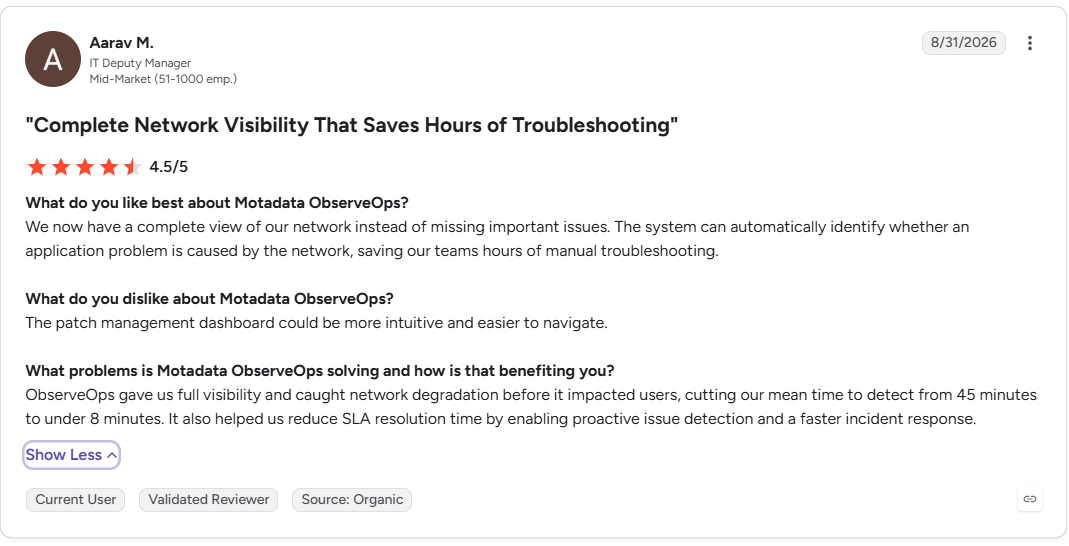
What changes here is who finds the problem first. With proactive network monitoring in place, a resolution failure is caught by a scheduled check instead of by a user, and the service desk spends its time confirming a fix instead of opening an investigation.
See DNS Failures Before Your Users do with Motadata ObserveOps
Most DNS server not responding incidents get solved twice. Once on the client, where a cache flush restores service for the person who complained, and once properly weeks later, after the same error returns and someone finally examines the resolver. No observability platform prevents a DNS outage, and none should claim to.
What a platform changes is how long the failure stays invisible and how much of the investigation is finished before an engineer opens the alert. Motadata ObserveOps runs DNS and domain checks against every resolver you depend on, records response time alongside availability, and maps the services that fail when resolution does. Degradation is flagged with the failing resolver named, ahead of the first ticket, and your network availability figures start reflecting what users actually experienced.
FAQs
Why does my DNS server keep not responding even after restarting the router?
A router restart clears the gateway's forwarding cache and fixes nothing further upstream. If the error returns, the fault is likely your configured resolver or its forwarders. Query the resolver directly with nslookup to confirm whether it is answering at all.
Is it safe to switch to a public DNS server permanently?
On a home network, yes, and public resolvers are often faster than ISP defaults. On a corporate device, a public resolver will break internal name resolution for file shares, intranet sites and authentication. Use it as a diagnostic step and then revert.
What is the difference between DNS server unavailable and no internet access?
DNS server unavailable means name resolution failed while the network link is working, so IP addresses still respond. No internet access means the link itself is down and nothing routes. Testing an IP address directly separates the two in seconds.
How do I know whether the problem is my device or the network?
Test the same site on a second device and on a different network such as a mobile hotspot. If only one device fails everywhere, the cause is on that device. Where every device fails on one network, the resolver or the path to it is at fault, and a platform such as Motadata ObserveOps will have recorded which one.
Can monitoring software detect DNS problems before users report them?
Yes, when it tests resolution continuously instead of checking whether the server is reachable. Motadata ObserveOps runs DNS and Domain service checks against each resolver and records response time, so a resolver answering slowly triggers an alert before client timeouts begin.
Author
Poonam Lalani
Content Strategist
Poonam Lalani is a B2B content strategist and writer with a background in computer engineering and experience across enterprise technology domains, including AI, cloud, DevOps, data engineering, and IT operations. She specializes in creating research-driven content that simplifies complex ideas and supports product education, thought leadership, and business growth.