10 Best OS Deployment Software
OS deployment software is having a forced upgrade year. Microsoft retired the Deployment Toolkit in January 2026, and Windows Deployment Services can no longer install Windows 11 end to end. The replacements split between imaging tools, unified endpoint management suites, and ITSM platforms with an OS deployment module.
In this blog, you will:
Compare 10 OS deployment tools on target OS, method, and zero-touch options.
See where each one falls short, with G2 and Gartner ratings.
Decide between an imaging tool and a platform that holds your assets.
By the end, you will know which two deserve a trial.
What Is an OS Deployment Software?
OS deployment software installs a complete operating system build on many computers at once from one central console. It captures a golden image from a reference machine, with the OS, drivers, applications, and settings included. It then pushes that image to target machines over the network through PXE boot, or from USB media.
The category sits between two neighbors. Disk cloning tools copy one drive to another with no scheduling or reporting. Unified endpoint management suites run the whole device lifecycle and treat imaging as one feature among fifty. OS deployment software does the middle job: build once, deploy to hundreds, and prove which machine got which image.
It also differs from software deployment, which installs applications on machines that already run an operating system.
Why Are Teams Replacing MDT and WDS in 2026?
Three Microsoft decisions landed inside twelve months, and together they pushed many teams into an evaluation they had not planned for.
MDT is retired: Microsoft announced the immediate retirement of the Microsoft Deployment Toolkit in January 2026. Existing installs keep running, but there are no more updates, fixes, or compatibility work for new Windows releases.
WDS cannot deploy Windows 11 end to end: Workflows that rely on boot.wim from installation media are blocked for Windows 11 and Windows Server 2025. WDS can still PXE boot a custom boot image, and nothing more.
Hands-free WDS deployment is off by default: Starting with the April 2026 release, WDS no longer supports hands-free deployment by default on any supported platform, following CVE-2026-0386.
Microsoft's recommended landing spots are Windows Autopilot and Configuration Manager, and both are on this list. So are the third-party tools that take over the PXE job WDS used to do, which is where most on-premises teams look first.
What Should You Look for in OS Deployment Software?
Nine criteria separate a tool that works in a demo from one that survives a 300-machine refresh. Check them in this order.
Target OS coverage: Windows is the baseline. Linux servers are a different job, and Apple silicon Macs cannot be imaged at all, so a Mac fleet needs Automated Device Enrollment, whatever the imaging vendor says.
Deployment method: PXE over the LAN, multicast for large batches, USB for off-network machines, and cloud for remote staff. Match the method to where your machines physically are.
Zero-touch or low-touch start: A passcode or a MAC-address list lets a deployment start without a technician at each desk. Check who can trigger it and how long the trigger stays valid.
Hardware handling: Some tools inject drivers at deploy time so one image covers every model. Others expect one image per hardware class. Driver injection saves images, and one image per class is simpler to test.
Post-deployment steps: Domain join, agent install, MDM enrollment, and application installs sit outside the image. Either the tool sequences them or your team does.
Tracking and audit: Per-machine status, a remark on every failure, and an exportable trail are what a change ticket or an auditor will ask for.
Role separation: The person who builds images and the person who runs deployments are often different people. The permissions model should reflect that.
Where the record lives: A standalone imaging tool gives you a new console and a new inventory. A platform puts the machine, its image, its ticket, and its patch state on one record, which matters most at hardware refresh time in the IT asset lifecycle.
Licensing unit: Per machine, per deployment, per site, per user, or a module add-on. The unit decides what a 500-laptop refresh costs more than the list price does.
How We Evaluated These Tools
We read each vendor's documentation, and not the brochure. For every tool we checked the supported target operating systems, the deployment method, the way a deployment is authorized, what gets tracked per machine, and the published limitations page where one exists.
Four things carried the most weight. The first was fit for a Windows estate of 100 to 2,000 endpoints.
The others were how openly the vendor documents its limits, whether a zero-touch path exists, and what surrounds the imaging (assets, tickets, patching). Ratings come from G2 and Gartner Peer Insights and are shown as stars out of 5.
The 10 Best OS Deployment Software Compared
Here is a quick overview of the ten tools before the detailed reviews.
Tool | Best For | Target OS | Deployment Method | Zero-Touch Option | Starting Price |
Motadata ServiceOps | Imaging inside ITSM and asset management | Windows | PXE over LAN, offline .wim images | Passcode with expiry window | Quote-based, OS Deployment licence |
ManageEngine OS Deployer | Standalone Windows imaging | Windows | PXE, multicast, USB standalone | Passcode or MAC list | Free up to 4 workstations, then quote |
Microsoft Configuration Manager | Large Windows estates already on it | Windows | PXE distribution points, task sequences | Unknown-computer PXE | Included with Intune and M365 E3/E5 rights |
Windows Autopilot with Intune | Cloud-first, Entra-joined fleets | Windows | Cloud provisioning of the OEM install | Yes, at first boot | Intune Plan 1 licence |
Ivanti Endpoint Manager | Multi-OS UEM with provisioning | Windows, macOS, Linux | Network provisioning and migration | Yes, policy-driven | Quote-based |
Quest KACE SDA | Appliance-based multi-site imaging | Windows, Linux, Mac | PXE, multicast, bootable KBE media | Yes, scheduled tasks | Quote-based |
SmartDeploy | One Windows image across mixed hardware | Windows | Network, USB, cloud (Pro) | Yes, on Plus and Pro | From $1,100 per year |
Acronis Snap Deploy | Multicast imaging with flexible licences | Windows, Linux | PXE, multicast, live-machine deploy | Yes, MAC pre-config | Per machine, per deployment, or per site |
FOG Project | Free PXE imaging for labs and schools | Windows, Linux, older macOS | PXE, multicast | Yes, scheduled tasks | Free, open source |
Clonezilla | Free block-level cloning at scale | Windows, Linux, Intel Mac, others | Live USB, lite server, SE multicast | Unattended mode | Free, GPL v2 |
The table tells you where each tool sits. The reviews below tell you whether it deserves a trial.
Detailed Overview of the 10 Best OS Deployment Software in 2026
Here is a closer look at each tool, including where it fits and where it does not.
1. Motadata ServiceOps
Best for: IT teams that want golden image deployment to live next to the service desk, the asset record, and the patch status, instead of in a separate imaging console.
Rating: 4.5 on G2, 4.2 on Gartner Peer Insights.
Motadata ServiceOps added an OS Deployment module in version 8.7.5, and it takes over the exact job WDS used to do on a LAN. You capture a golden image from a reference machine with the bundled Image Creator and register the .wim on a network share.
A blank machine then PXE boots into a WinPE environment that pulls the image down. The DHCP setup is the familiar Option 66 and Option 67 pair.
The part that matters for a large rollout is the passcode. An administrator creates a deployment task with a start date and an expiry date, and whoever unboxes the machine enters the six-digit code ServiceOps generated.
Nobody logs in at the desk, and the documentation frames the use case around branch rollouts of 20 to 200 machines from one task.
What you get around the imaging is the reason to choose it. The same platform holds IT asset management, patching, and the ticket that asked for the machine, so a re-imaged endpoint shows up against the record you already had.
Aarav M., an IT Deputy Manager at a mid-market company, put it plainly in their G2 review of ServiceOps:
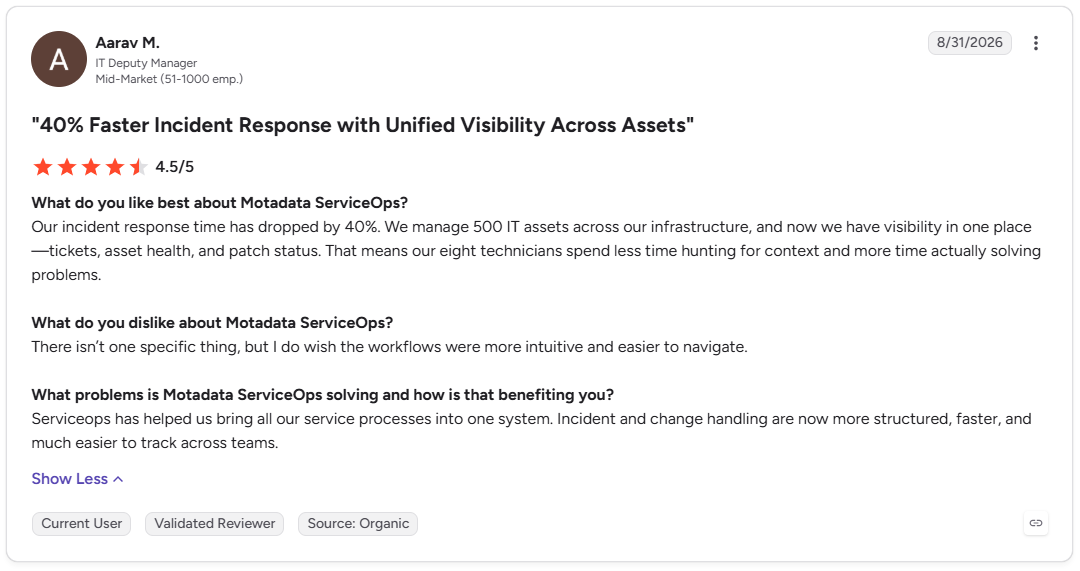
You can read the rest of the ServiceOps reviews on G2.
Pros
- The image, the asset, the ticket, and the patch state all sit on one platform under one login
- Passcode-based deployment lets a non-technical person start the rollout at a branch site
- Documented limits are unusually clear, so you know what you are buying before the trial
- Runs on-premises, which suits regulated teams that cannot send imaging traffic through a vendor cloud
Cons
- Windows targets only, and only on on-premises ServiceOps instances; cloud-hosted tenants do not get the module
- Offline images only, so a running machine has to reboot into PXE before it can be re-imaged
- One active deployment task per Poller at a time, which means sequential windows for different images on the same site
- No driver injection at deploy time, so the documentation asks for a separate image per hardware class
Pricing: Quote-based. OS Deployment is a separate licence on top of ServiceOps, enabled through your account manager, and the platform itself is priced by assets and users with a 30-day free trial.
2. ManageEngine OS Deployer
Best for: Teams that want a dedicated Windows imaging product with driver injection and multicast, and do not need it tied to a service desk.
Rating: 4.2 on G2, 4.8 on Gartner Peer Insights.
OS Deployer is the most complete standalone imaging tool on this list. One golden image covers Dell, HP, and Lenovo models in the same batch, because drivers get pulled from a repository at deploy time.
Profile migration during the deployment is the feature that wins hardware refresh projects, since people get their desktop back instead of a clean build.
Deployment starts by MAC address or service tag, or by a four- or six-digit passcode a user enters after booting into the deployment environment.
A home worker can re-image from a USB drive with no VPN, and scheduled deployments run overnight.
Pros
- Driver management removes the one-image-per-model problem
- Free edition covers four workstations and one server, which is enough to test the whole workflow
- Standalone USB mode reaches machines that will never touch the corporate LAN
Cons
- Windows-focused, so Linux servers and Macs need something else
- Remote office deployment sits behind the Enterprise edition
- A separate product with its own console unless you already run Endpoint Central, so assets and tickets live elsewhere
Pricing: Free edition for up to four workstations and one server. Professional (LAN) and Enterprise (WAN) editions are licensed per machine, on annual subscription or perpetual terms, with quotes through the ManageEngine store.
3. Microsoft Configuration Manager
Best for: Large Windows estates that already run Configuration Manager and want to keep OS deployment on-premises after MDT.
Rating: 4.2 on G2, 4.4 on Gartner Peer Insights.
Configuration Manager operating system deployment is the option Microsoft names as fully supported for on-premises teams leaving MDT.
A task sequence drives the whole build from partitioning to domain join, which is why it can do things a plain imaging tool cannot, such as an in-place upgrade that keeps the user's data where it is.
It is also the heaviest thing on this list. A site server, SQL Server, distribution points, and a boundary design are the price of entry, and the skills to keep task sequences healthy are their own specialism.
Teams that already have all of that get the deepest Windows deployment engine available. Teams that do not should not build it for imaging alone.
Pros
- The most complete Windows deployment engine, fully supported for Windows 11
- Licensing is already covered for organizations with Intune or Microsoft 365 E3 and E5
- Same console handles software distribution and updates after the build
Cons
- Infrastructure and skills overhead is far beyond what an imaging project needs on its own
- Windows only, with Microsoft steering new investment toward Intune and Autopilot
- Task sequence failures are notoriously slow to debug
Pricing: Configuration Manager rights are included with Microsoft Intune licences and with Microsoft 365 E3 and E5. Standalone licensing is available through volume licensing.
4. Windows Autopilot with Microsoft Intune
Best for: Cloud-first organizations whose new laptops ship straight to users and join Microsoft Entra ID on first boot.
Rating: 4.5 on G2, 4.2 on Gartner Peer Insights.
Autopilot is the one entry here that does not deploy an image. It takes the OEM Windows install already on the device instead.
Then, it turns it into a business-ready state during the out-of-box experience, with Microsoft Intune applying the policies and applications afterward. The user connects to a network, signs in, and waits.
The trade is control for convenience. There is no golden image to build, which also means no way to wipe and load your own build onto a machine.
A device with no internet access cannot be provisioned at all. Autopilot Reset covers the re-purpose and break-fix cases without re-imaging.
Pros
- No imaging infrastructure and no image library to maintain
- Devices can ship from the OEM directly to a remote employee
- Microsoft's recommended path after the MDT retirement, so investment keeps flowing here
Cons
- Cannot deploy a custom image, so a locked-down or air-gapped build is out of scope
- Requires internet access and Entra ID during provisioning, with Entra ID P1 or P2 for auto-enrollment
- Windows only; Macs and Linux need their own enrollment path
Pricing: Autopilot itself carries no separate charge. It requires an Intune licence, available as Intune Plan 1 or inside Microsoft 365 E3 and E5, plus Entra ID P1 or P2 for automatic MDM enrollment.
5. Ivanti Endpoint Manager
Best for: Organizations that want OS provisioning for Windows, macOS, and Linux inside one client-based endpoint management suite.
Rating: 4.3 on G2, 4.3 on Gartner Peer Insights.
Ivanti Endpoint Manager is a full unified endpoint management product, and OS provisioning is one module inside it.
The provisioning job and the day-two management job share one console and one agent, which is the argument for it over a standalone imaging tool.
Ivanti also promises Day Zero support, meaning a new OS release can be managed the day it ships.
The breadth is the point and the cost. If you need imaging alone, you will license a lot of capability you never open.
Ivanti's own direction is toward its Neurons cloud platform, so check the roadmap for the on-premises product before signing a multi-year term.
Pros
- Genuine multi-OS provisioning from a single console
- Profile migration reduces the support load after a refresh
- Post-deployment software distribution is in the same product
Cons
- Quote-only pricing, and the suite is priced as a suite
- Overkill for a team that only needs to image Windows machines
- Product direction is shifting toward Ivanti Neurons, which changes the long-term picture
Pricing: Quote-based, licensed as part of the Endpoint Manager suite.
6. Quest KACE Systems Deployment Appliance
Best for: Multi-site organizations that prefer an appliance with a central image library and a remote site appliance at each branch.
Rating: 4.3 on G2, 4.3 on Gartner Peer Insights.
KACE SDA is a physical or virtual appliance that holds a central library of images, scripted installs, and drivers. Its K-Image format uses single-instancing, so a captured image takes less storage and can be edited without a full rebuild.
Where most tools on this list capture an image, KACE can also run a scripted Windows install from scratch over the network, which is how it gets hardware independence.
The appliance model is the strength and the limit. Branches get their own caching appliance and offline builds run from a USB stick, and in exchange you own another box to patch and back up.
Full device management lives in the separate KACE Systems Management Appliance.
Pros
- Multi-site design is built in, with local caching at each branch
- Driver verification reporting catches missing drivers before the deployment runs
- Bootable media gives a clean fallback when the appliance is unreachable
Cons
- Appliance to maintain, and a second appliance for full endpoint management
- Quote-only pricing
- Mac support means Intel-era imaging; Apple silicon devices still need Automated Device Enrollment
Pricing: Quote-based, sold as a physical or virtual appliance with a free trial available.
7. SmartDeploy
Best for: Small and mid-sized IT teams that want one Windows image to cover every laptop model without building driver packages themselves.
Rating: 4.7 on G2, 4.6 on Gartner Peer Insights.
SmartDeploy, now part of the PDQ family, builds the golden image inside a virtual machine and layers model-specific driver Platform Packs on top at deploy time.
You maintain one image for the whole estate and let the vendor maintain the drivers. That split is the whole pitch, and for a three-person IT team it is the difference between imaging being a project and imaging being a Tuesday.
Pricing is public, which is rare in this category, and overage is handled gently: you get some courtesy headroom, then $50 per licence 30 days after you exceed your count. Downgrades wait until renewal, so size the first order carefully.
Pros
- Vendor-maintained driver packs remove the hardest part of image upkeep
- Published pricing and a small starting commitment
- Cloud deployment reaches fully remote staff without a VPN
Cons
- Windows only
- Platform Pack requests for unusual hardware can carry a fee
- Cloud imaging is reserved for the Pro package
Pricing: From $1,100 per year across Starter, Plus, and Pro packages, licensed per device on an annual subscription, with education and non-profit pricing on request.
8. Acronis Snap Deploy
Best for: Schools, labs, and service providers that re-image the same rooms of machines often and want flexible per-deployment licensing.
Rating: 4.7 on G2. No Gartner Peer Insights listing for this product.
Snap Deploy is a long-running imaging product built around multicast. One image streams to a whole lab at once, and a deployment can start on a live Windows machine without a network boot, which saves a trip to the BIOS menu.
Acronis has sold it into schools and hospitals for years, and the supported OS list still reaches back to Windows XP for that reason.
The licensing is the differentiator. A classroom that gets re-imaged every term and a fleet that gets imaged once are priced differently, because you choose the licence unit. It remains an imaging tool only, with no asset or ticket layer around it.
Pros
- Three licensing models fit very different deployment patterns
- Multicast throughput is the product's whole design goal
- Supports very old Windows versions, which matters on lab or industrial hardware
Cons
- No inventory, ticketing, or patch layer, so tracking stops at the deployment log
- Acronis's newer investment sits in its cyber protection products
- Pricing is through resellers, so the real cost takes a conversation
Pricing: Per-deployment, per-machine, or per-site licences, sold through Acronis and its resellers.
9. FOG Project
Best for: Schools and labs with Linux skills on hand and no budget for licences.
Rating: 4.5 on G2. No Gartner Peer Insights listing.
FOG is a free, open-source imaging server that captures and deploys Windows, Linux, and older macOS images over PXE.
It does more after the image lands than Clonezilla does, because a small client on the machine handles the rename and the domain join. Support comes from a forum community, with no vendor behind it.
The cost is your time. Someone has to run and patch the Linux server, driver handling is manual, and remote management needs a public-facing FOG server.
For a 30-seat computer lab it is hard to beat. For a 1,500-endpoint enterprise it becomes a job.
Pros
- No licence cost at any scale
- Active community of more than 30,000 forum users
- Covers Windows and Linux from the same server
Cons
- No vendor support or SLA
- Drivers, images, and server upkeep are all manual work
- Nothing links a deployment to an asset record or a ticket
Pricing: Free and open source, with optional sponsorship.
10. Clonezilla
Best for: Technical teams that need reliable block-level cloning of almost any file system and can live without a console.
Rating: 4.3 on G2. No Gartner Peer Insights listing.
Clonezilla is the reference free cloning tool. It ships in three forms. Clonezilla live handles one machine from a USB stick, lite server handles mass deployment, and Clonezilla SE inside DRBL multicasts to 40 or more machines at once.
The project reports a multicast restore rate of 8 GB per minute on a 42-node cluster. It is a cloning engine, and it does not pretend to be more.
The destination partition has to be at least as large as the source, and images cannot be mounted to pull a single file. Windows hostname and SID changes are handled by a separate tool, drbl-winroll.
Pros
- Free under GPL v2 and trusted for two decades
- Handles Linux, Windows, and Intel Mac disks from the same media
- Runs on 196 MB of RAM from a USB stick
Cons
- No central console, reporting, or audit trail
- No online imaging and no incremental images
- Per-machine identity and driver work happen elsewhere
Pricing: Free, licensed under GPL version 2.
How Do You Choose Between Imaging Tools and Full ITSM Platforms?
The choice comes down to what happens after the image lands. A standalone OS deployment solution finishes when the progress bar hits 100 percent.
A platform keeps going: the machine appears as an asset, patch management picks it up, and the ticket that asked for it gets closed.
Here is how the situations map to a starting point.
Situation | Start With | Why |
You run a service desk and asset inventory and want imaging on the same record | Motadata ServiceOps | Deployment status and audit trail sit next to the CMDB entry and the ticket |
You need Windows imaging only, with driver injection and multicast | ManageEngine OS Deployer | The most complete standalone Windows imaging feature set, with a free tier to test |
New laptops ship from the OEM straight to remote staff | Windows Autopilot with Intune | No image to build, and provisioning happens wherever the device first connects |
You already run Configuration Manager | Configuration Manager OSD | Fully supported for Windows 11, and the infrastructure is already paid for |
Windows, macOS, and Linux endpoints under one management suite | Ivanti Endpoint Manager or KACE SDA | Multi-OS provisioning with distribution and profile tools around it |
Labs or classrooms re-imaged every term on a tight budget | FOG Project or Clonezilla | Free multicast imaging, at the cost of your own server upkeep |
One more test settles most shortlists. Count how many consoles a technician opens to answer the question which build is on this laptop and when did it last get patched.
If the answer is three, the imaging tool is doing its job and the estate is still fragmented. A unified observability and ITSM platform exists to make that answer one.
Pick the Best OS Deployment Software for Your Fleet
Motadata ServiceOps is the pick for IT teams that want their OS deployment software to be a module of the system they already run, and not another console.
The passcode workflow gets a branch rollout started without a technician on site, and the result lands on the same record that holds the asset, its patches, and its ticket.
The honest limits are that it images Windows targets only, on on-premises instances, one task per Poller at a time.
A team that needs to image Linux servers, or wants driver injection so one image spans every model, will find a closer fit in ManageEngine OS Deployer or KACE. A cloud-only fleet with no LAN to PXE boot on belongs with Autopilot.
For everyone else, the payoff is fewer consoles and a refresh that closes cleanly inside hardware asset management, with no imaging spreadsheet left behind.
FAQs
Is Windows Deployment Services still used?
Yes, but only for part of the job. WDS can still PXE boot devices with a custom boot image. It cannot run an end-to-end Windows 11 or Windows Server 2025 deployment from installation media, and since April 2026 hands-free deployment is off by default.
What replaces Windows Deployment Services for Windows 11?
Microsoft points to Configuration Manager for on-premises teams and Windows Autopilot for cloud-first ones. Third-party tools that bring their own PXE service, such as the OS Deployment module in ServiceOps, take over the network boot role WDS used to fill on a LAN.
What is the difference between OS imaging software and OS deployment software?
Imaging software captures and restores a disk or partition. Deployment software adds the scheduling, authorization, multicast, per-machine tracking, and reporting needed to push that image to many machines at once. Most tools on this list do both, and cloning tools like Clonezilla do only the first.
Can OS deployment software re-image a laptop that is not on the office network?
PXE-based tools need the machine on a LAN you control. For remote laptops you either use a standalone USB workflow, a cloud-based imaging tier, or a provisioning service like Autopilot that works from any internet connection.
Is Motadata ServiceOps better than ManageEngine OS Deployer for OS deployment?
OS Deployer is the deeper standalone imaging tool, with driver injection and multicast. ServiceOps wins when you want deployment tracked on the same platform as your assets, tickets, and patching, and you are imaging Windows machines on a LAN from an on-premises instance.
Author
Ramya Shah
Technical Writer
Ramya Shah is a technical content writer with a computer engineering background and roots in automotive journalism. He covers IT Service Management, observability, IT operations, and AI-driven automation. An early adopter of AI-assisted writing workflows, he turns complex IT processes into clear, engaging content optimized for search and answer engines (AEO), lifting content output and organic visibility.