Windows System Event Logs: What They Are, How to Use Them, and Why They're Not Enough
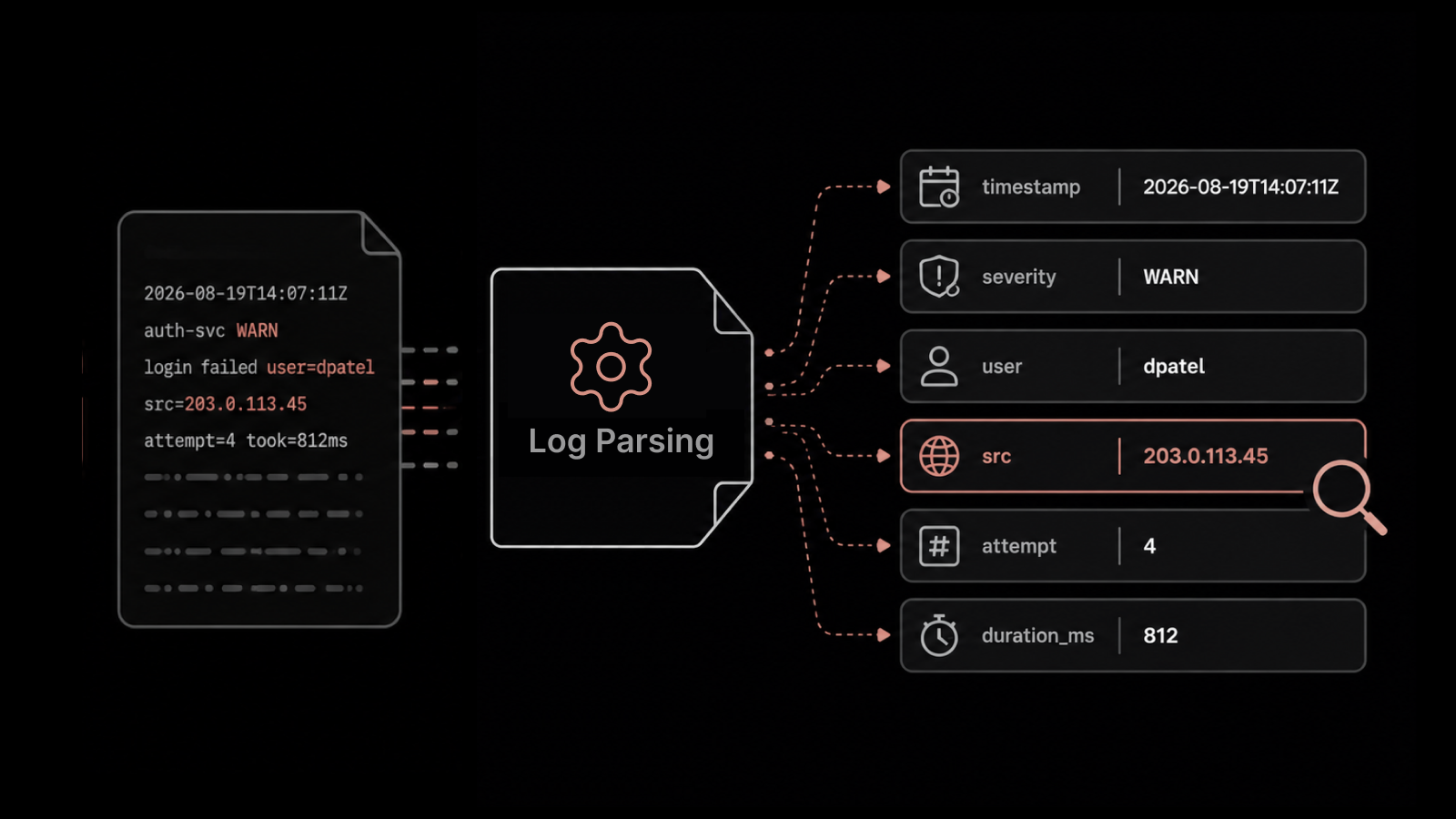
Definition: Windows System Event Logs are records generated by the Windows operating system that capture information about system-level events, including hardware activity, driver behavior, service status changes, startup/shutdown operations, and error conditions. They're stored in the .evtx format and accessible through the Windows Event Viewer console.
Your Windows servers are talking to you. Every driver load, every service failure, every security event, every disk warning -- it all gets recorded in the event logs. The question isn't whether the data is there. It's whether you're actually able to find the signal in the noise before a minor issue becomes a full-blown outage.
For IT teams managing a handful of servers, the native Windows Event Viewer might be enough. But once you're responsible for dozens or hundreds of Windows machines across multiple locations, the limitations of native event logging become painfully obvious -- and that's where most organizations start looking for something better.
What Are Windows System Event Logs?
Windows System Event Logs are a built-in logging mechanism in every Windows operating system -- from Windows 10 workstations to Windows Server 2022. The operating system continuously records events related to system operations, and these records serve as the primary audit trail for understanding what's happening inside your Windows environment.
Each event log entry contains several key fields:
Event ID: A numeric code that identifies the specific type of event (e.g., Event ID 41 indicates an unexpected system restart)
Source: The component or application that generated the event (e.g., "Kernel-Power" or "Service Control Manager")
Level: The severity classification (Information, Warning, Error, or Critical)
Date and Time: When the event occurred
Description: A text explanation of what happened and, in some cases, suggested actions
These logs are stored locally on each machine in the %SystemRoot%\System32\Winevt\Logs\ directory as .evtx files.
The Five Types of Windows Event Logs
Windows organizes event logs into five main categories, each capturing a different dimension of system activity:
1. System Log
The System log records events generated by Windows system components -- the kernel, drivers, and system services. This is your go-to log for diagnosing hardware issues, driver problems, and service failures.
Common events: Unexpected shutdowns (Event ID 41), driver load failures (Event ID 7000), disk errors (Event ID 7, 11), time synchronization issues (Event ID 129).
2. Application Log
The Application log captures events from installed applications and software. Both Microsoft applications and third-party software write to this log when they encounter errors, warnings, or notable operational events.
Common events: Application crashes (Event ID 1000), .NET runtime errors (Event ID 1026), Windows Installer activity (Event ID 1033-1040).
3. Security Log
The Security log is where Windows records audit events -- login attempts, privilege usage, resource access, and policy changes. This log is critical for security monitoring, compliance auditing, and forensic investigation.
Common events: Successful logon (Event ID 4624), failed logon (Event ID 4625), account lockout (Event ID 4740), privilege escalation (Event ID 4672).
4. Setup Log
The Setup log records events related to Windows installation and updates. It's most useful during OS deployment, patching, and feature updates.
Common events: Windows Update installation results, feature update progress, driver installation during setup.
5. Forwarded Events Log
This log stores events that have been forwarded from other computers using Windows Event Forwarding (WEF). It's the native mechanism for basic centralized log collection -- though it has significant limitations at scale.
Event Severity Levels Explained
Understanding severity levels is essential for effective triage. Windows uses four primary levels:
Level | Meaning | Action Required |
|---|---|---|
Information | Normal operational event; no action needed | None -- used for audit trails and baselines |
Warning | A condition that isn't immediately harmful but could lead to problems | Investigate; may indicate early degradation |
Error | A significant problem occurred; functionality may be affected | Investigate promptly; check for service impact |
Critical | A severe failure occurred; system or component may have stopped | Immediate attention required; likely user impact |
In practice, most IT teams focus on Error and Critical events for active troubleshooting, while using Warning events as leading indicators of potential failures.
How to Access and Read Windows Event Logs
Using Event Viewer
The most common way to interact with Windows Event Logs is through the Event Viewer console:
Press Win + R, type
eventvwr.msc, and press EnterIn the left panel, expand Windows Logs to see the five log categories
Click on any log category to view its entries in the center panel
Click on an individual event to see its details in the lower panel, including the Event ID, source, level, and description
Using PowerShell
For IT administrators managing multiple systems, PowerShell provides a more efficient approach:
# Get the 20 most recent System log errors
Get-EventLog -LogName System -EntryType Error -Newest 20

# Search for a specific Event ID
Get-WinEvent -FilterHashtable @{LogName='System'; ID=41}

# Export events to CSV for analysis
Get-WinEvent -LogName System -MaxEvents 1000 | Export-Csv C:\Logs\system-events.csv
Using Command Prompt
The wevtutil command-line tool provides another option:
# Query the 10 most recent System events
wevtutil qe System /c:10 /f:text

# Clear a specific log (use with caution)
wevtutil cl System
Common Windows Event IDs Every IT Admin Should Know
Certain event IDs appear frequently and carry significant diagnostic value:
Event ID | Log | Meaning |
|---|---|---|
41 | System | Unexpected system restart (kernel power failure) |
1001 | Application | Windows Error Reporting (application crash details) |
4624 | Security | Successful account logon |
4625 | Security | Failed account logon |
4740 | Security | Account lockout |
7000 | System | Service failed to start |
7036 | System | Service entered running/stopped state |
1074 | System | System shutdown/restart initiated by a process |
6008 | System | Previous system shutdown was unexpected |
11 | System | Disk controller error (potential hardware failure) |
Knowing these IDs by heart saves time during troubleshooting and helps you build effective log filters.
Why Native Event Viewer Falls Short for Enterprises
For a single server, Windows Event Viewer is a perfectly functional tool. But enterprise IT environments don't run on a single server. When you're managing 50, 500, or 5,000 Windows machines, the native approach breaks down in several ways:
No centralized view. Event Viewer is a per-machine tool. To investigate an issue that spans multiple servers, you need to log into each one individually -- a time-consuming process that delays root cause analysis.
No cross-system correlation. When a failure cascades across multiple systems (e.g., a DNS issue that causes application timeouts that trigger service restarts), Event Viewer can't connect the dots. You see isolated events on each machine with no way to trace the chain of causation.
Limited search and filtering. While Event Viewer supports basic filtering by event ID, source, and level, it lacks the full-text search, regex support, and complex query capabilities that enterprise log analysis requires.
No intelligent alerting. Event Viewer can trigger a basic task when a specific event occurs, but it can't learn your environment's normal behavior, detect anomalies, or suppress duplicate alerts. The result: either too many alerts (noise) or too few (missed issues).
No historical trend analysis. Event logs have size limits and get overwritten. Without a dedicated log management platform, historical data is lost -- making it impossible to identify recurring patterns or slow-building problems.
No compliance reporting. Regulatory frameworks like HIPAA, PCI-DSS, SOX, and GDPR require centralized log retention, access controls, and audit-ready reporting. Native Event Viewer doesn't meet these requirements.
Enterprise Log Management: What to Look For
When evaluating a log management solution to complement or replace native Windows Event Logs, prioritize these capabilities:
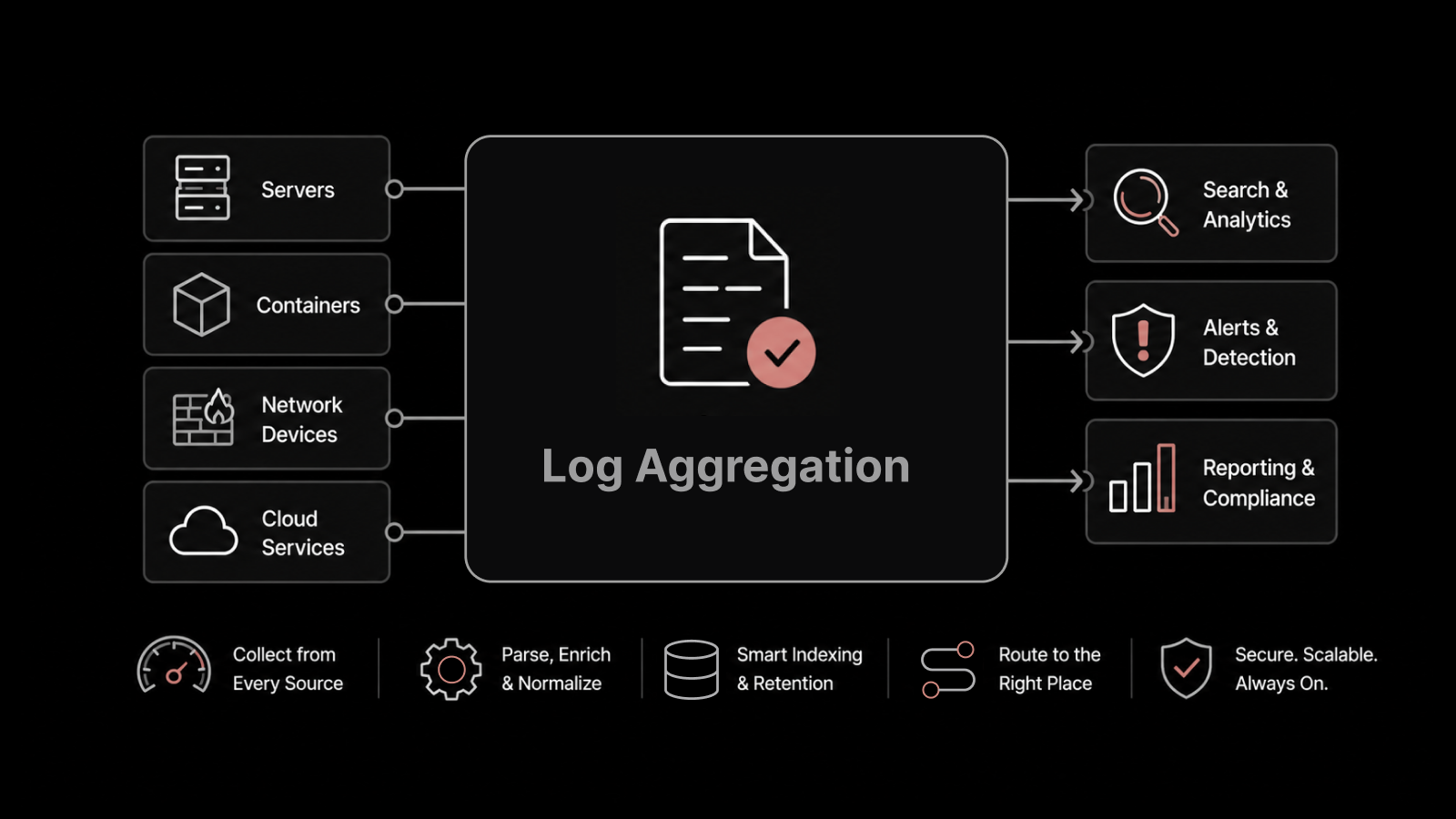
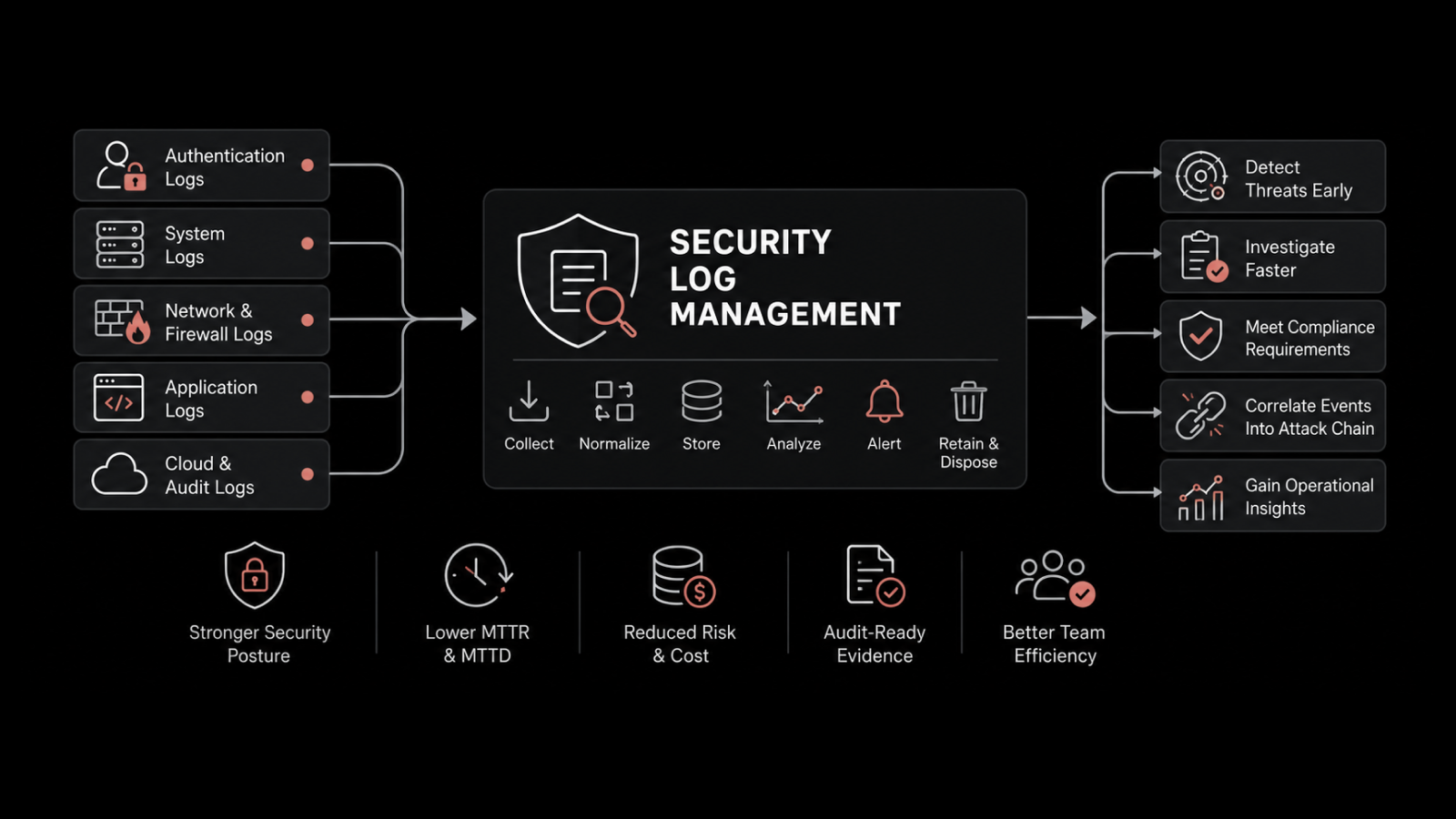
Centralized collection from all Windows servers, workstations, and other infrastructure components
Real-time ingestion and indexing so events are searchable within seconds of generation
Cross-source correlation that connects Windows events with network logs, application logs, and infrastructure metrics
AI-driven anomaly detection that identifies unusual patterns without requiring manual threshold configuration
Customizable dashboards for different teams (security, operations, compliance)
Long-term retention with configurable policies that meet compliance requirements
Role-based access control so sensitive security logs are accessible only to authorized personnel
Take the Next Step with Motadata
Windows Event Logs give you the raw data, but raw data alone doesn't prevent outages or speed up troubleshooting. Motadata's AI-native log analytics platform collects event logs from every Windows server and workstation in your environment, correlates them with network metrics, application data, and infrastructure events, and uses machine learning to surface the issues that matter. Stop logging into servers one at a time. Stop missing the patterns that native tools can't show you. Start a free trial and see what unified, intelligent log management looks like in practice.
Frequently Asked Questions
How does Motadata handle Windows event log collection?
Motadata uses lightweight agents and agentless collection methods (WMI, WinRM) to ingest Windows event logs from across your environment in real time. Events are normalized, indexed, and made searchable within seconds of ingestion -- giving your team immediate visibility across all Windows systems from a single console.
Can Motadata correlate Windows event logs with other data sources?
Yes. Motadata's platform correlates Windows event logs with network flow data, SNMP metrics, syslog from Linux and network devices, application performance data, and cloud infrastructure logs. This cross-source correlation is what enables accurate root cause analysis when issues span multiple systems.
Does Motadata support compliance requirements for log retention?
Motadata provides configurable retention policies, tamper-evident log storage, role-based access controls, and pre-built compliance reports for frameworks including PCI-DSS, HIPAA, SOX, and ISO 27001. This makes it suitable for organizations with strict regulatory requirements around log management.
What makes Motadata's log analytics different from open-source tools like ELK?
While open-source stacks like ELK (Elasticsearch, Logstash, Kibana) are capable, they require significant engineering effort to deploy, tune, scale, and maintain. Motadata provides a turnkey solution with built-in AI-driven analytics, pre-configured dashboards, automated alerting, and vendor-backed support -- reducing the operational burden on your IT team and delivering faster time to value.
Can I try Motadata's log analytics for free?
Yes. Motadata offers a free trial that includes full access to the log analytics module along with network monitoring, server monitoring, and the complete AIOps platform. You can evaluate the platform in your own environment with your actual data.