All Features
Network Observability
Network Traffic Analysis
Network traffic analysis is the collection and study of flow and interface data to see which applications, users and devices use bandwidth, and to spot unusual traffic. Motadata ObserveOps does this from the flow records your routers, switches and firewalls already export. You see who is using a link, what they are running over it and where the traffic goes. When a link fills up, you find the cause in minutes instead of guessing.
What Is Network Traffic Analysis?
Network traffic analysis answers one question: what is actually moving across your network? Network traffic monitoring reads interface counters and tells you a link is busy. Traffic analysis tells you which conversations make it busy.
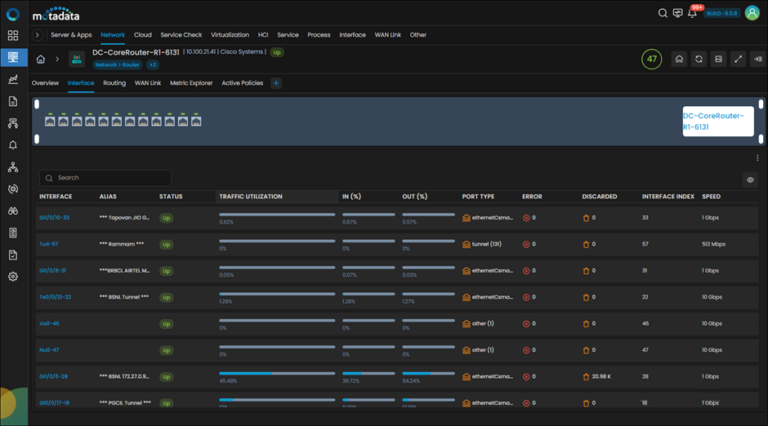
ObserveOps works from flow records. Each record summarizes one conversation: source and destination IP, ports, protocol, bytes and packets. It reads NetFlow, sFlow, jFlow, IPFIX and NBAR2, so most vendors' devices can feed it without extra hardware.
Flow records do not carry packet payloads. That keeps storage small enough to hold months of history. For a deeper look at how flow data works, read our guide to network flow analysis.
What Can You See with Network Traffic Analysis?
Each view in ObserveOps answers a different question. Pick a device that sends flows, then move between the views below.
View | The Question It Answers |
Traffic | How much traffic goes in and out of this device? Shows ingress and egress trends, plus minimum, maximum and average speed and total volume. |
Interface | Which interface carries the load, and when did it last receive a flow? |
Application | Which applications use the most bandwidth, in each direction? |
Source | Which IP addresses and networks send the most traffic, and where are they located? |
Destination | Where is the traffic going, by IP, network and location? |
Protocol and DSCP | Which protocols are in use, and is traffic marked with the right quality-of-service class? |
AS Details | Which outside networks and organizations does your traffic reach, by AS name and number? |
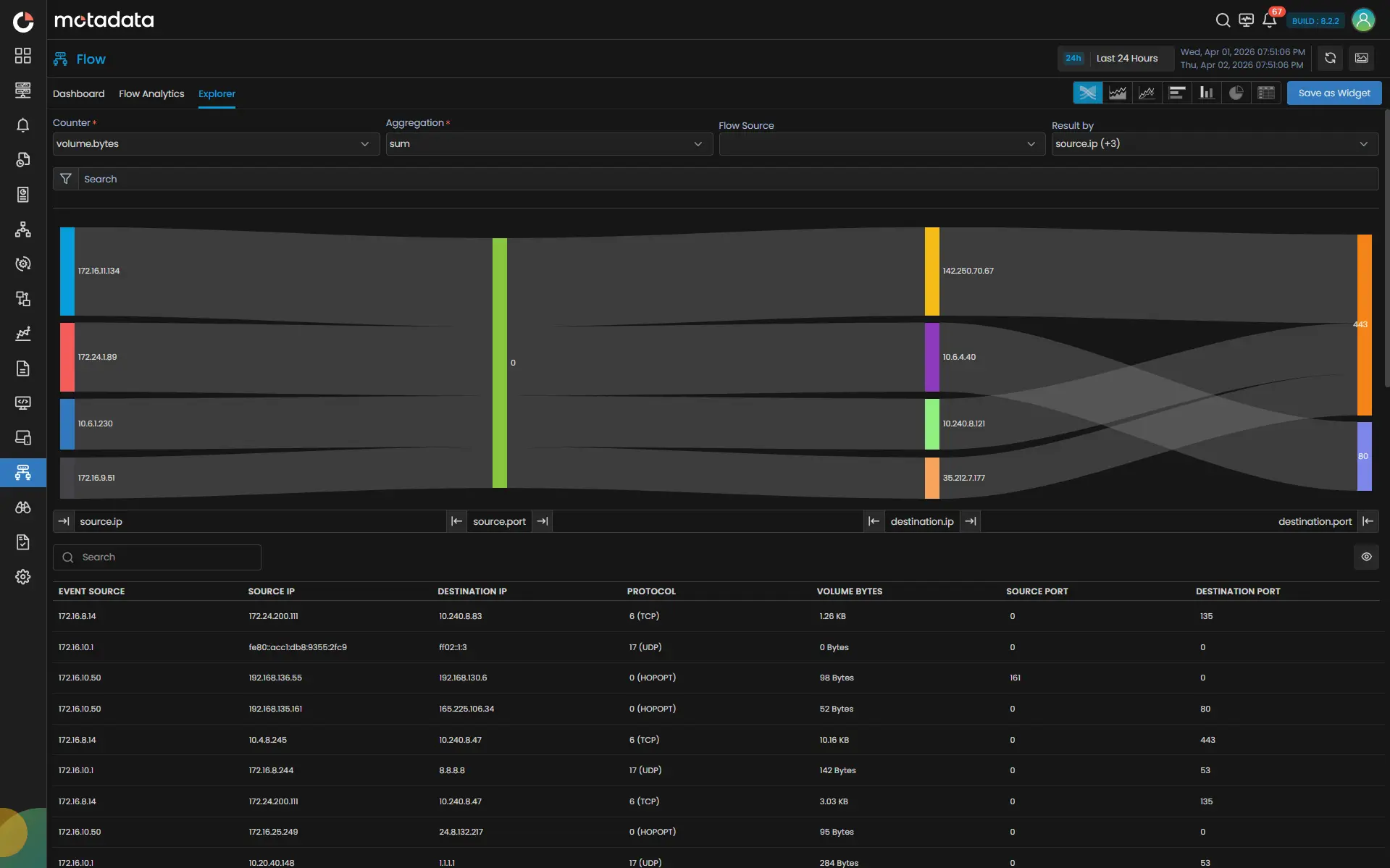
Flow Explorer | Who is talking to whom, on which ports, and how much? This is where you find top talkers. |
How Motadata ObserveOps Analyzes Network Traffic
ObserveOps runs network traffic analysis inside the same platform that handles network observability, so traffic, device health and alerts sit in one place.
Collect Flows From the Devices You Already Run
Point your devices at the ObserveOps server and flows start arriving. NetFlow listens on port 2055 and sFlow on port 6343 by default. BGP NetFlow and BGP sFlow get their own ports, 2056 and 6344.
ObserveOps detects each source's sampling rate on its own. If a rate is missing, you set a custom one per interface. The product docs include setup guides for Cisco, Juniper, Fortinet, HPE, Huawei, Dell and other vendors.
ObserveOps can also turn parsed firewall logs into flow data. This lets you study traffic from devices that log connections but do not export flows.
Break Bandwidth Down by User, Application, Protocol and IP Group
Raw IP addresses are hard to read. ObserveOps lets you map an IP or IP range to a name, such as a department, site or user group. Those names then appear in every view instead of addresses.
Built-in application and protocol mappings tie ports to names like HTTPS or DNS. You can add your own for in-house applications. Domain, AS and geolocation mappings label outside traffic the same way.
Flow data is aggregated every 5 minutes by default. You can change the interval to suit how fine you need the trend lines.
Trace Conversations and Find Top Talkers
Flow Explorer draws traffic as a Sankey diagram. Choose a counter, such as bytes or packets, then group the result by up to four fields. Source IP, source port, destination IP and destination port is a common choice.
The widest bands are your top talkers. Below the diagram, a table lists every source and destination pair with its values. You can filter the view, change the time range and save it as a dashboard widget.
Alert on Traffic Spikes and Silent Sources
Flow policies watch any flow counter against a threshold. You can group the result by source, destination or another field, and run the check in real time or on a schedule.
Default policies cover high bits per second for TCP and UDP and very low or no flow from a source. A silent source often means a device stopped exporting, so you catch the gap before a report comes up empty. For alerts that learn a normal baseline, see network anomaly detection.
Use Traffic Analysis for Security Investigations
Flow records are a useful trail when something looks wrong. Filter by IP address, protocol or port to see every conversation a suspect host had, and which outside networks it reached.
The AS and geolocation views show traffic going to networks or countries you do not expect. Default flow policies also alert on ICMP flood patterns and on traffic to known malicious IPs from an integrated threat feed.
Raw flow data is kept for 2 days and aggregated data for 180 days by default, and you can change both. That gives you full detail for recent events and long trends for older ones. Traffic analysis adds context to an investigation. It works alongside your firewall and intrusion detection tools rather than replacing them.
Report on Traffic and Bandwidth Usage
Custom flow reports show any flow counter as a chart, a grid or a Top N list. Filter by flow source or device group to build reports for one site, one team or the whole network.
Schedule a report and ObserveOps emails it to the people who need it. You can also export reports as PDF, XLSX or HTML files for capacity reviews and audits.
Need protocol-level detail on NetFlow and sFlow setup? See NetFlow and sFlow monitoring.
Ready to implement Network Traffic Analysis?
Discover how Motadata ObserveOps can help you monitor your infrastructure in real-time and respond to issues instantly.