All Features
Network Observability
Router Monitoring
Router monitoring tells you whether the routers behind your branches are up, healthy, carrying traffic normally and still exchanging routes with their neighbors. Motadata ObserveOps finds those WAN and edge routers over SNMP, and link, peer or capacity problems surface in one console, often before the first user ticket arrives.
What Is Router Monitoring?
Behind each branch office, data center and internet circuit you run, there is a router doing the forwarding. Router monitoring watches those devices. In an enterprise network, a router monitoring tool checks:
Reachability: Ping time, lost packets and uptime since the last restart
Interfaces: Load and error counts on every WAN and LAN port, discards included
Hardware health: Temperature, voltage, fan and power supply status, next to CPU and memory load
Routing state: BGP, OSPF and IS-IS sessions with neighboring routers, and the routes they share
The routers that matter most here are business-grade ones at the WAN and internet edge. Consider a branch whose edge router drops its provider session: email, ERP and video calls there stall together. Spotting the dropped session quickly shortens that outage, and the same traffic data points to links that cost money every month yet carry little.
How Does Motadata Collect Router Data?
ObserveOps reads router data the way most router monitoring software does: over SNMP (Simple Network Management Protocol), on UDP port 161, with v1, v2c or v3. Enterprise routers ship with SNMP built in. Because our wider SNMP monitoring feature uses the same method, routers end up in one inventory with your switches and firewalls.
Setup takes two profiles. The first stores credentials (a community string or an SNMPv3 user), and in the second you name the IP address, range, CIDR block or CSV file to scan. Discovery then provisions each router as a monitor:
Interface discovery: On by default, with each router port added as its own monitored instance
Ping check: A reachability test during discovery, optional for routers that block ICMP
Collectors: Split the polling work across one or more collectors in large or multi-site networks
What Router Metrics Does Motadata Track?
Provisioning starts collection. Which metrics come back depends on the vendor's SNMP support, and this table covers the main groups.
Metric group | Example KPIs | What it tells you |
Availability | Reads ping.latency.ms, ping.packet.lost.percent and started.time.sec | Confirms the router is up, measures how fast it replies and dates the last restart |
Interface traffic | Tracks interface.traffic.utilization.percent, in total and per direction | Flags links nearing capacity, in either direction |
Interface health | Counts errors and discards (interface.error.packets, interface.discard.packets) and checks interface.operational.status | Catches bad cabling, congestion drops and ports that have gone down |
CPU and memory | Samples system.cpu.percent and system.memory.used.percent, with system.5min.avg.cpu.percent for the 5-minute average | Processor and memory pressure that can slow routing updates |
Hardware sensors | Reads temperature.sensor.reading.celsius and voltage.sensor.reading.mill.volts, and checks fan.sensor and power.supply.sensor status | Warns you while an overheating chassis, unstable power feed or failing fan can still be fixed |
Connections | Counts TCP connections (network.connection.tcp.connections), retransmitted segments and active.sessions | Session load and retransmissions that point to path problems |
ObserveOps also polls a per-interface CRC and FCS error counter on supported multi-vendor SNMP devices. Each count is a frame that arrived damaged. A count that keeps rising on one port usually has a physical cause, with bad fiber, a dirty connector, a failing optic module or a duplex mismatch the usual suspects (see our guide to CRC errors).
Spotted early, that problem costs one replacement part and a planned visit. The same counters appear port by port under interface monitoring, and the router dashboard below groups availability, interface load and hardware health for each router.
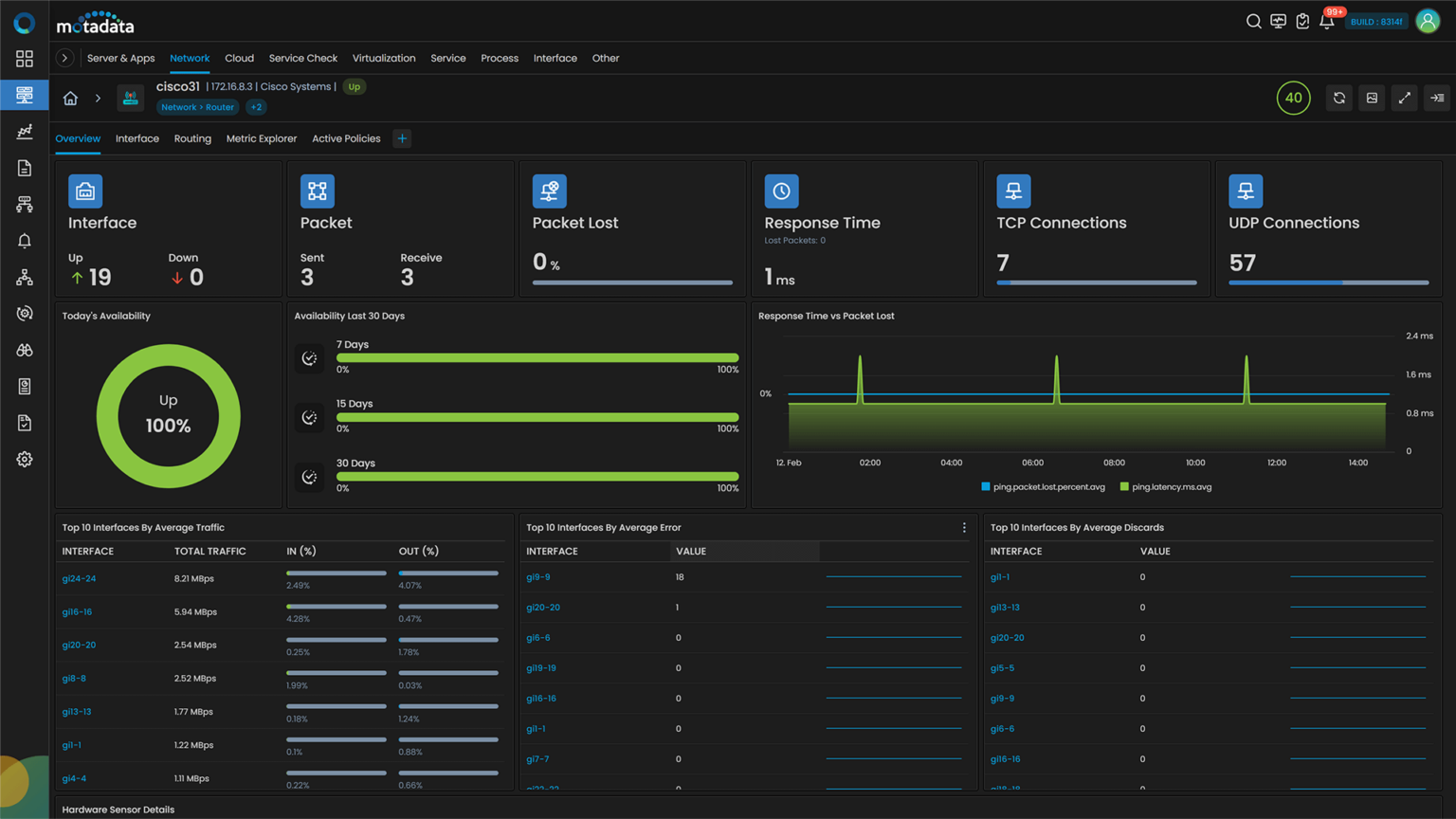
Monitor Router BGP, OSPF and IS-IS Neighbors
Routing protocol monitoring answers a narrower question: are this router's neighbor sessions still up? A router can show normal CPU and clean interfaces while one of those sessions is down. Traffic then shifts to another path or stops altogether, yet the router keeps answering ping.
Three protocols carry most enterprise routing:
BGP (Border Gateway Protocol): The protocol behind your links to internet providers and other sites. Its neighbors are called peers
OSPF (Open Shortest Path First): Handles routing inside your own network, through neighbor relationships known as adjacencies
IS-IS (Intermediate System to Intermediate System): Seen mostly in large network cores designed along service-provider lines
Every router integration listed further down reports neighbor state, with the same routing KPIs for Cisco, Juniper, Huawei and the rest. If a BGP peer is stuck before the Established state, where routes are exchanged, our explainer on BGP states walks through each stage.
Protocol | KPIs collected | What a change usually means |
BGP | Reads bgp.peer.status and bgp.peer.remote.as, both peer addresses, and the bgp.peer.time and bgp.peer.updated.time stamps | A session with a provider or another site went down or keeps resetting |
OSPF | ospf.neighbour.status, with the neighbor ID in ospf.neighbour | An adjacency inside your routed network has dropped |
IS-IS | isis.neighbour.state and isis.neighbour.3way.state, plus hold time and last up time | A neighbor timed out or came back up recently |
IP routes | Records each route's next hop, protocol and metric (ip.route.next.hop, ip.route.protocol, ip.route.metric) and ip.route.last.updated.sec | Shows traffic taking a new path, or a route that changed recently |
These KPIs come in on every poll. A lost peer therefore appears on the router's monitor even while reachability checks still pass. For the business, that means a failed provider session is visible before users at the affected site start reporting slow applications.
Some integrations add more routing detail:
VRF on Cisco: Some routers run several separate routing tables at once, one per business unit or customer, through Virtual Routing and Forwarding (VRF). ObserveOps tracks each instance with vrf.status and vrf.interface
Multicast on Cisco: Packet rates, drops and the upstream neighbor for each multicast stream, the delivery method behind many video and market data feeds
VPN on Cisco and H3C: Active IPsec and remote access VPN sessions on Cisco; IPsec tunnel status on H3C
Track Router WAN Links and SLA Targets
Routing tells you which path traffic takes, and WAN link monitoring tells you how well that path performs against the service level agreement you pay a provider for. Our guide to WAN link monitoring covers the wider practice.
Branches often reach the head office over MPLS (Multiprotocol Label Switching), a private WAN service bought from a carrier, or over two or more internet links. ObserveOps watches the edge router at both ends. Utilization, errors and packet loss then show up per site and per provider.
Utilization trends: In and out utilization history for each interface. Busy links stand out. Quiet ones can be reallocated before you buy more bandwidth
Threshold alerts: Latency, error and utilization limits you set; a breach alerts the right people by email, SMS, Microsoft Teams or Slack
Availability reports: Run on a schedule and arrive by email, ready when you review provider SLA compliance or take a shortfall to the carrier
Measure WAN Performance with Cisco IP SLA
IP SLA (IP Service Level Agreements) is Cisco's built-in way to test a path: the router sends test traffic to another device and measures delay and reachability. We collect the results as ipsla.latency.ms, ipsla.status and ipsla.availability. A WAN link can also be added straight from the router's monitor, with the probe type that matches your question:
ICMP Echo: End-to-end response time to a single destination
ICMP Jitter: The probe to use on voice and video paths; it reports jitter, packet loss, round-trip time and latency in both directions
ICMP Path Echo: Hop-by-hop timing alongside the end-to-end figure, useful when you need to know where along the path the delay starts
Probes run over SNMP (the router needs a write community configured) or over SSH. Each WAN link record keeps the ISP name plus source and destination router locations; at a site with two or three providers, that labeling saves time. The Cisco IP SLA page covers the probes in more detail, and uptime assurance turns link availability into SLA targets and burn-rate tracking.
Find the Router Behind an Outage
Links and peers do fail. The useful question is which router failed first, and Layer 3 topology plus SNMP traps answer it before you spend time on downstream alerts. The Layer 3 topology view builds itself from BGP, OSPF and IS-IS neighbor data: pick a seed router, and ObserveOps keeps querying neighbors until the map is complete.
Switch-level links come from CDP and LLDP, two neighbor discovery protocols, and from switch port mapping. A Layer 3 toggle isolates the routed paths, and every device on the map carries its health status; a failed core router stands out against the branch routers behind it. Three other signals help confirm the cause:
SNMP traps: Routers report events like a downed link or a hardware fault as traps, received on UDP 1620 for v1 and v2c and UDP 1630 for v3. Trap policies turn them into alerts, and the trap forwarder can pass copies on
Router syslog: Syslog monitoring collects configuration change and blocked connection messages, shown alongside the router's metrics
Configuration history: With NCCM (network configuration and change management), router configurations are backed up and changes flagged through syslog or scheduled comparisons; spot configuration drift, then restore a known-good version
Anomaly policies add one more check. They compare a router's metrics and traffic against its normal pattern and flag sudden shifts, a sensible first lead for root cause analysis. Routers with recurring incidents show up in the list below, a useful input for upgrade and replacement plans.
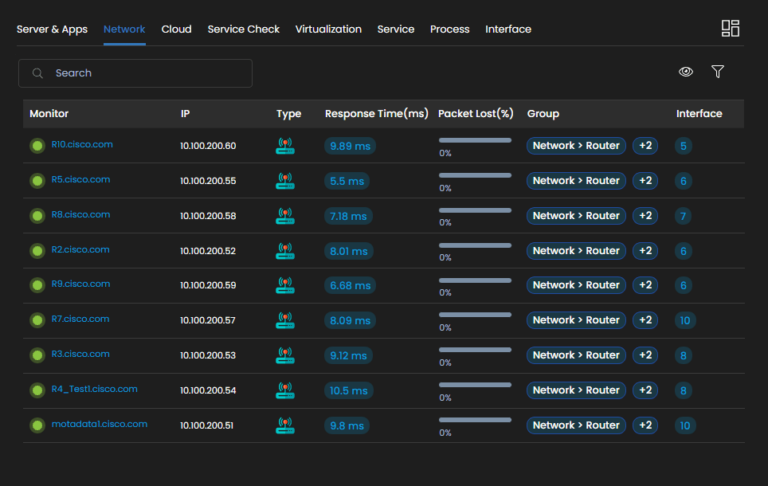
Analyze Router Traffic with NetFlow and sFlow
Flow records exported by the router (NetFlow, sFlow, IPFIX or jFlow) are the raw material for router traffic monitoring. They show which users, applications and conversations use each link. Once the failing router is known, flow data shows what was crossing it.
ObserveOps works as a router traffic monitor as soon as you point flow export at its collector, on UDP 2055 for NetFlow and UDP 6343 for sFlow by default. Two tools let you monitor router traffic over time and act on it:
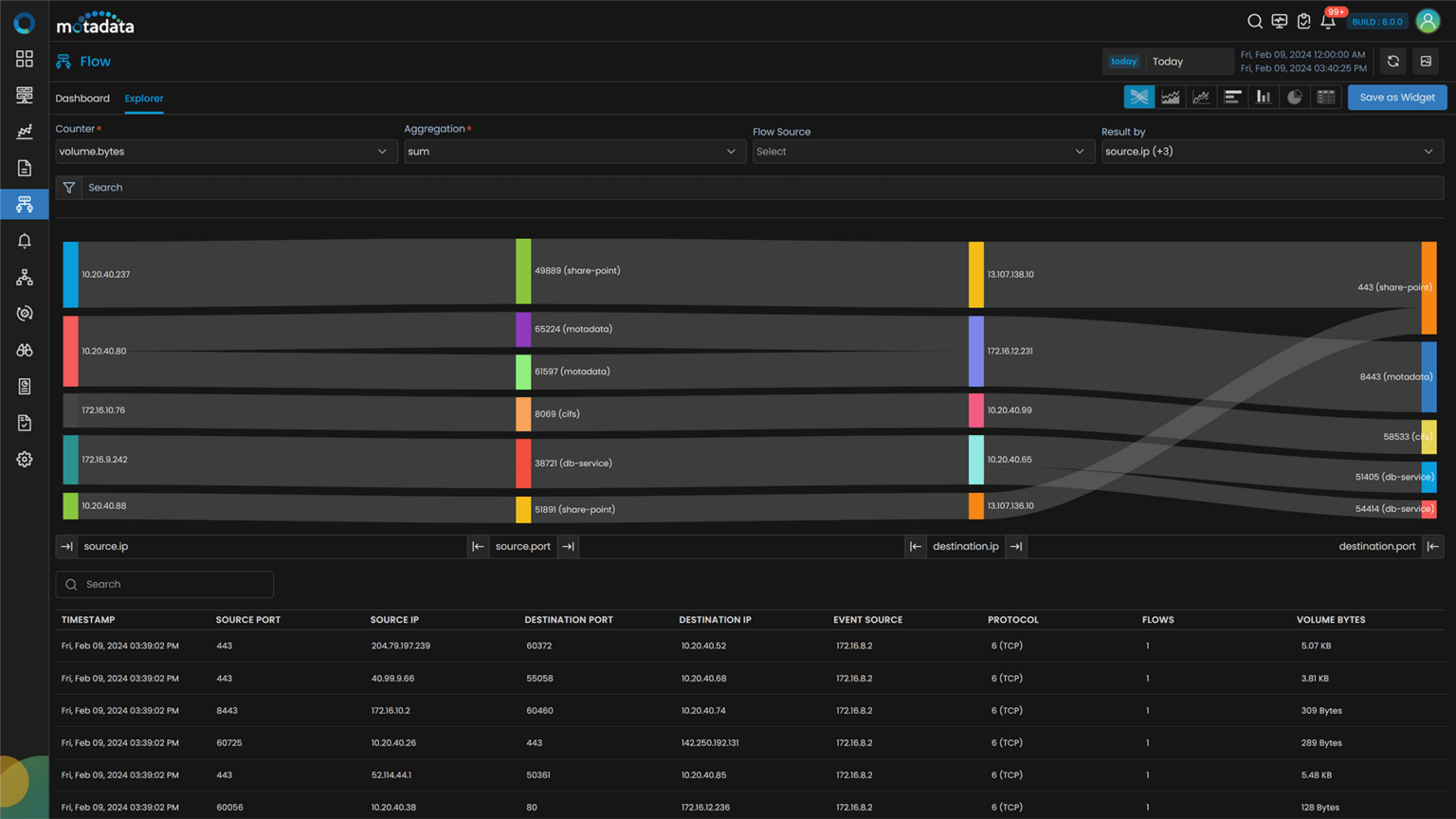
Flow Explorer: Charts traffic as a flow diagram; counters such as bytes and packets can be grouped by up to four fields (source IP, destination IP, port or protocol, for example), and any view saves as a dashboard widget
Flow policies: Alert on high bits per second, ICMP floods and sources that go quiet
That data answers practical questions, such as whether a slow branch link needs an upgrade or just a policy for one heavy application. Setup steps and supported formats live on the flow analytics page; for a quick manual method, our guide shows how to check bandwidth usage.
The Flow Explorer view below traces the heaviest conversations across one router, with the top bandwidth users and applications at a glance.
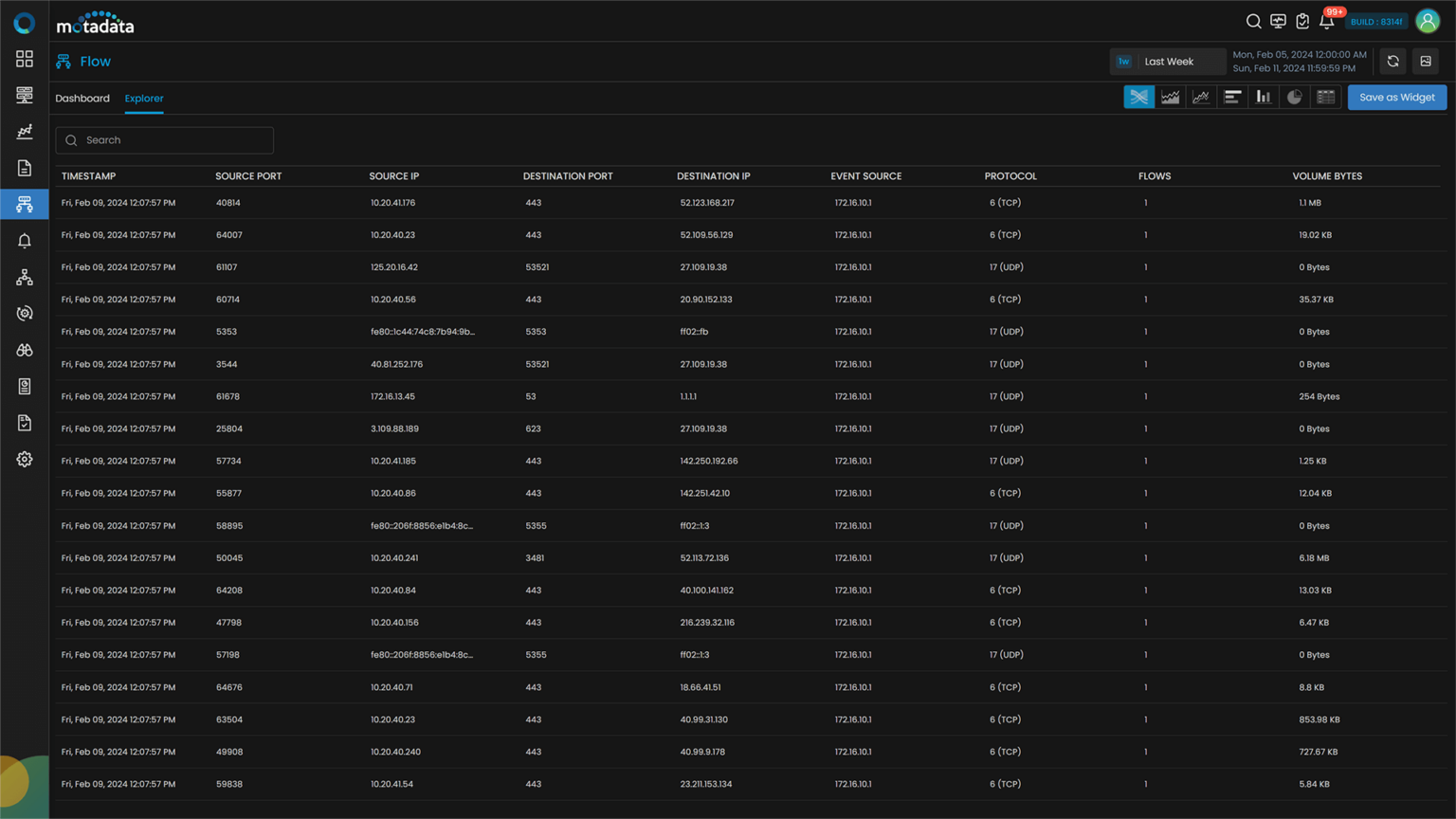
Below, the grid view lists those flows row by row. It is the faster way to read byte and packet counts for each conversation behind an unusual spike.
Supported Router Vendors
Eight router vendors have dedicated integrations in ObserveOps, and each one includes BGP, OSPF and IS-IS neighbor KPIs plus the IP route table. Looking for Cisco router monitoring or Huawei router monitoring software? The routing view is identical for both.
Vendor | Additional router KPIs |
IP SLA, VRF and multicast on top of sensors, chassis slots and buffer misses | |
Routing engine CPU, memory and temperature; line card (FPC) and field-replaceable unit (FRU) state; virtual chassis role | |
Temperature, voltage, fan speed, power use, storage and memory buffers | |
Reports temperature, fan RPM, power supply consumption and firmware version | |
Shows fan, power supply and temperature status, with firmware version | |
IPsec tunnel status, power consumption, temperature | |
Covers CPU, memory and the running software version | |
Active sessions, HTTP connections, processor CPU, sensor status |
Full KPI lists, with descriptions, are on each integration page. Adding a second vendor uses the same SNMP discovery steps as the first.
Run Router Monitoring Across Every Vendor with Motadata ObserveOps
No monitoring tool can read data a router doesn't share. Disable or restrict SNMP on a router and fewer metrics come back. With SNMP open, availability, hardware health, routing neighbors and traffic (plus IP SLA results on Cisco) all land in one ObserveOps view, part of Motadata network observability.
To choose the right router monitoring tool, check these points first:
Routing coverage: BGP, OSPF and IS-IS neighbor KPIs for every vendor you run, beyond Cisco alone
WAN evidence: Link utilization, IP SLA results and availability history you can bring to a provider review
Outage context: A Layer 3 map that shows which router failed first, with traps, syslog and configuration history beside it
Ready to implement Router Monitoring?
Discover how Motadata ObserveOps can help you monitor your infrastructure in real-time and respond to issues instantly.